The eero 7 features Wi-Fi 7 but lacks the 6 GHz band. (Image by Alejandro Medellin)
The eero 7 is the latest addition to the eero family, aiming to bring next-gen connectivity at a more affordable price point. It promises Wi-Fi 7 mesh coverage designed to blanket your home in fast, reliable connectivity, without the premium price tag of the eero Pro 7 or Max 7. The big question: can the eero 7 keep pace with its pricier siblings, or do the savings come at the cost of speed and stability? We put the system through its paces, testing everything to see if it truly delivers next-gen performance where it matters based on its specs, setup, price, performance, and value.
What We Like
Minimalist design
Streamlined app experience
Dual 2.5 gigabit Ethernet ports per unit
What We Don't Like
No 6 GHz band
Strict node placement requirements
Eero 7 Review Rating
(4.5/5)
BroadbandNow Bottom Line
The eero 7 prioritizes stability and ease of use over record-breaking speeds. It doesn’t include the 6 GHz band, but if you value consistent coverage, simple management, and a design that blends into modern spaces, the eero 7 is a top pick. You can get a three-pack for $349.99 at Amazon.
Our eero 7 Video Review
Curious to see how it works in real time? Check out our eero 7 video review below.
eero 7 at First Glance: Approachable Take on Wi-Fi 7
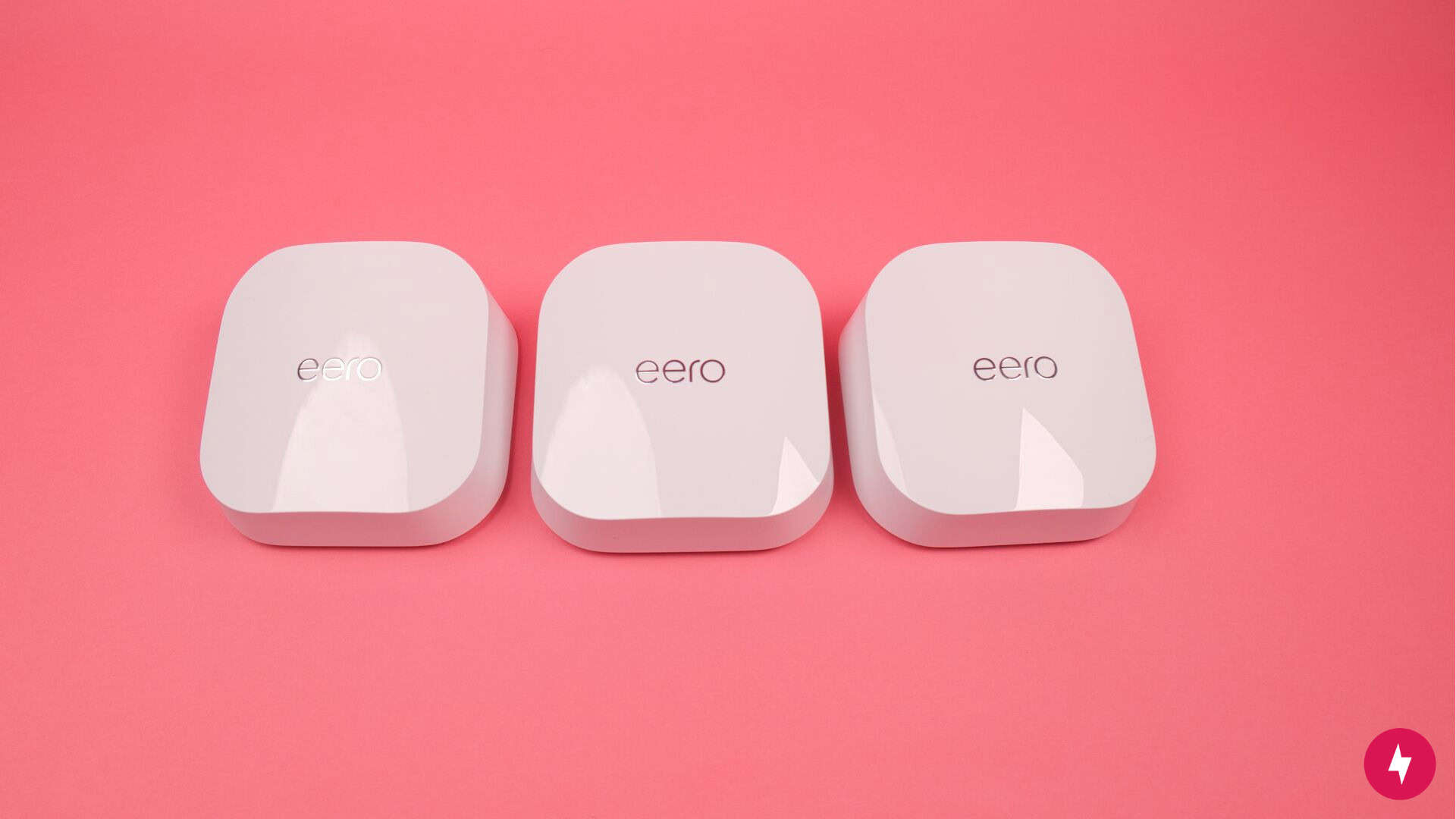
Like its siblings, the eero 7 features a sleek, minimalist design that looks clean and blends in seamlessly with any modern home. (Photo by Alejandro Medellin)
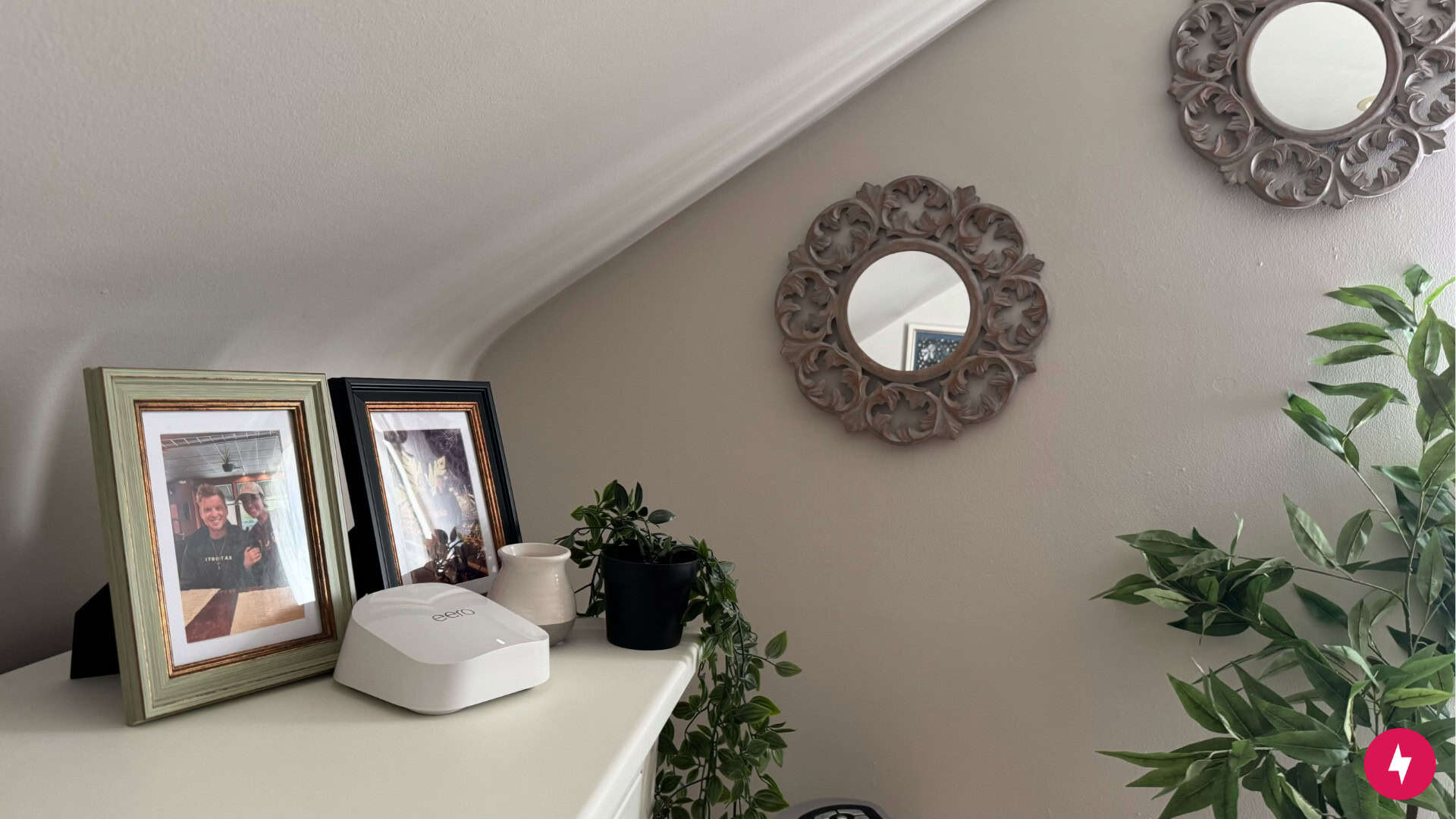
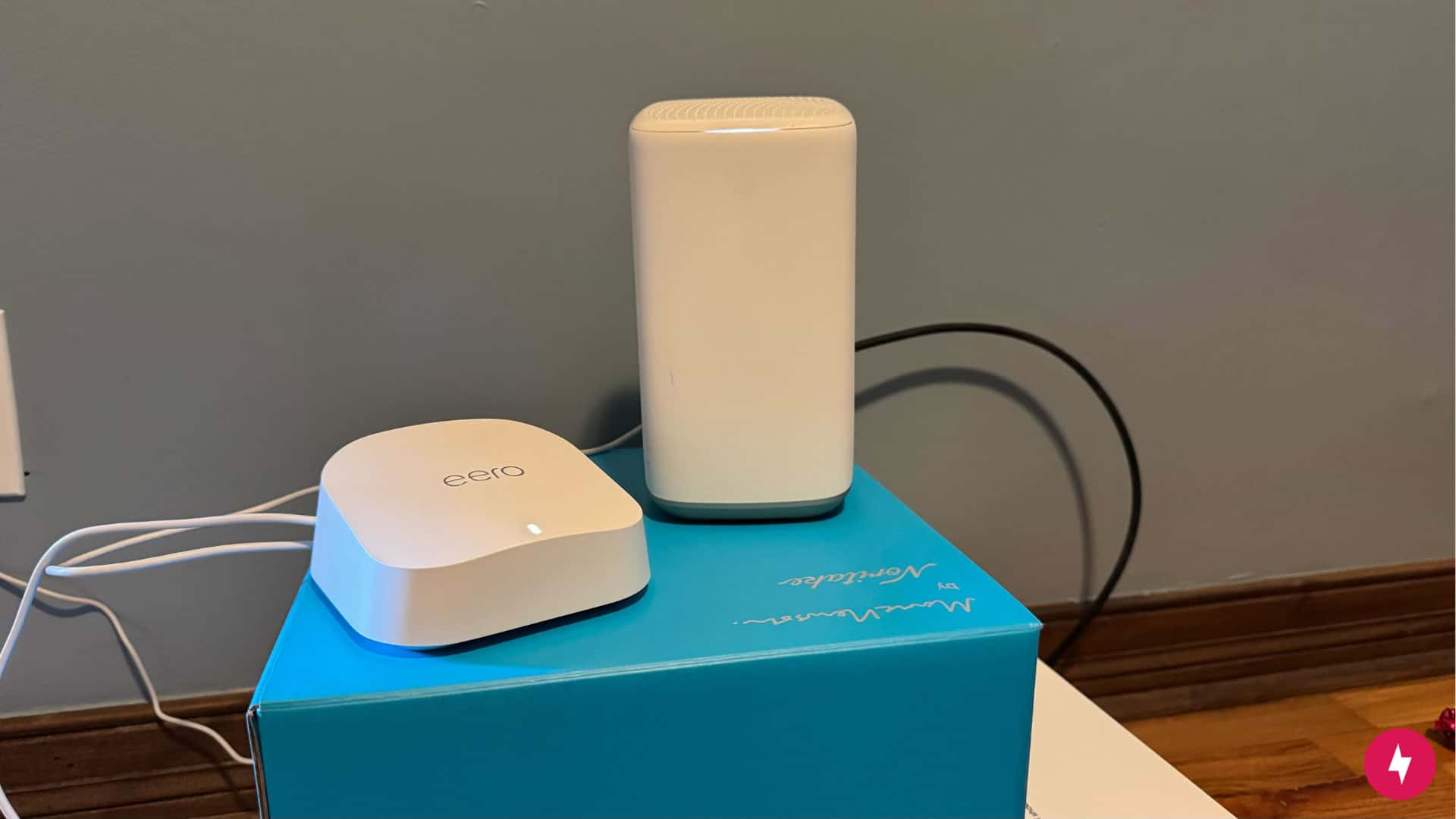
The eero 7 makes a strong first impression — not with antennas or angular gamer aesthetics, but with a sleek, all-white design that feels right at home in modern spaces. Each unit is smooth, rounded, and almost sculptural, drawing comparisons to Pixar’s EVE from WALL-E (for those who appreciate minimalist design with a touch of personality). You can place it on a shelf or desk without it looking out of place.
Beneath the understated exterior, the eero 7 brings Wi-Fi 7 capabilities into a more affordable tier. Dual-band connectivity with 240 MHz channel support, dual 2.5 Gbps Ethernet ports on every node, and built-in support for Matter, Thread, and Zigbee set the stage for fast speeds, stable mesh performance, and seamless integration with smart home devices. It’s a system designed to disappear visually, while quietly laying the groundwork for next-gen connectivity throughout the home.
The eero 7 is a dual-band mesh system with a BE5000 speed rating. Instead of the full tri-band setup you’ll see on the Pro 7 or Max 7, the eero 7 runs on just the 2.4 GHz and 5 GHz bands. That means you don’t get the 6 GHz band, which is one of Wi-Fi 7’s selling points for congestion relief and top-end throughput. It’s not a deal-breaker for most households, but it does put a ceiling on performance compared to more complete Wi-Fi 7 systems.
Management is all handled through the eero app, which remains one of the most user-friendly on the market. Security is covered with WPA3 and WPA2 encryption, and the nodes double as smart home hubs thanks to built-in radios for Matter, Thread, and Zigbee — so you can ditch a separate bridge for most IoT setups. At around $350 for a three-pack on Amazon, the eero 7 is priced well below many Wi-Fi 7 mesh kits. Just know what you’re getting: strong whole-home coverage, next-gen features, and smart home integration — but without the raw horsepower or port flexibility of its pricier siblings.
eero 7 Installation: Sleek Hardware, Picky Placement
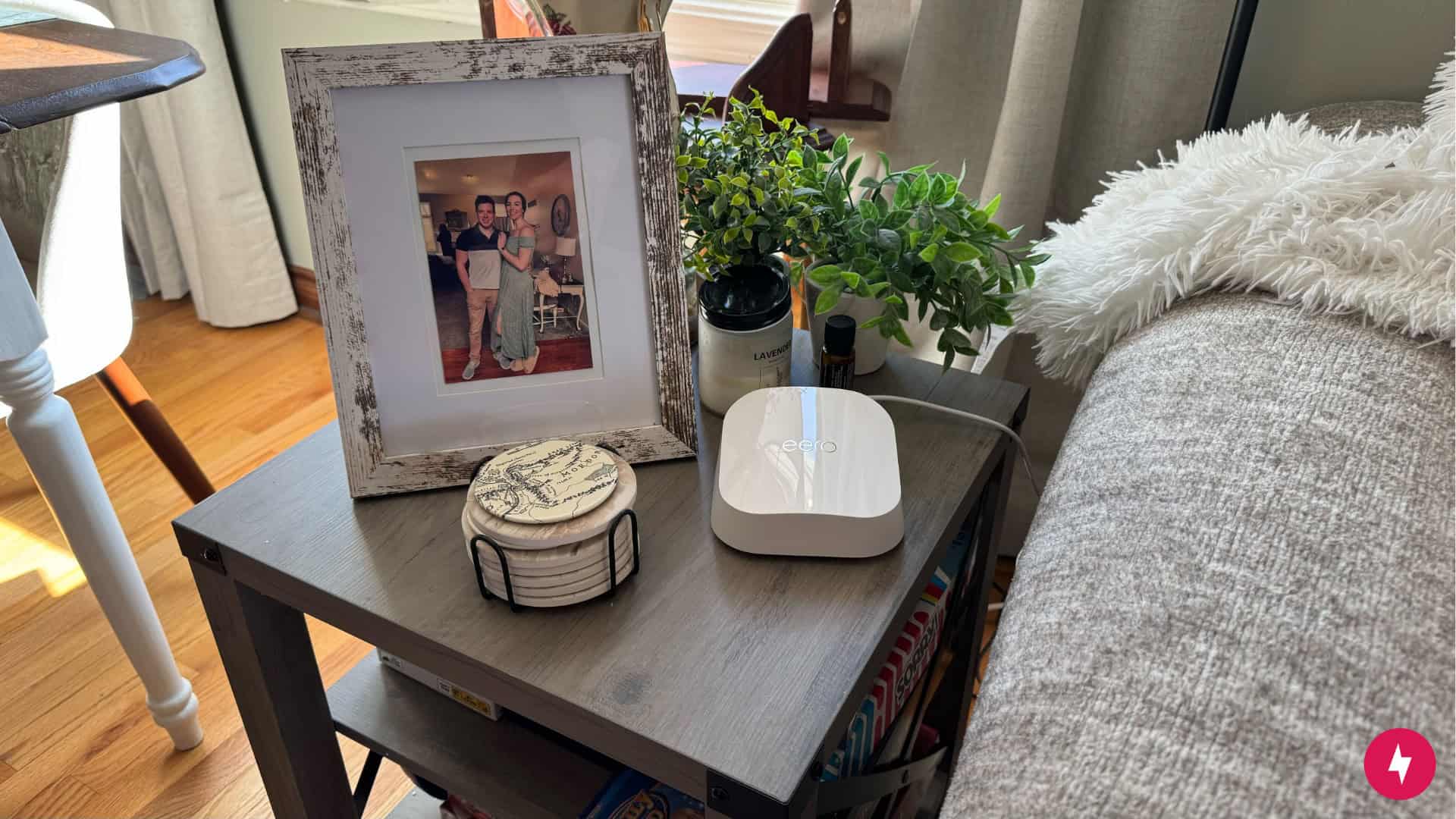
While the eero 7 looks simple on the outside, setting it up was far from it. (Photo by Hanna Shemke)
Getting the system online was more complicated than the packaging might suggest. The eero app deserves credit for being one of the cleanest, most approachable router apps out there — it guided me step by step, from resetting my modem to pairing nodes, with clear instructions and real-time feedback. The eero 7 stumbled during setup, but when it was running, it delivered the polished, user-friendly experience the brand is known for.
Unboxing and Initial Setup
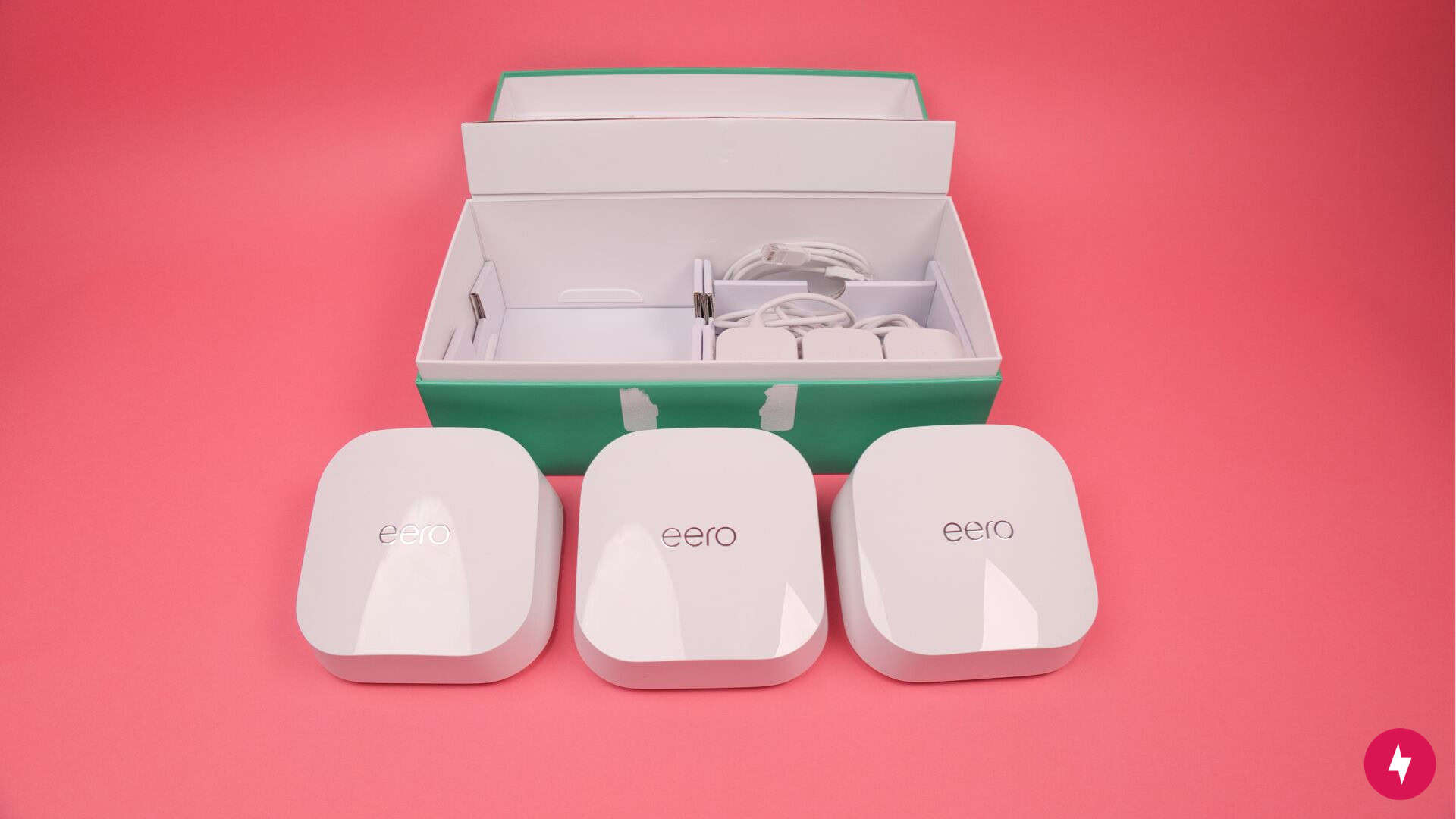
It was easy to remove the nodes from the box and avoid any tangled cords. (Photo by Alejandro Medellin)
Unboxing the eero 7 immediately set the tone: this is networking gear dressed like premium tech. Beneath the three units, I found three 15W USB-C power adapters, an Ethernet cable, and slim documentation with a QR code for downloading the eero app. On the back of each unit are two 2.5 Gbps auto-sensing Ethernet ports alongside the USB-C power input. It’s a minimalist approach (enough for WAN plus a wired device or backhaul), but it does mean that heavy wired setups will need a dedicated switch.
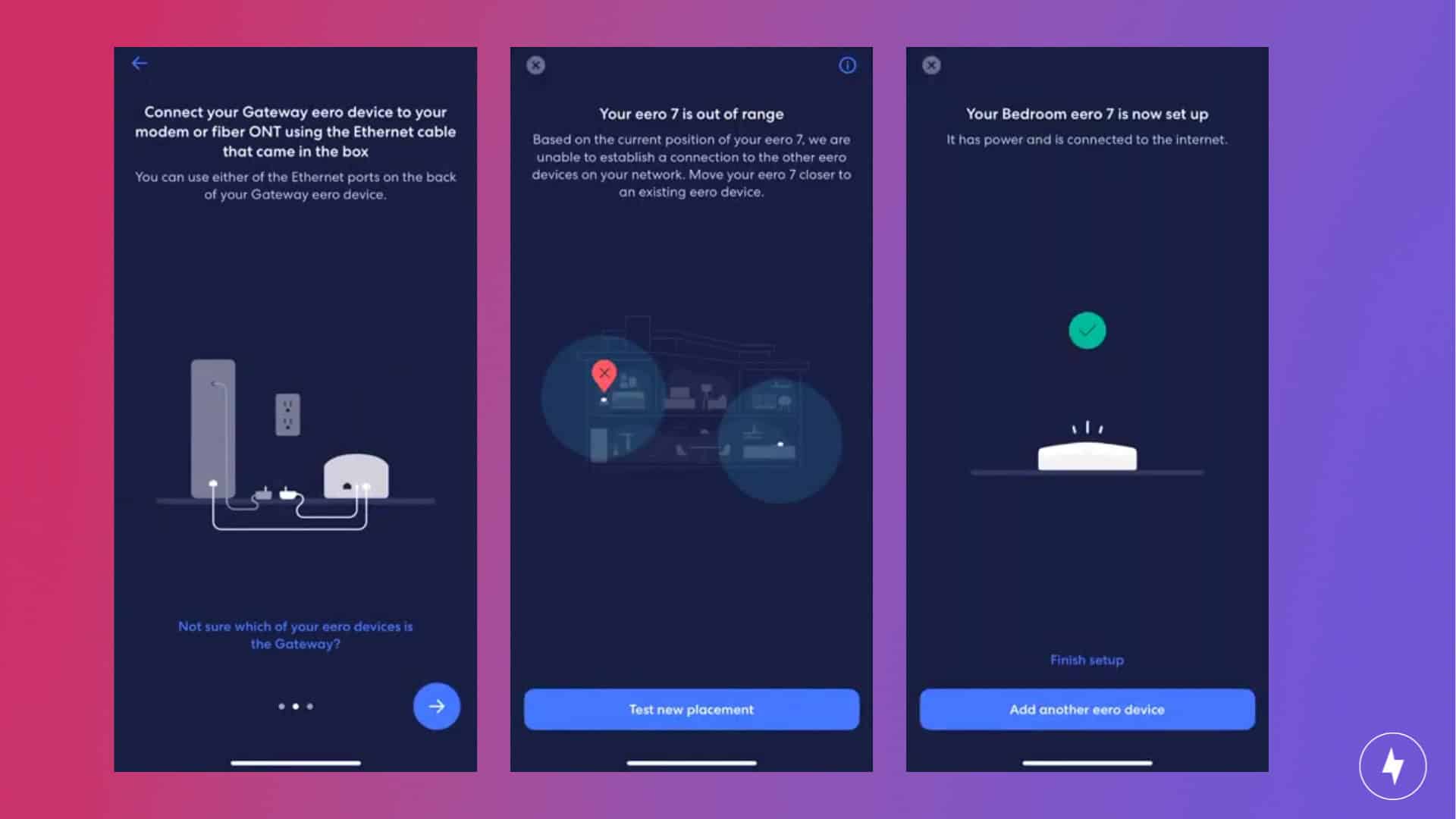
Setup kicked off in the eero app, and the first steps were straightforward: reset my modem, plug in the primary eero, and follow the on-screen prompts. The first node locked in quickly, and from there, the app guided me through naming the network, setting a Wi-Fi password, and establishing a connection.
Placement might be tricky if you have to set up more than one node. (Screenshots by Hanna Shemke)
The challenge came with adding the other two nodes. Unlike other mesh systems that feel automatic, the eero 7 can be picky about placement. My second node was flagged as being out of range multiple times, despite being in clear view of the first. I tried the office, then the living room, even my upstairs reading nook — all vetoed by the app. Ironically, the one spot it finally accepted was the bedroom, which was farther away. The third node required a similar process of repositioning and, in some cases, manually re-adding through the app. It wasn’t impossible, but it did feel like trial and error with invisible boundaries.
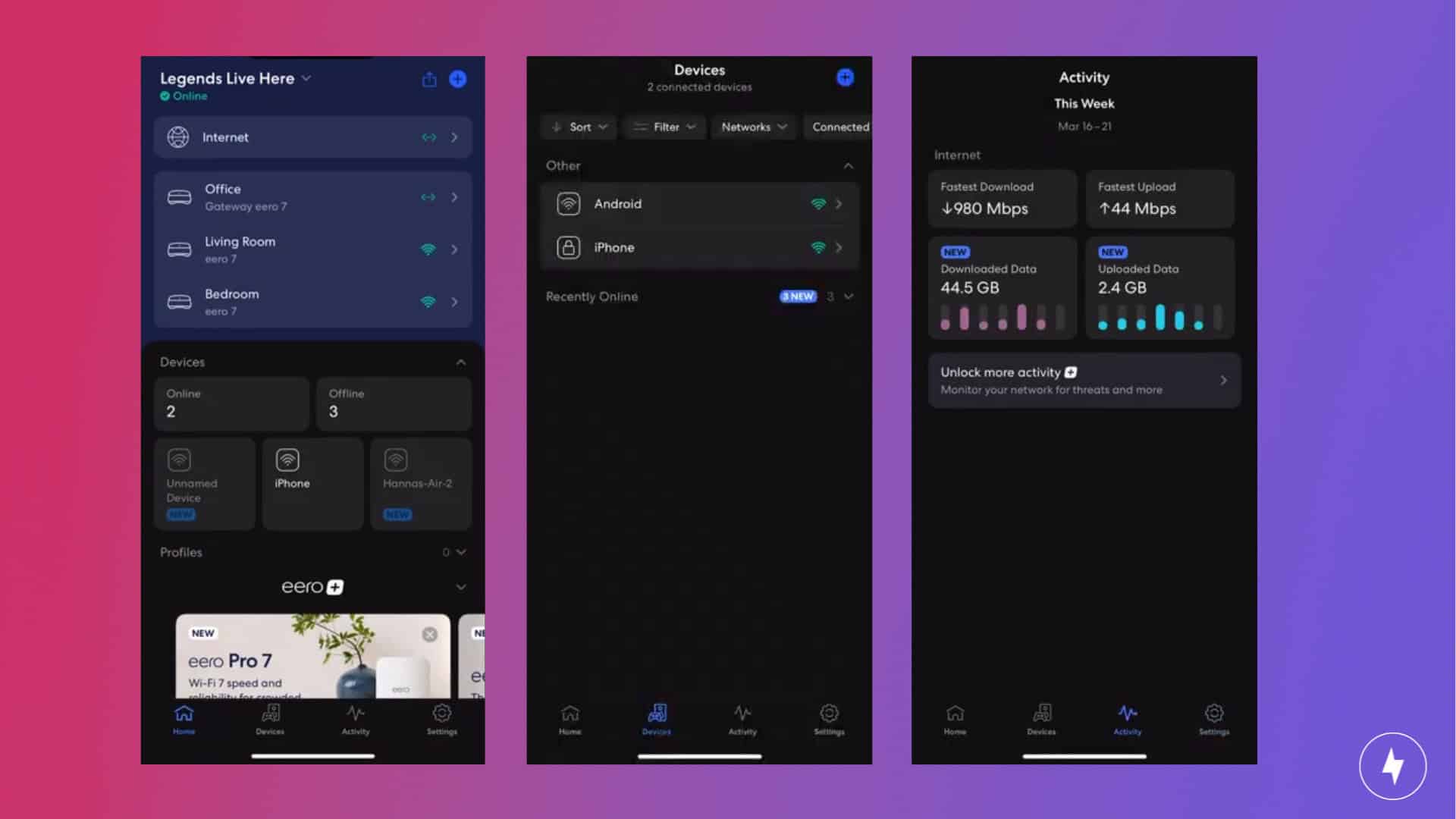
Once the system was online, the frustration melted away. The eero app became a powerful dashboard, showing device connections, allowing me to run speed tests, pause internet access, and set up parental controls with ease. The interface is clean, responsive, and avoids the clutter that plagues many networking apps. The only lingering critique is that the app could be more forgiving during placement, but once past setup, managing the network felt effortless.
Navigating the Mobile App
It’s easy to manage all of your nodes and connected devices from one screen. (Screenshots by Hanna Shemke)
The app doesn’t stop at surface-level convenience. Families can create profiles to group devices and then schedule downtime or pause internet access altogether — perfect for homework hours, bedtimes or simply reclaiming bandwidth. Those who opt into eero Plus unlock more robust filtering and security tools, which add an extra layer of protection and parental oversight without overwhelming casual users.
Power users get value here, too. Every node’s performance is visible in real time; speed tests can be run per device or across the network; and guest access is managed cleanly without requiring extra steps. It’s not a “toggle everything” dashboard as you’d find on a prosumer router, but the transparency and control are more than enough for households that care about stability and visibility without endless tweaking.
The app also shines as a smart home hub. With Matter, Thread, and Zigbee baked directly into the eero 7, device onboarding feels less like a chore and more like a single ecosystem — especially if you’re already using Alexa. Beginners benefit from fewer boxes and apps, while more advanced users can appreciate having a unified backbone for their IoT setup.
In short, the eero app works because it adapts to your needs. It’s clean and approachable for someone setting up their very first mesh system, but also gives enough insight and flexibility for those who want to keep tabs on dozens of devices. It’s not designed to replace enterprise-grade controls — and that’s deliberate. Instead, it focuses on making home networking feel both manageable and reliable for anyone.
eero 7 Performance: Everyday Reliability Over Benchmark Bragging Rights
The eero 7 performed better the farther away it was from the modem. (Photo by Hanna Shemke)
I tested the eero 7 in my two-story bungalow under both calm and chaotic conditions — from casual browsing and video calls to streaming across multiple smart devices simultaneously. I ran tests in multiple spots around the house: about five feet from the main node, 15 feet away with two walls in between, and upstairs on the second floor.
This setup let me see how the eero 7 handled distance, interference, and heavy traffic in a real-world environment. As a dual-band Wi-Fi 7 system, it doesn’t have the extra 6 GHz band, so I was curious how it would balance multiple devices on just the 2.4 GHz and 5 GHz bands. With support for 240 MHz channels and Wi-Fi 7 features like Multi-Link Operation, the system is still built to deliver lower latency and more efficient throughput than Wi-Fi 6E — but the question was how much of that translated into everyday use.
Testing the Router
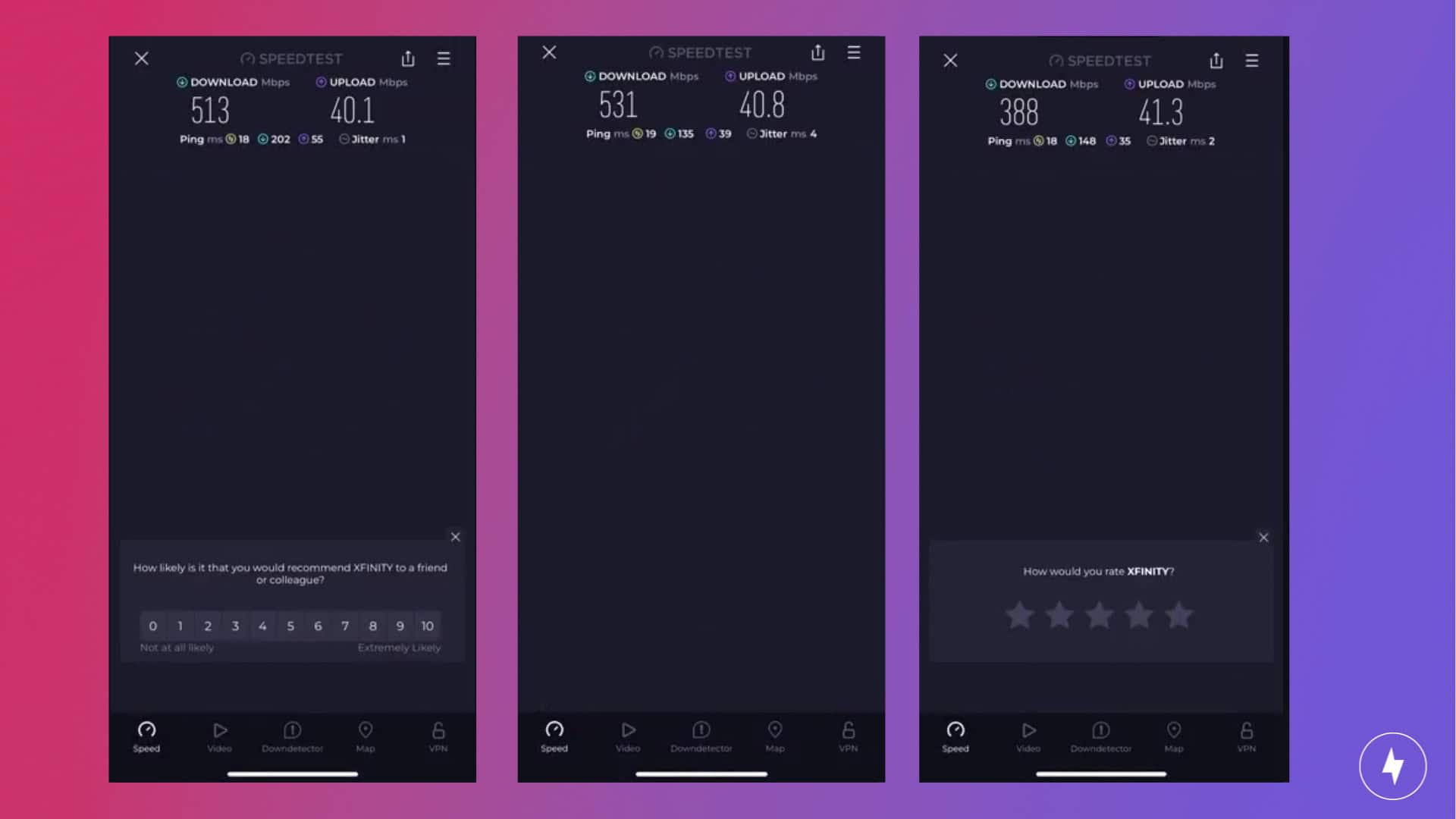
The eero 7 didn’t impress at first during calm conditions. (Screenshots by Hanna Shemke)
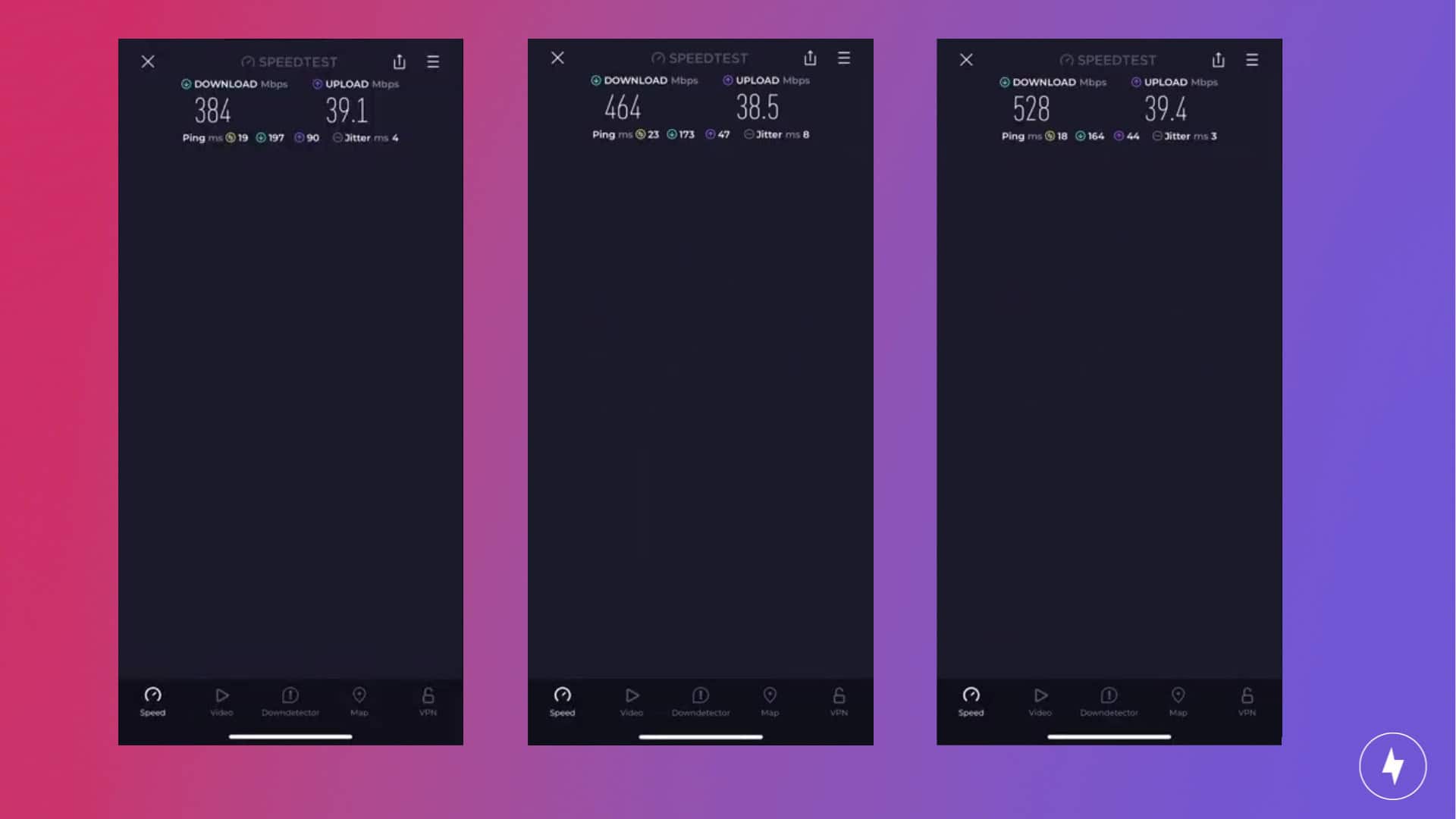
At five feet from the main node, speeds were steady but underwhelming. In calm conditions with only a few devices connected, download speeds were 513 Mbps. When the network was fully loaded with 4K streaming, gaming downloads, and music playback, speeds dropped to 384 Mbps — a 25 percent decrease.
Fifteen feet away with two walls in between, the second node performed better than the main router. In calm conditions, downloads reached 531 Mbps, a 3.5 percent increase compared to the primary node. Under busy conditions, downloads reached 464 Mbps, a 21 percent gain over the main node under load. Across five feet and fifteen feet tests, upload speeds remained consistent, hovering around 40–41 Mbps.
The eero 7 lives up to its mesh networking capabilities. (Screenshots by Hanna Shemke)
Upstairs, performance shifted again. In calm conditions, downloads dropped to 388 Mbps, a 27 percent decrease compared to the primary node. Once the network was busy, though, the results flipped: downloads rose to 528 Mbps, a 36 percent increase compared to the calm test in the same location. Upload speeds saw a slight dip from downstairs tests, but only by a 1–2 Mbps difference, which isn’t significant and not uncommon for upload speeds.
Taken together, the eero 7 showed a surprising trend. Close to the main node, speeds didn’t fully leverage Wi-Fi 7’s potential, but at mid-range and upstairs, the mesh network balanced loads more effectively. While the absence of a 6 GHz band limited absolute peak speeds, the system proved resilient, improving downloads at distance when traffic was heavy.
Comparing to Competitors
The eero 7 is a good entry-level option for first-time Wi-Fi 7 users. (Photo by Hanna Shemke)
The eero 7 sits in a unique position within the Wi-Fi 7 landscape. It’s priced below many premium tri-band systems like the TP-Link Deco BE63, but that comes with trade-offs. Those higher-end models deliver tri-band performance with a dedicated 6 GHz band and faster raw throughput, making them better suited for households chasing maximum speed or juggling dozens of high-demand devices at once.
The eero 7 takes a different approach. Rather than aiming for top-of-chart benchmarks, it emphasizes stability, ease of use, and intelligent routing. In real-world use, it may not post the most dramatic download numbers, but it consistently keeps a home connected across multiple floors and heavy traffic scenarios. For many households, that reliability matters more than hitting multi-gigabit speeds on a speed test.
Compared to gaming-focused routers like the TP-Link Archer BE230 or Asus ROG Rapture GT-BE98 Pro, the eero 7 is less about customization and raw throughput and more about plug-and-play simplicity. Those looking for advanced QoS controls, multi-gig port arrays, and performance tuning for esports will find better fits in that category. But if your priority is a mesh system that “just works,” blends seamlessly into your home, and delivers consistent coverage even under stress, the eero 7 holds its own.
Here’s how the overall ownership costs of the eero 7 compare to similar mesh routers.
Router
Router System Cost
Additional Features Cost
eero 7
$349.99
$99.99 per year (or $9.99 per month)
TP-Link Deco BE63
$449.99
Basic features included, advanced features cost $35.99 per year (or $4.99 per month)
TP-Link Archer BE230
$86.98
Basic features included, advanced features cost $35.99 per year (or $4.99 per month)
Asus ROG Rapture GT-BE98 Pro
$597.99
Features included
Our Verdict: An Accessible Entry Point to Wi-Fi 7
If you already have eero products, the eero 7 will fit right in. (Photo by Hanna Shemke)
While the eero 7’s dual-band design means it won’t post the fastest Wi-Fi 7 numbers, it makes up for it with reliable whole-home coverage and smooth performance, even under load. During testing, the system consistently kept devices connected and balanced traffic, proving that real-world dependability can matter more than headline-grabbing throughput.
The setup wasn’t flawless. Repositioning nodes, repeated app prompts, and a few manual retries tested my patience, but once everything was locked in, the mesh worked seamlessly. From there, the eero app shone as an intuitive, no-nonsense command center, making it easy to manage devices, pause access, run speed checks, and support a growing smart home with Matter, Thread, and Zigbee baked in.
In the end, the eero 7 is best described as Wi-Fi 7 without the drama. It may not be flashy, but for most households it’s exactly what you want: a sleek, reliable mesh system that quietly keeps everything connected.
How We Assess Routers
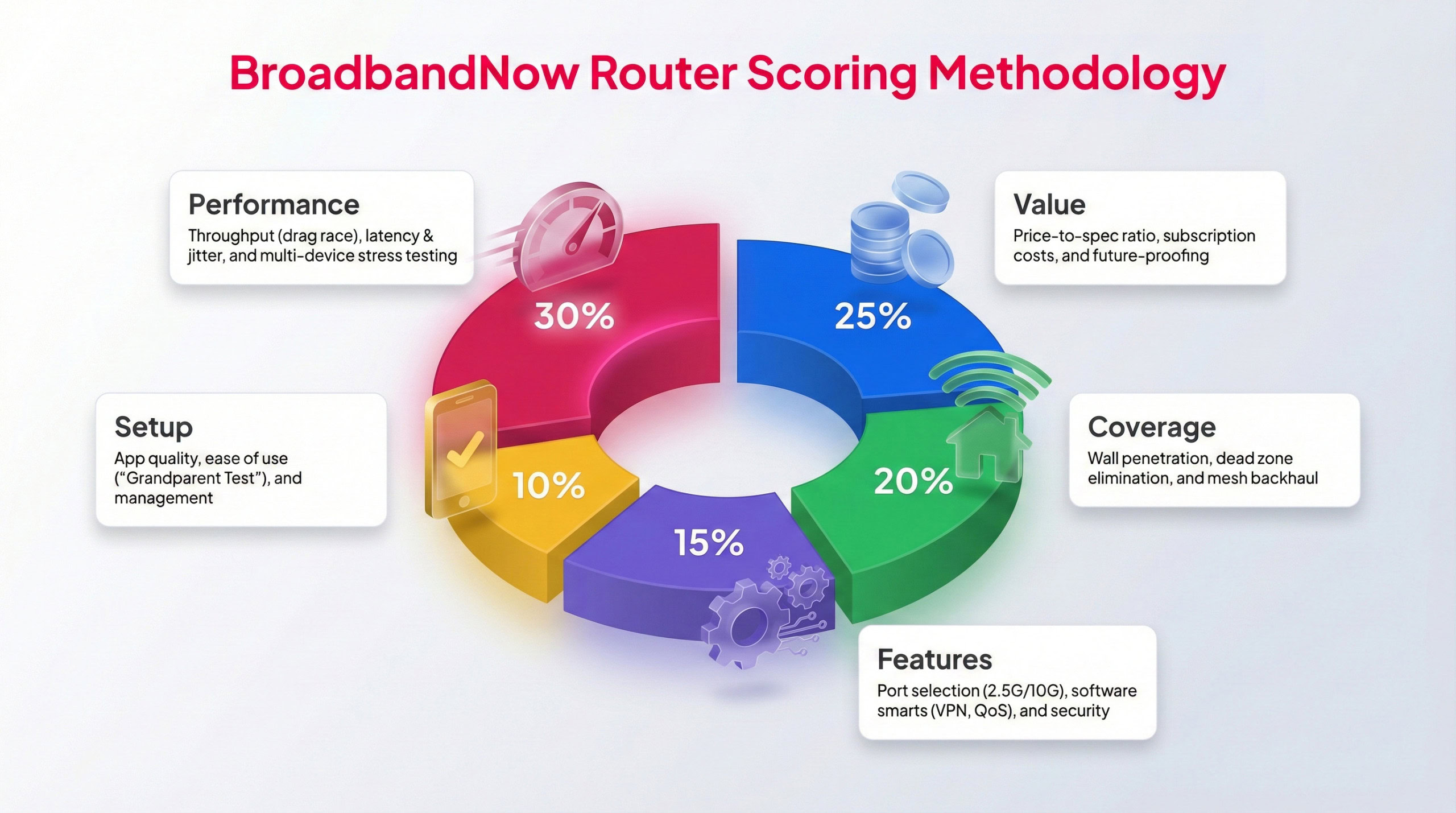
Each BBN expert tests routers following this methodology to provide a weighted score.
To keep our router reviews consistent and comparable, we rely on the same testing methodology across the board. The eero 7 was evaluated in a real home environment over a 30-day period by our broadband testing team. During that time, we measured how it performs in everyday use, whether its feature set aligns with its price point, and how well it manages high demand. Our testing covered high-traffic evening hours, bandwidth-intensive activities like 4K streaming and gaming, and speed tests conducted in multiple rooms throughout the home.
Each category receives a score on a 1–5 star scale using a weighted system, with performance and value carrying the most weight. Below, you’ll find our ratings across five key categories, along with a closer look at how the eero 7 performed during testing in my two-story bungalow.
Performance – 4/5: I tested the eero 7 at varying distances from the main node, in both busy and calm conditions, and while speeds remained steady, they were a bit underwhelming. The absence of the 6GHz band did impact top speeds, but I was impressed by how the satellite nodes handled high-bandwidth activities.
Value – 5/5: The eero 7 is a welcome entry point for users looking to upgrade their internet setup to Wi-Fi 7. The mesh system is reasonably priced, delivers reliable speeds, and helps make a future-proof setup more accessible.
Coverage – 5/5: With a maximum coverage of 6,000 sq. ft., the eero 7 is built for large households, and throughout my tests, the system proved it could handle it. While setting up the nodes took some trial and error, it was proof that the eero 7 will work hard to make sure your home can push its coverage to the limits.
Features – 4/5: This system offers impressive coverage with potential gigabit speeds, all with seamless integration for smart home devices. It’s exactly what you expect from a reliable mesh system. One major area the eero 7is lacking is with tri-band radios. Compared to similar Wi-Fi 7 mesh networks, the lack of a 6GHz band could deter power users.
Setup – 4.5/5: Eero devices welcome a pleasant setup experience, with a user-friendly app that’s simple enough for even the least tech-savvy person to navigate. The app features easy step-by-step instructions to get the main node up and running. I did run into some issues with getting the satellite nodes set up, with the app pushing me to find more optimal placements. While that was a bit cumbersome, I appreciated the effort to help me set up my system to get the most out of it.
Frequently Asked Questions About the eero 7
Does the eero 7 work with older eero models?
The eero 7 is backward-compatible with previous eero generations, so you can add it to an existing eero network. Keep in mind that the network will default to the capabilities of the oldest model in the mix.
Can the eero 7 be used with a VPN?
The eero app doesn’t natively support VPN configuration on the router level. You can still run a VPN on individual devices, or pair the system with a VPN-enabled gateway if you want coverage across your whole network.
Does the eero 7 support wired backhaul?
Yes, each unit includes two 2.5 Gbps Ethernet ports that can be used for wired backhaul between nodes, which helps stabilize performance in larger homes.
How many devices can the eero 7 handle at once?
Amazon doesn’t publish an official device limit, but in practice, a three-pack can comfortably support dozens of connected devices. Thanks to Wi-Fi 7 features like Multi-Link Operation, it’s better equipped to manage simultaneous traffic than older eero models.
Do I need an Amazon account to set up the eero 7?
No, you don’t need an Amazon account to set up the eero 7. You can use your email address or phone number instead. However, linking your Amazon account will offer extra features.
Is there a monthly fee for using the eero 7?
Core functionality is free through the eero app. However, advanced features such as enhanced parental controls, security filtering, and ad blocking are only available with an eero Plus subscription, which is billed monthly or annually.
Can the eero 7 be wall-mounted?
Not directly. The units don’t include mounting brackets, but they’re light enough to sit on shelves, furniture, or third-party mounts designed for eero devices.