What’s the Best Internet Speed for the PS5?
Reduce lag, speed up downloads, and improve online gameplay with the right internet connection for your PS5.
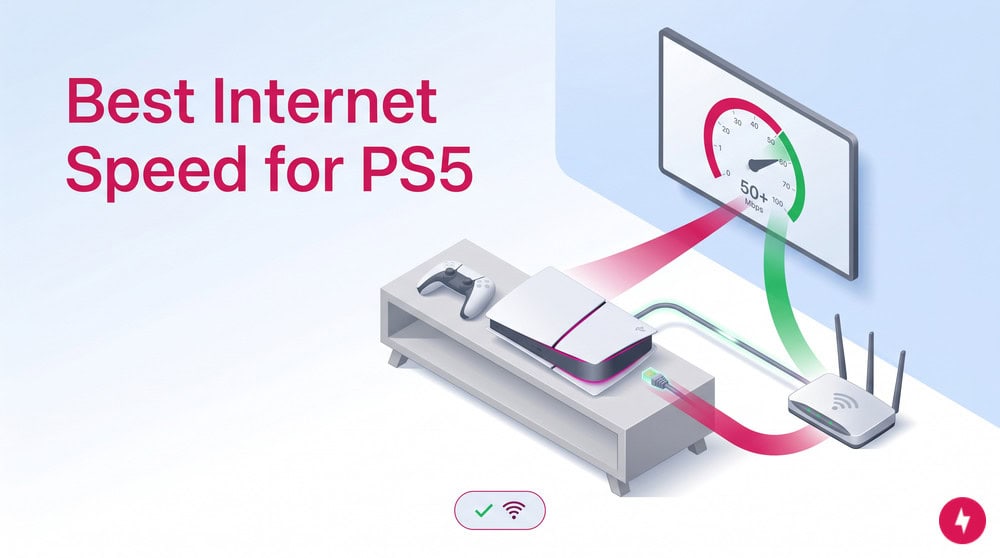
- Aim for 100 Mbps download speeds and low ping for the best PS5 performance. While online gaming can work with slower connections, 100 Mbps download speeds and a ping below 30 ms provide a smoother experience for multiplayer gaming, downloads, and updates.
- Use a wired Ethernet connection for the most reliable gameplay. Ethernet connections deliver lower latency, fewer connection drops, and more consistent speeds than Wi-Fi for competitive gaming.
- Optimize your home network to improve PS5 speeds and reduce lag. Simple adjustments, like moving closer to your router and downloading games in Rest Mode, can improve connection quality and download performance.
A fast internet connection can make a major difference in your PlayStation 5 gaming experience. Whether you’re downloading a new game, competing in online multiplayer matches, or streaming gameplay to Twitch, your connection affects performance. In this guide, we’ll explain the best internet speeds for PS5 gaming, how download speed differs from ping, and how to optimize your console for smoother gameplay.
- Download speed: 100 Mbps (minimum 25 Mbps)
- Upload speed: 10 Mbps
- Ping (latency): Below 30 ms
Watch: Best Internet Speed for the PS5
Looking for the short answer? Our video guide gives you a breakdown of everything you need to know about internet speed for your PS5 in less than one minute!
Quick Summary: The Golden Numbers for PS5
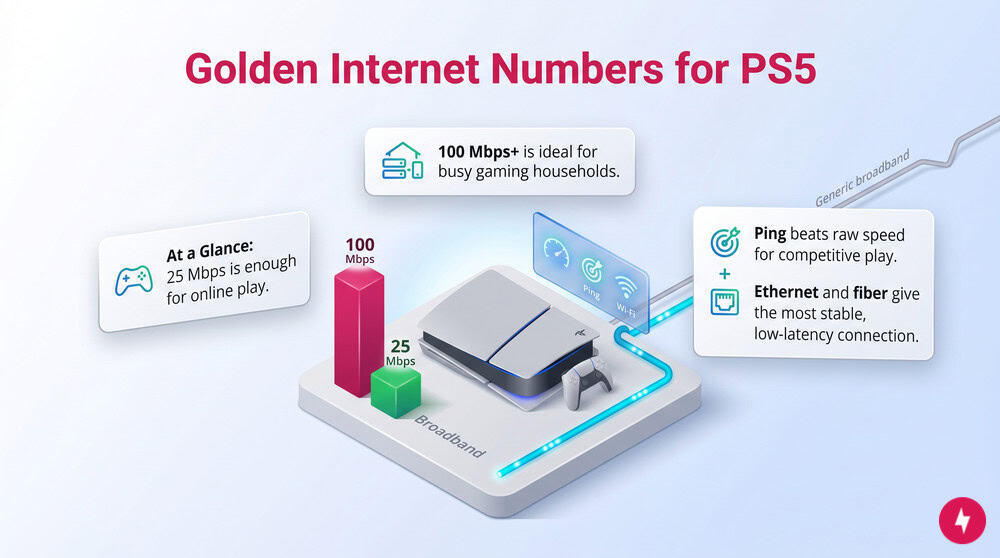
| Metric | Recommended value |
|---|---|
| Minimum download speed | 25 Mbps |
| Recommended download speed | 100 Mbps+ |
| Upload speed for streaming | 10 Mbps+ |
| Ideal ping | Below 30 ms |
| Best connection type | Wired Ethernet |
At a Glance
- 25 Mbps is enough for online gaming.
- 100 Mbps+ provides faster downloads and smoother performance in busy households.
- Ping matters more than speed for competitive multiplayer gaming.
- Ethernet connections outperform Wi-Fi for stability.
- Fiber internet typically delivers the lowest latency for gaming.
Minimum vs. Recommended Internet Speeds
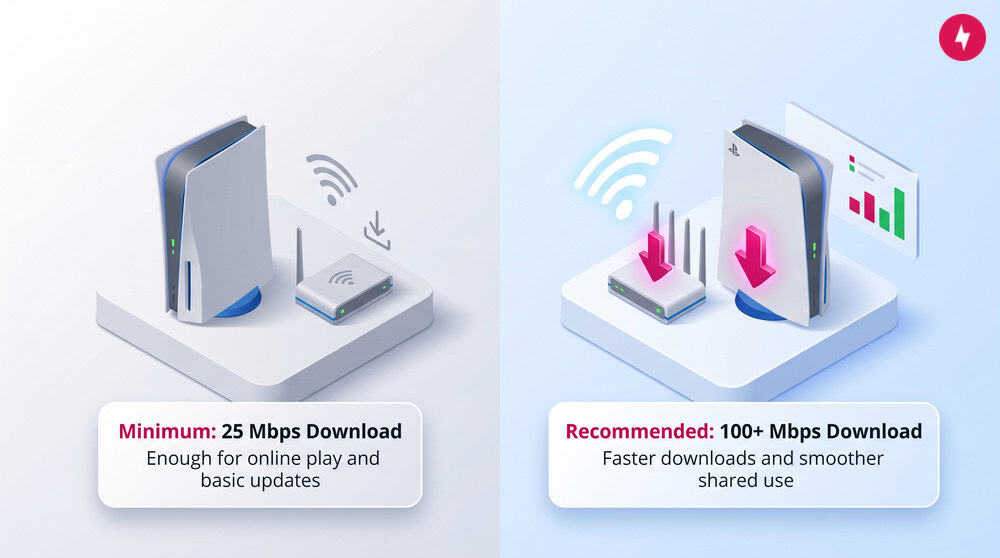
While Sony does not publish a strict internet speed requirement for PS5 gaming, real-world performance generally falls into these ranges:
| Activity | Recommended speed |
|---|---|
| Online gaming | 25 Mbps |
| Downloading large games | 100 Mbps+ |
| Multiple users/devices | 100–300 Mbps |
| Streaming gameplay | 10 Mbps upload |
| Frequent game downloads | 300 Mbps+ |
Minimum Speed
A 25 Mbps download connection is typically enough for:
- Multiplayer gaming
- Voice chat
- Game updates
- Digital purchases
Recommended Speed
A 100 Mbps or faster connection provides:
- Faster downloads
- Better performance when multiple devices are online
- Reduced waiting time for updates
- Improved streaming quality
What a Fast Connection Unlocks on PS5
Beyond online gaming, a reliable internet connection powers many of the PS5’s most popular features such as:
- PlayStation Plus
- Remote Play
- PlayStation App integration
- Cross-generation multiplayer
- Session Share
- Game hubs and community features
While faster internet is always better for gaming, many ISPs on the market offer plans with internet speeds more than enough to keep you connected. The type and plan will depend on your overall internet needs. We’ve listed the most popular ones below:
| Internet provider | Connection type(s) | Max download speeds | Typical latency |
|---|---|---|---|
| AT&T | Fiber | 5 Gbps | 5–15 ms |
| CenturyLink | Fiber, DSL | 940 Mbps | 5–15 ms (Fiber), 30–60 ms (DSL) |
| Spectrum | Cable | 2 Gbps | 15–30 ms |
| T-Mobile 5G | 5G | 498 Mbps | 30–50 ms |
| Viasat | Satellite | 200 Mbps | 500+ ms |
| Verizon | 5G, Fiber, DSL | 5 Gbps | 5–15 ms (Fiber), 30–50 ms (5G) |
| Xfinity | Cable | 2 Gbps | 15–30 ms |
Download Speed: How Fast Will My Games Install?
Modern PS5 games can exceed 100 GB, so download speed matters more than ever. The faster your download speed, the quicker you can start your gaming session.
Estimated Download Times
| Game size (examples) | 25 Mbps | 100 Mbps | 1 Gig |
|---|---|---|---|
| 50 GB (Spider-Man) | ~4.5 hours | ~1.1 hours | ~7 minutes |
| 150 GB (Call of Duty) | ~13.5 hours | ~3.4 hours | ~20 minutes |
Actual download times may vary based on PlayStation Network traffic, Wi-Fi performance, and server congestion.
Digital vs. Disc PS5 Consoles
The PS5 is available in both Digital Edition and Disc Edition models. While both consoles can download games from the PlayStation Store, Digital Edition owners rely entirely on internet downloads for new purchases. As game sizes continue to grow beyond 100 GB, faster internet speeds can significantly reduce download times and waiting periods.
Why Download Speed Matters
Higher download speeds help you:
- Install games faster
- Download updates more quickly
- Spend less time waiting and more time gaming
Other Factors Affecting Speed:
- Connection type: Your internet plan’s connection type is one of the biggest factors in determining your household’s overall internet speeds. Fiber and cable internet often provide high internet speeds, while satellite and 5G offer just enough to keep you afloat.
- Network traffic: Peak network congestion hours can slow down your internet speeds and affect your gaming sessions.
- Wired vs. wireless: You can connect to the internet on your PS5 using either a wireless connection or a direct Ethernet connection using a Cat6 Ethernet cable. In this case, it’s a matter of mobility versus internet signal strength. A wired Ethernet connection is faster than even the fastest Wi-Fi options.
- Router location: The closer your console is to the router, the stronger your connection will be. Besides distance, walls or other objects can also interfere with the signal, especially if you keep your devices in cabinets.
- Number of devices: If you live in a tech-savvy household, chances are you may be using multiple devices all throughout your living space, including your PS5. More devices use more bandwidth and can slow your internet connection.
Latency (Ping) vs. Speed: What Actually Matters for Lag?
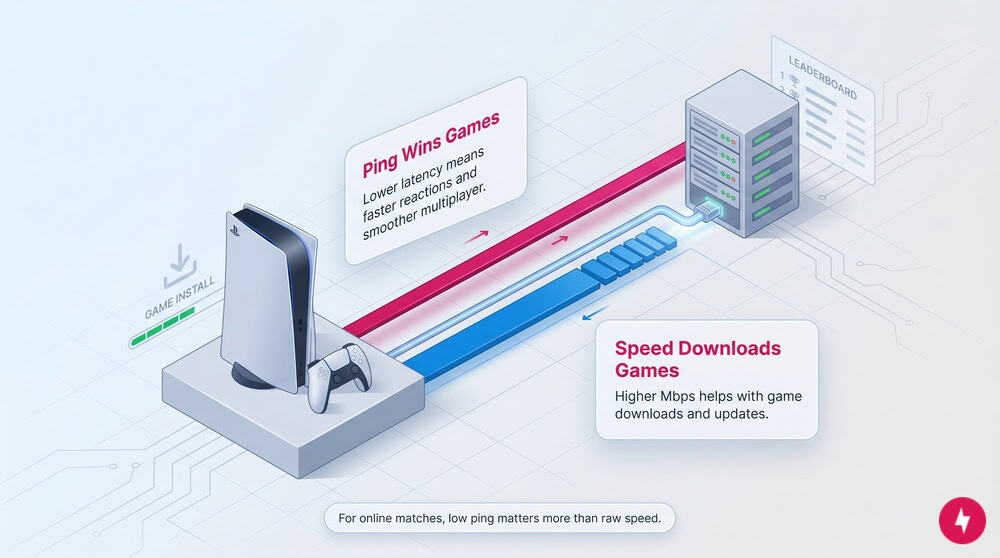
Many gamers focus on download speed, but ping is often more important.
What Is Ping?
Ping measures how long it takes data to travel between your PS5 and a game server. It is measured in milliseconds (ms).
| Ping | Gaming experience |
|---|---|
| Under 20 ms | Excellent |
| 20–50 ms | Good |
| 50–100 ms | Playable |
| Over 100 ms | Noticeable lag |
Download speed affects:
- Game downloads
- Updates
- Streaming content
Ping affects:
- Input responsiveness
- Hit registration
- Competitive gameplay
- Rubber-banding and lag
For multiplayer titles, a lower ping often matters more than a faster download speed.
Upload Speed: Requirements for Streaming to Twitch and YouTube
If you stream directly from your PS5, upload speed becomes important.
| Activity | Upload speed |
|---|---|
| Casual online gaming | 3-5 Mbps |
| 720p streaming | 5-8 Mbps |
| 1080p/60 fps streaming | 10 Mbps+ |
A stable upload connection helps prevent:
- Dropped frames
- Stream buffering
- Audio sync issues
For creators, upload speed should be considered alongside download speed when selecting an internet plan.
How to Improve Connection Speed on PS5 (Troubleshooting)

If your PS5 connection feels slow, try the following:
- Use a wired Ethernet connection: Connecting directly to your router via Ethernet typically provides the most stable performance.
- Force 5 GHz Wi-Fi: By default, your PS5 might connect to the slower, more congested 2.4 GHz Wi-Fi band. To force the faster 5 GHz band: go to Settings > Network > Settings > Set Up Internet Connection. Hover over your network, press the Options button, select Wi-Fi Frequency Bands, and change it from Automatic to 5 GHz.
- Move closer to the router: Reducing distance and obstacles between your PS5 and router can improve Wi-Fi signal strength.
- Download games in Rest mode: Many users report faster and more consistent downloads when the PS5 is in Rest Mode because fewer background processes are active.
- Optimize NAT Type: If your Connection Status shows NAT Type 3 (Strict), you may experience voice chat issues or difficulty joining multiplayer lobbies. Enabling UPnP or configuring port forwarding in your router settings can improve connectivity by achieving NAT Type 2 (Moderate) or Type 1 (Open).
- Reduce network congestion: Try downloading games during off-peak hours and limit simultaneous device usage.
- Check PlayStation Network status: Sometimes slow downloads are caused by PlayStation Network server congestion or outages rather than your home internet connection.
- Update system software: Keeping your console updated ensures access to the latest networking improvements.
Common PS5 Connection Problems
Slow or unstable internet connection
- Restart your PS5 and router.
- Run a connection test from the Network settings menu.
- Check whether PlayStation Network (PSN) services are experiencing outages.
- Switch from Wi-Fi to Ethernet whenever possible.
- Reduce network congestion by limiting simultaneous device usage.
Slow downloads
- Put the console in Rest Mode while downloading.
- Pause and restart downloads.
- Check for PSN server congestion.
- Use a wired connection for faster and more consistent speeds.
Best DNS Settings for PS5
Changing DNS settings may help resolve connectivity issues and improve DNS lookup performance.
Google DNS:
- Primary: 8.8.8.8
- Secondary: 8.8.4.4
Cloudflare DNS:
- Primary: 1.1.1.1
- Secondary: 1.0.0.1
How to Change DNS on PS5
- Open Settings.
- Select Network.
- Select Settings.
- Choose Set Up Internet Connection.
- Select your network.
- Choose Advanced Settings.
- Change DNS Settings to Manual.
- Enter your preferred DNS addresses.
DNS changes usually will not reduce ping significantly, but they can help resolve connection errors and improve reliability.
Checking Your Connection Status on Console
To test your internet connection:
- Open Settings.
- Select Network.
- Select Connection Status.
- Choose Test Internet Connection.
The test displays:
- Download speed
- Upload speed
- NAT type
- Connection status
Running periodic tests can help identify performance issues before they affect gameplay.
Future-Proofing Your PS5 Setup
As game install sizes continue to balloon well past the 100 GB mark, a baseline speed of 25 Mbps is simply no longer practical for regular players. Upgrading to a 100 Mbps or faster tier, ideally through a fiber or high-speed cable provider, keeps your console ready for massive updates. Combine that bandwidth with the stable, low-ping environment of a wired Ethernet connection, and your setup will be fully optimized for the demands of modern gaming.
Frequently Asked Questions About PS5 Internet Speeds
Why is my PS5 download speed so slow?
Slow downloads often come from Wi-Fi interference, network congestion, or heavy PlayStation Network traffic. Switching to Ethernet or downloading in Rest Mode may help improve performance.
Do I need Gigabit internet for PS5?
No. Most gamers will see excellent results with a connection between 100 and 300 Mbps. Gigabit internet primarily reduces download times for large games and updates.
Is 5G Home Internet good for the PS5?
5G home internet can work well for downloading games and casual gaming. However, latency may fluctuate more than fiber or cable connections, which can affect competitive multiplayer performance.
Does the PS5 support Wi-Fi 6?
Yes. The PS5, PS5 Slim, and PS5 Pro support Wi-Fi 6. Wi-Fi 6E and Wi-Fi 7 support are limited to the PS5 Pro.
What devices support PS5 Remote Play?
PS5 Remote Play is compatible with Android devices, iPhones, iPads, Windows PCs, Mac computers, and the PlayStation Portal Remote Player.
Why does my PS5 controller keep disconnecting?
If your controller disconnects unexpectedly:
- Make sure it is fully charged.
- Install the latest controller firmware updates.
- Let the controller cool down if it overheats.
- Re-pair the controller with the console if the issue persists.
How do I fix a stuck PS5 download queue?
A stuck download queue can sometimes be resolved by:
- Restarting the console.
- Pausing and resuming downloads.
- Rebuilding the PS5 database through Safe Mode.
What should I do if I see a PS5 error code?
Most PS5 error codes correspond to specific hardware, software, or network issues. Check Sony’s support documentation for the on-screen code and follow the recommended troubleshooting steps.