What’s the Best Internet Speed for the Nintendo Switch and Switch 2?
When you gotta go fast in your games, you need an internet connection that can keep up.
- Some Nintendo Switch games include online gaming features that demand a fast and reliable internet connection.
- Configuring your router to connect to the fastest Wi-Fi channels is one of the best ways to guarantee the best internet speeds in your household.
- Adjusting some settings on the Nintendo Switch, such as changing your DNS or MTU, can also help improve your internet speeds.
The Nintendo Switch is one of the most sought-after gaming consoles on the market. Known for its vibrant colorways and sleek console design, the Switch family of consoles (including the original Nintendo Switch and newer Nintendo Switch 2) makes gaming on the go fun and accessible. On top of playing your favorite games, the Switch offers online features that can only be accessed with a good connection. While it’s best to have good internet speeds from the start, there are methods that users can use to improve their current internet connection. We’ve looked into these methods and have shared our findings below.
Overview of Internet for the Nintendo Switch
- Our Video on the Best Internet Settings for the Switch 2
- Comparing Internet Speeds on Different Nintendo Switch Models
- Online Features for the Nintendo Switch
- What Internet Speed Do You Need for the Nintendo Switch?
- How to Improve Your Internet Speeds for the Nintendo Switch
- Why Is My Switch Internet So Slow?
- Frequently Asked Questions About Internet for the NIntendo Switch
Our Video on the Best Internet Settings for the Switch 2
Need a video version of this article? Check out our video below and be sure to subscribe to our YouTube channel for more videos like this!
Internet Speeds and Connection Quality on Different Nintendo Switch Models
For online gaming, faster internet is always better. You can get by with as little as 50 Mbps, but we recommend 250 Mbps or more as a good starting point for a more enjoyable online gaming experience. Larger households with heavy internet use might be better off with speeds north of 500 Gbps, or even gigabit speeds. (For more on internet speeds, check out our guide on how to choose the right internet speed for you!)
However, having fast internet alone won’t always mean smooth sailing for your gaming sessions. Your Wi-Fi signal strength, latency, and packet loss can affect gameplay and connectivity even more, so you’ll need to consider those factors when using your Switch. If you already have a fast enough internet plan but still have issues with your Switch, focus on improving your home network connections, like the one between your Switch and your router.
The type of Nintendo Switch you have can also determine the speed and quality of your internet connection. The Switch 2 uses the Wi-Fi 6 standard, while the original Switch uses the older Wi-Fi 5 standard, so you should be able to expect better speeds on the newer model — provided, of course, that you have a router that can reach the same standard (if you don’t have a router like that, the new Switch will still connect, but you won’t experience the upgraded Wi-Fi performance).
Online Features for the Nintendo Switch
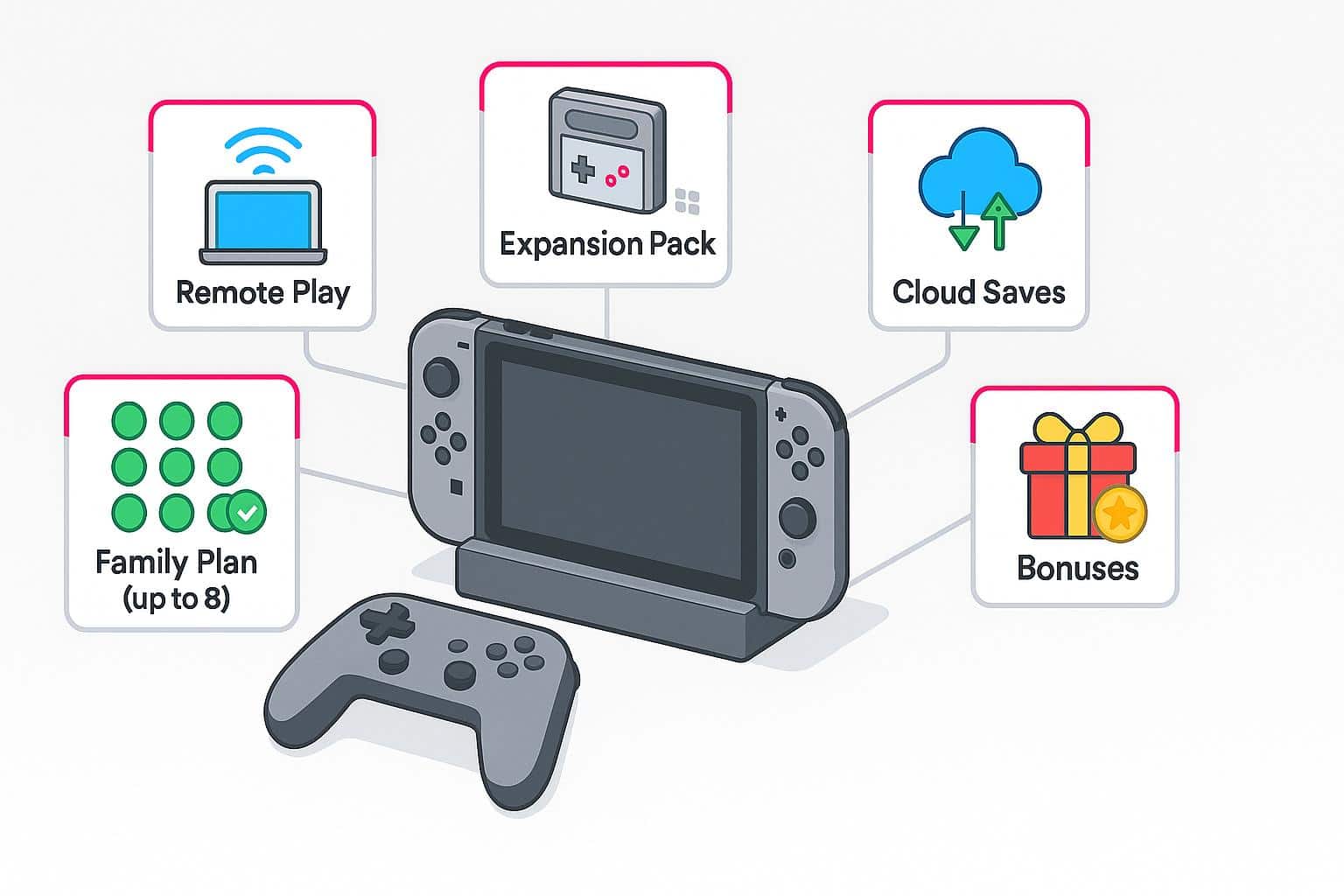
Both the Nintendo Switch and Nintendo Switch 2 allow users to access features and games online through Nintendo Switch Online. You’ll need a subscription to access it, but once you do, you can enjoy features like remote play, cloud saves, and in-game bonuses. Memberships can be purchased individually or as a family pack with up to eight accounts and are billed every year.
If you grew up playing classic Nintendo games and want a dash of nostalgia in your online experience, you can also add an expansion pack to your membership. You’ll be able to access a library of games from older Nintendo consoles like the SEGA Genesis and the Nintendo 64.
What Internet Speed Do You Need for the Nintendo Switch?
The internet speed you need for the Nintendo Switch depends on what you’ll be doing. Whether you’re gaming online and using the cloud save feature to track your progress or hopping online to play games with your friends, it’s good to take these scenarios into consideration when figuring out the best internet speed for your gaming needs.
| Use Case | Minimum Download Speeds | Optimal Download Speeds |
|---|---|---|
| Online Gaming | 3 Mbps | 15 Mbps |
| Streaming | 5 Mbps | 25 Mbps |
| Multiplayer | 10 Mbps | 50 Mbps |
Wired vs. Wireless Connection For The Nintendo Switch
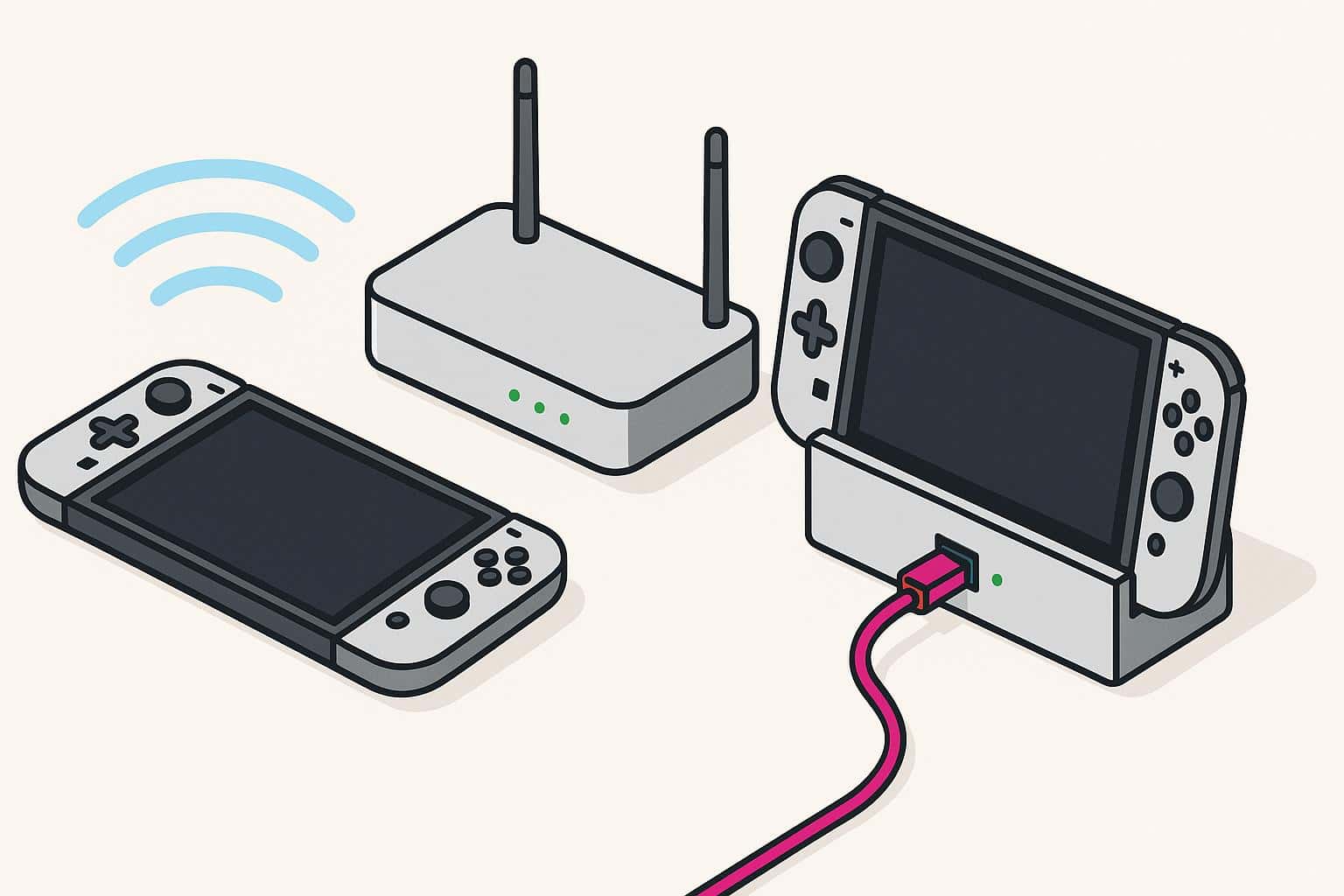
To take advantage of the Nintendo Switch’s portability, you’ll use a wireless internet connection. While it lets you game anywhere in your household, it can mean a weaker signal if you’re far from your router. If this is how you plan to use your Nintendo Switch, opt for a 2.4 GHz connection and configure your Wi-Fi channels to get the fastest speeds possible without compromising range.
If you’re looking for a more stable internet connection, you can connect an Ethernet cable to your Nintendo Switch. Wired connections are faster than even the fastest wireless options, so this is a great way to lock in the best possible performance that your router and internet plan can offer.
To use an Ethernet cable, just plug one end into one of your router’s LAN ports and connect the other end to your Switch. With the Switch OLED (an upgraded version of the original Switch) and the Switch 2, you can use the built-in wired LAN port in the Nintendo Switch dock. If you have an older original Switch, you’ll have to get a USB to LAN adapter.
How To Improve Your Internet Speeds for the Nintendo Switch
Fast internet speeds from the start are ideal, but if you don’t plan to switch your internet plan for a while, you may still be able to improve your current connection. You can do this through your hardware, your router, and, in some cases, your ISP.
Hardware
- LAN adapter (older Switch models): Using a USB-C to Ethernet cable to connect your Switch to your router will provide you with a faster and more reliable internet connection compared to Wi-Fi. This won’t be necessary if you have a Switch OLED or Switch 2, as those models have a LAN port built into their docks.
- Router placement: If you’re a gamer on the go and want to use the wireless connection instead, consider placing your router in a spot that offers a balance of range and speed.
Router/Settings:
- 5GHz setup: Most routers are dual-band, meaning they include a 2.4 GHz and 5 GHz frequency band. If you want the fastest internet speeds possible on your plan, use the 5 GHz band while gaming.
- Channel switching: Before you connect to your switch, check your Wi-Fi settings to make sure you’re on the Wi-Fi channel with the least amount of interference. You can use a Wi-Fi analyzer to see which channels work best for your household.
- QoS prioritization: If you really want to push your internet speeds further, you can configure your router to prioritize your device in the quality of service (QoS) queue. By setting your device to the highest priority, the router will prioritize game data over other tasks, such as streaming or downloads.
ISP-Level Fixes:
- Choosing higher speed tiers: If you’re reaching the end of your internet bill cycle or the end of your contract, you should consider upgrading to a higher speed tier
- Checking for congestion: Internet quality tests throughout your day can help you learn when your internet experiences the highest levels of congestion. Some popular test sites include Fusionconnect or Packetstats
- Testing ping: Similar to internet quality tests, ping tests throughout your day can help you identify the times when ping is at its highest. Popular ping tests include websites like Ookla.
Why Is My Switch Internet So Slow?
It’s not the greatest experience when you’re playing a game with your friends, and suddenly you’re lagging (or worse, disconnected) in the middle of your session. If you’re experiencing slow internet speeds through your Nintendo Switch, it may be from one of the following issues:
- NAT type errors: Network Address Translation (NAT) comes in five different types: A, B, C, D, and F. If you’re an online gamer, you’ll want to go for NAT Type A, as this provides you with the most stable online access. If you’re dealing with NAT Type F, however, you’ll want to reconfigure your equipment using either a VPN or port forwarding.
- DNS tweaks: If you’re connected to your network but not connected to your internet, chances are you’ll need to adjust your DNS settings. Some users have found that manually setting their DNS to one provided by their ISP or using Google’s DNS servers solved this issue.
- ISP throttling: If you suspect your ISP is throttling your internet and slowing your speeds, try using a VPN while you’re gaming. In future sessions, it’s best to actively monitor your data usage so that you can be more mindful of when you’re about to hit your limit. ISPs will usually only throttle your speeds once you’ve gone past your data limit (or reached a limit with unlimited data).
Frequently Asked Questions About Internet for the Nintendo Switch
What is a good ping for Nintendo Switch Online?
A good ping rate for Nintendo Switch Online is generally 50ms or below.
How do I check internet speeds on my Switch?
You can check your internet speeds by using the Internet Connection test on either the Nintendo Switch or the Nintendo Switch 2.
Does the Switch support Wi-Fi 6?
Only the Nintendo Switch OLED model supports Wi-Fi 6. It is currently not compatible with the Nintendo Switch or the Nintendo Switch Lite.
How can I fix NAT Type D on Nintendo Switch?
If you have NAT Type D on your Nintendo Switch, it may be due to strict firewall settings on your router. If power cycling your modem and router doesn’t fix the problem, try using port forwarding in your router settings to forward to your Switch’s IP address. You could also enable UPnP (Universal Plug and Play) on your router.
Is Switch Online more demanding on internet than PS5/XBox?
Playing games on the Switch using Nintendo Switch Online is less demanding than playing games on the PS5 or the Xbox. The latter consoles are designed to run more powerful games and services and therefore require more bandwidth to operate smoothly.