How to Go Live on Facebook: Everything You Need to Know
Similar to other social media platforms, you must meet specific requirements before going live on Facebook.
- Facebook Live connects you with your audience in real time, making it a powerful tool for engagement.
- A strong internet connection, quality audio/video and the right device are key to a smooth livestream.
- Steps to go live vary slightly between mobile and desktop devices.
Facebook Live is one of the easiest ways to connect with people in real time, whether you’re a small business owner showcasing new products or a content creator engaging with your followers. It’s a powerful tool that helps you build trust, spark meaningful conversations, and foster a genuine sense of community. In this guide, we’ll walk you through everything you need to know to go live with confidence. From setting up your broadcast to keeping viewers engaged and making the most of Facebook’s features, you’ll have the know-how to hit that “Go Live” button and make every stream count.
What Is Facebook Live?
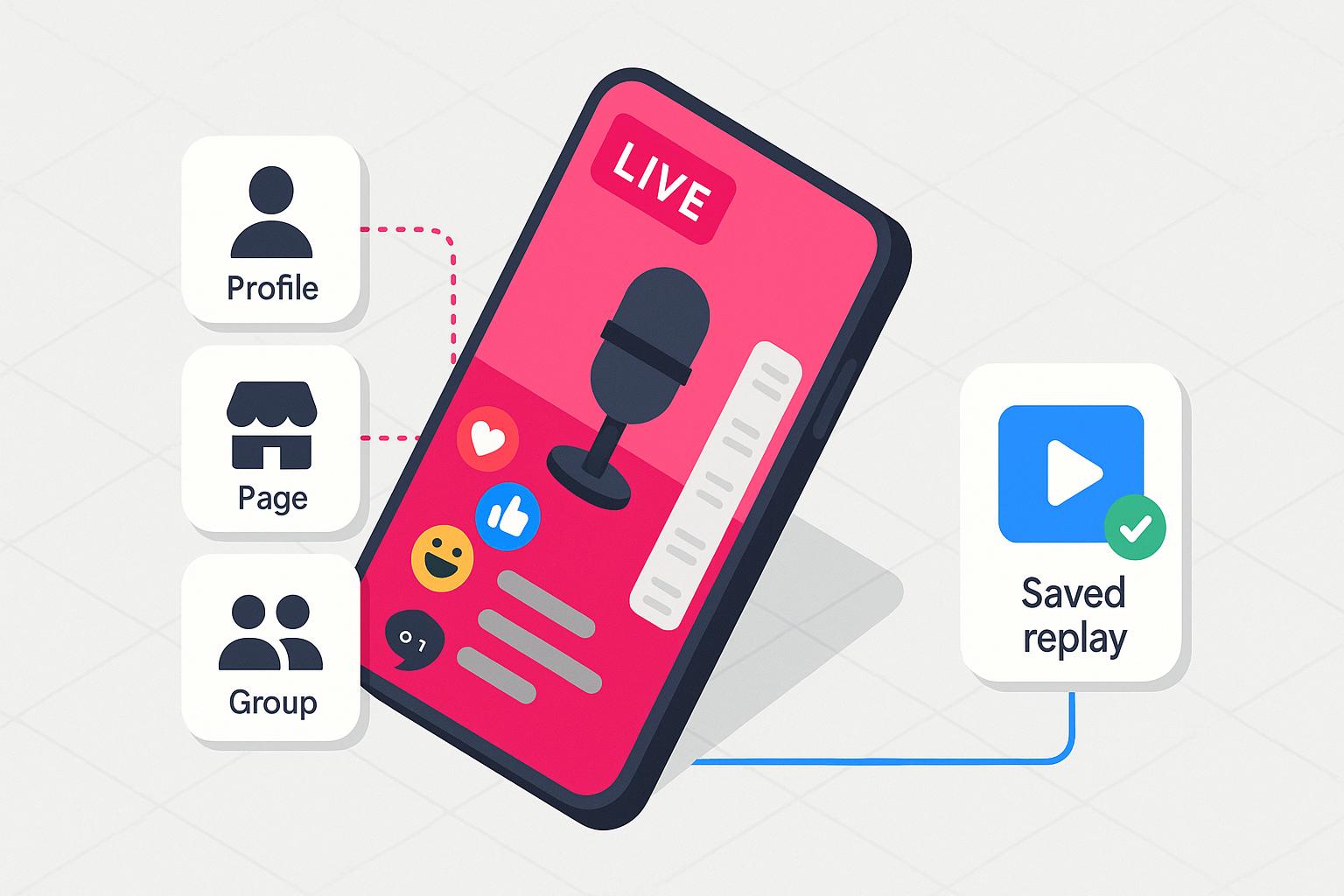
Facebook Live is a feature that lets you broadcast live video directly to your friends, followers or the public from the Facebook app or website. You can start a livestream from your personal profile, business page, group or an event, making it a versatile tool for both casual and professional use.
Unlike Stories or pre-recorded videos, Facebook Live is all about real-time interaction. Viewers can comment, react, and ask questions as you stream, creating a two-way conversation that feels more immediate and authentic. After your broadcast ends, the video is saved to your timeline or page, allowing people who missed it to watch and engage with it later.
What You Need Before Going Live on Facebook

Before you hit the button to go live, you should have everything in place for a smooth broadcast. Here’s what you’ll need:
- A Facebook account and access: You’ll need an active Facebook account that’s at least 60 days old and has at least 100 followers. Your account must also be in good standing. Accounts with restrictions or policy violations may not be able to use the Live feature.
- The Facebook app or creator tools: If you’re using a smartphone, update to the latest version of the Facebook app. Businesses can use Meta Business Suite to manage livestreams.
- A reliable internet connection: A strong, stable internet speed and connection are non-negotiable for a quality stream. Aim for a minimum upload speed of 5 Mbps for clear, uninterrupted video. A wired connection is ideal, but a strong, stable Wi-Fi network can also work.
- A compatible device: You can go live using a smartphone or tablet, a computer with a webcam and mic or a third-party streaming tool.
- Good lighting and clear audio: Your audience needs to see and hear you clearly. Use natural light when possible or set up a basic ring light. For audio, inexpensive clip-on or USB microphones can dramatically improve sound quality compared to built-in mics.
How to Go Live on Facebook
Starting a live broadcast on Facebook is simple, but the steps may vary slightly depending on your device. Below, we’ll walk you through the process of going live on an iPhone, Android device or desktop.
How to Go Live on FB Using an iPhone
- Open the Facebook app and log in to your account.
- On your News Feed or profile, tap What’s on your mind?
- Select Live Video.
- Choose your audience from the top.
- Write a title and/or description to let viewers know what your stream is about.
- When you’re ready, tap Go Live.
- Tap Finish when you’re done streaming to end the broadcast.
- Choose whether to post your video or delete it.
How to Go Live on FB Using an Android
- Open the Facebook app and sign in.
- From your News Feed or profile, tap What’s on your mind?
- Choose Live Video.
- Set your privacy and audience preferences.
- Add a description or title for your live video.
- Tap Go Live to start broadcasting.
- Tap Finish when you’re ready to end your stream.
- Opt to post your live video or delete it.
How to Go Live on FB Using a Computer
Going live on a computer gives you more control over your stream, making it ideal for interviews, presentations or higher-quality broadcasts.
- Navigate to your feed, page or profile.
- Click Live video.
- Optional: You can navigate to the Meta Business Suite home and click Go Live from the top of the page.
- Choose your audience, if applicable.
- Select Webcam as your source from the Setup tab.
- Add a title and/or description for your live.
- Click Go Live when you’re ready.
- To stop your broadcast, click End Live Video and then press Confirm.
For more advanced streaming setups or if you want to go live on multiple social media pages, you can use third-party tools like StreamYard or Restream. These platforms let you multi-stream to Facebook and other platforms like YouTube or Instagram simultaneously, add custom branding, and feature multiple hosts or guests in one broadcast.
How to Go Live on a Facebook Group
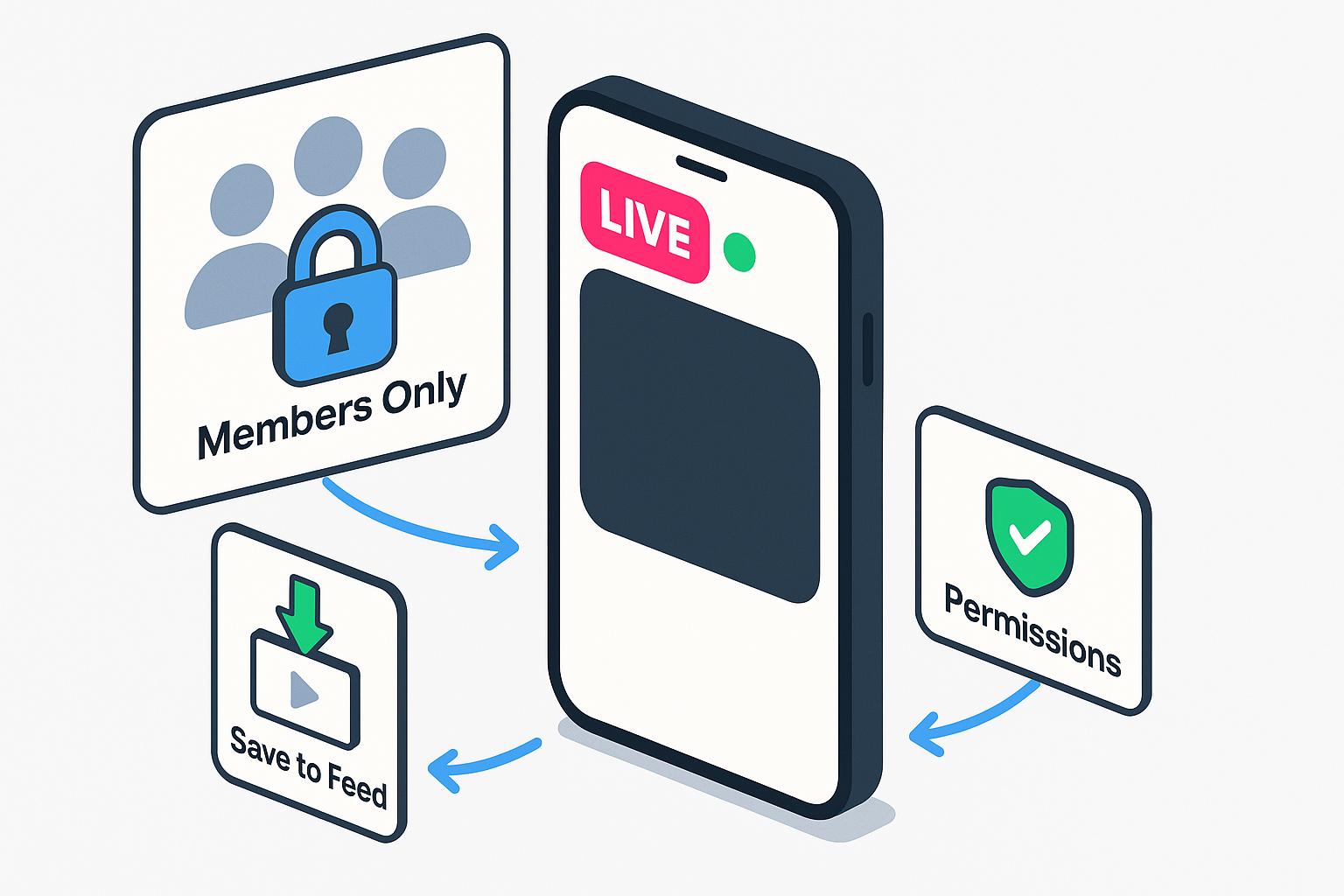
Going live on Facebook Groups follows a similar process to mobile and desktop, but there are a few differences for group livestreams. In a group, only group members can see the livestream, making it a more private or exclusive experience. You can still save the video to the group feed after your broadcast ends, so members can watch it later. Some groups have posting or streaming restrictions, so make sure you have permission to go live.
How to Go Live on a Facebook Page
Hosting a live video on a FB page follows the same process as using a mobile app or computer. With a Page, your live video can reach anyone who follows or visits your Page, not just friends or followers. After your broadcast, you can view performance metrics like views, average watch time and engagement to see how your audience responded. Within Meta Business Suite, you can schedule live events in advance to promote them, build anticipation, and utilize ad tools to boost the livestream, increasing visibility during or after the broadcast.
How to Go Live with a Guest on FB
Bringing someone into your livestream can help you reach a wider audience and keep viewers interested. You can co-host an event, interview an expert, or collaborate with another creator. Adding a guest creates a more interactive and conversational experience that often keeps viewers tuned in longer and can even expand your reach when your guest’s audience is notified about the live session.
Here’s how to invite a guest to your live:
- Start your Facebook Live as you normally would from your profile, Page or group.
- Once you’re live, navigate to the bottom menu and tap the person icon for a list of guests you can invite to join.
- Locate the person you want to invite, tap their name, and then press Done.
- Wait for the person to accept, and they’ll appear on-screen with a split-screen format.
Tips for Running a Successful FB Live
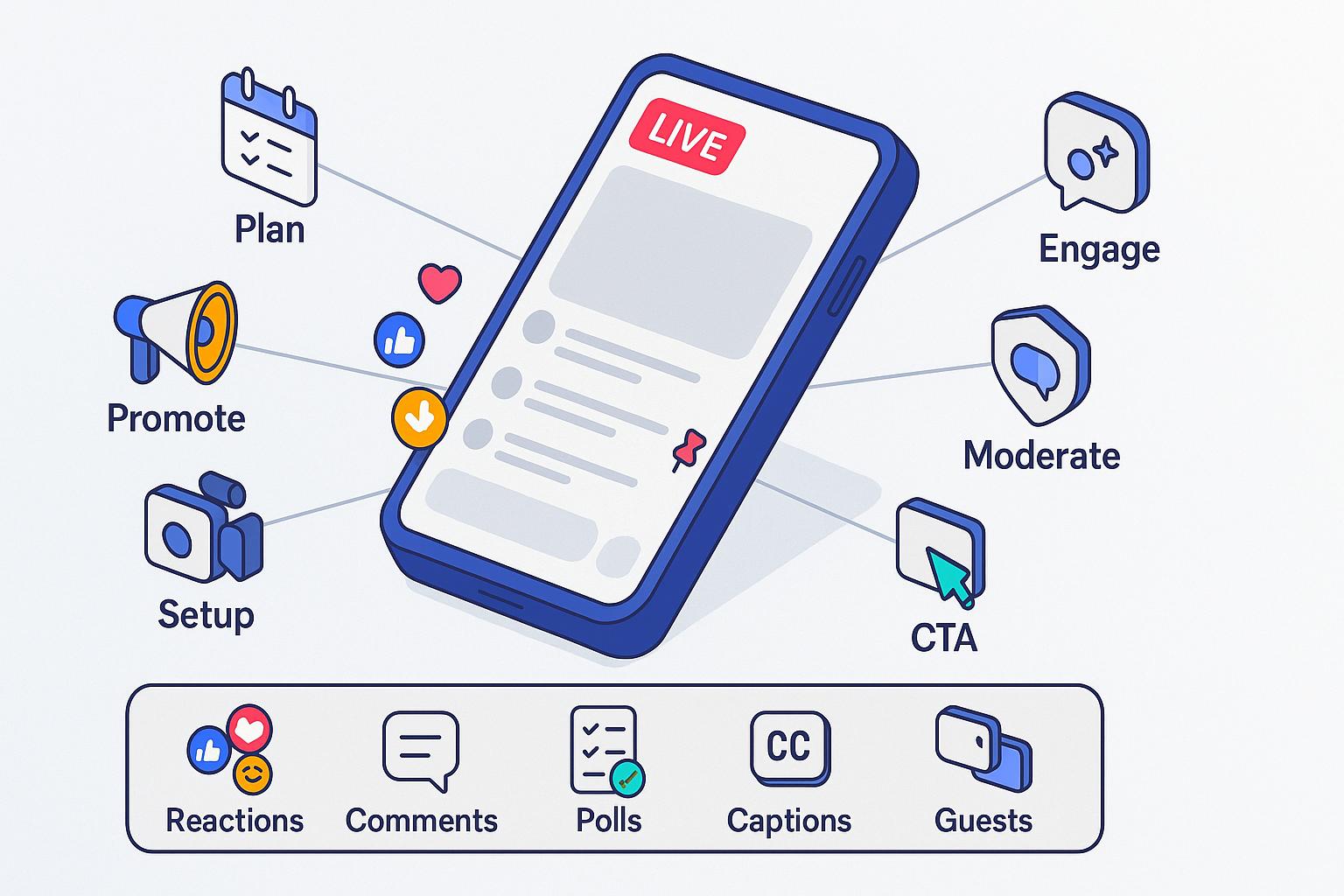
Going live on Facebook can be highly effective, but a few strategic steps can make your broadcast even more engaging and professional. Here are some key tips to ensure your livestream resonates with viewers:
- Plan ahead. Outline the key points or segments of your broadcast to stay organized and confident.
- Engage early. Start with a greeting and encourage viewers to comment or ask questions right away.
- Promote in advance. Let your audience know when you’ll go live through posts, Stories or other marketing tactics to build anticipation.
- Check your setup. Make sure your lighting, camera angle and audio are fully ready before going live.
- Monitor comments. Respond to viewer questions and reactions in real time to create a two-way conversation.
- Keep it concise. While longer streams can work for some audiences, staying focused and structured helps maintain engagement.
- End with a call-to-action. Whether it’s following your Page, joining a group, or visiting your website, guide viewers on what to do next.
How to Use Common FB Live Features
Facebook Live comes with built-in features designed to make your livestreams more interactive and professional.
- Reactions: Viewers can react in real time with likes, hearts and other emojis. Pay attention to reactions to gauge engagement.
- Comments: Use the comment section to answer questions or interact with viewers. You can also pin important comments to highlight them.
- Filters and effects: Add subtle filters or effects to enhance video quality or make your broadcast more visually appealing.
- Live polls: Create polls during your broadcast to engage viewers and gather instant feedback.
- Live captions: Enable captions to make your stream more accessible to a broader audience of viewers.
- Invite guests: Bring in co-hosts or experts to make the stream more interactive and informative.
How to Troubleshoot Facebook Live Issues
Technical hiccups are bound to occur when going live. Knowing how to troubleshoot common issues can help you maintain a smooth broadcast. Here are some of the most frequent problems and how to resolve them:
- Poor video quality or lag: Switch to a stronger Wi-Fi network or use a wired connection if possible to improve bandwidth. Lower the resolution in Facebook Live settings to reduce buffering.
- Audio problems: Check that your mic is connected and unmuted. Test audio before going live and consider using an external microphone for a clearer sound.
- Stream won’t start: Update your Facebook app or browser, restart your device, and ensure your account is in good standing. Clear cache if needed.
- Viewer comments aren’t showing: Try refreshing the stream, and if the issue persists, use a desktop for improved comment management.
- Unexpected disconnections: Save your broadcast if possible, restart the stream, and inform your audience if the live ends abruptly.
Frequently Asked Questions About Going Live on Facebook
Do I need 100 followers to go live on Facebook?
Yes, you need to have 100 followers on your Facebook account. This update was made to FB Live in June 2024.
Why can’t I go live on Facebook?
If you can’t go live, you may not meet the minimum requirements, which include having 100 followers or an account 60 days or older. In some cases, your account may be restricted for violating Facebook’s Community Standards. If you meet those requirements, update your app or browser, check your internet connection, and restart your device.
Why is there no live option on my Facebook group?
If you don’t see the Live option in your Facebook group, it may be because of the group’s privacy settings or admin permissions. Some admins disable livestreaming, or you may not allow posting live videos.
Does Facebook Live pay you?
Facebook doesn’t pay you for going live, but there are ways to earn money through livestreams. Eligible creators can monetize using features like Stars, in-stream ads, fan subscriptions or brand partnerships. You’ll need to meet certain criteria, such as having a specific number of followers, consistent engagement, or meeting content guidelines.
How long does a FB live last?
A Facebook Live broadcast can last up to eight hours when streaming from a desktop or mobile device. While a longer stream is possible, shorter, more focused broadcasts often keep viewers more engaged. If you plan to host an extended event, make sure your internet connection and equipment are reliable to avoid interruptions.