How to Go Live on TikTok on PC
You can use TikTok Live on your PC to stream gaming and other content.
- TikTok is one of the most popular social media platforms and is well known for its short-form video content.
- The TikTok Live feature allows its community members to stream to their audiences live through their phones.
- This guide will show you how to go live on TikTok from a Windows computer.
TikTok has gained an immense amount of popularity over the years and has evolved to become an entire social media platform. One of TikTok’s most popular features is its TikTok Live Studio, allowing creators to go live and directly stream from their app. Although most of them will stream through their phone, it’s also possible to stream on their platform through your PC, opening up tons of content opportunities. If you’re interested in livestreaming PC games and other content beyond what your smartphone can handle, then read on for our complete guide to TikTok Live on PC and take your TikTok streams to the next level.
Watch: How to Go Live on TikTok
Short on time and need a quick video guide? Check out our video on going live on TikTok to set yourself up for a successful live stream.
All About TikTok and TikTok Live
TikTok is a social media platform that allows users to submit short-form (vertical video) content. Like Instagram and YouTube, TikTok uses a recommendation algorithm to show content on users’ homepages, also known as the “For You Page.” Before it was TikTok, the app was known as “Musical.ly” and operated as its own social media service. ByteDance then acquired it and renamed it TikTok. It has since grown to become one of the most popular platforms and apps in the world.
Although TikTok is best known for its pre-recorded short-form video content, one of its features, TikTok Live, adds an extra layer of interactivity and engagement for users. With TikTok Live, users can interact directly with their audience, receive donations and gifts, and promote their own products and services. Users can access live streams in a separate feed in the app, where they receive recommendations for live streams they may like, similar to their For You page.
Setting Up TikTok Live On Your PC
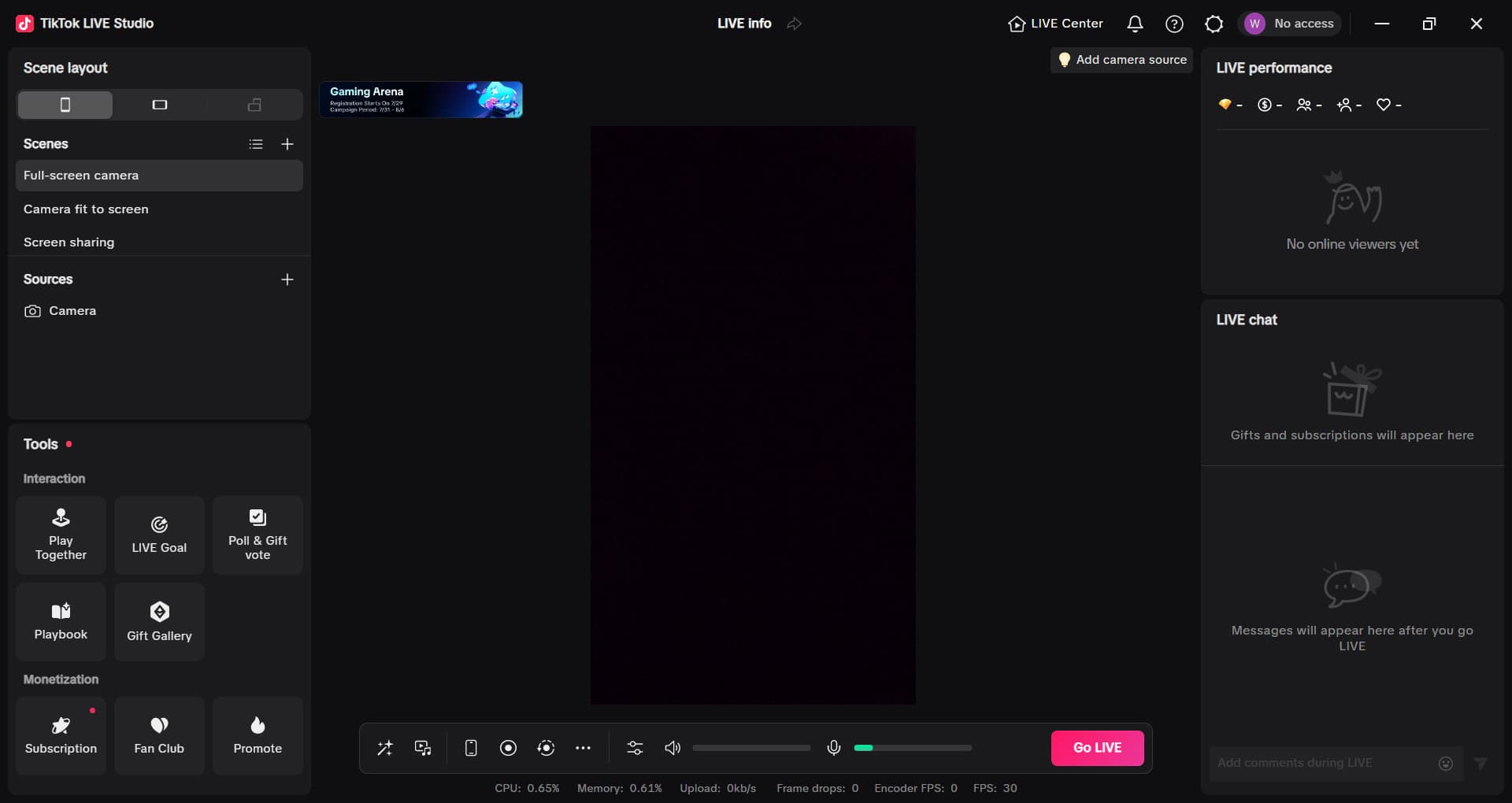
If you’ve ever streamed from your PC, you might be familiar with the software and equipment required for regular, long-form streaming. With TikTok, however, there are a few application-specific things you’ll need to keep in mind. We’ve covered the basic setup steps below.
Download And Install TikTok On Your Mobile Device
To go live on TikTok, make sure you have TikTok installed on your mobile device or PC. The nice thing about TikTok is that it’s accessible through an app or through your web browser. TikTok is available through the Google Play Store or Apple App Store.
Review Community Guidelines

As with any social media platform, you’ll want to read the community guidelines to see what is and isn’t allowed on TikTok. These rules apply regardless of whether you use the live feature. Before going live, read the community guidelines thoroughly and make sure any content you plan doesn’t violate their policies.
Verify That You’re Eligible For TikTok Live
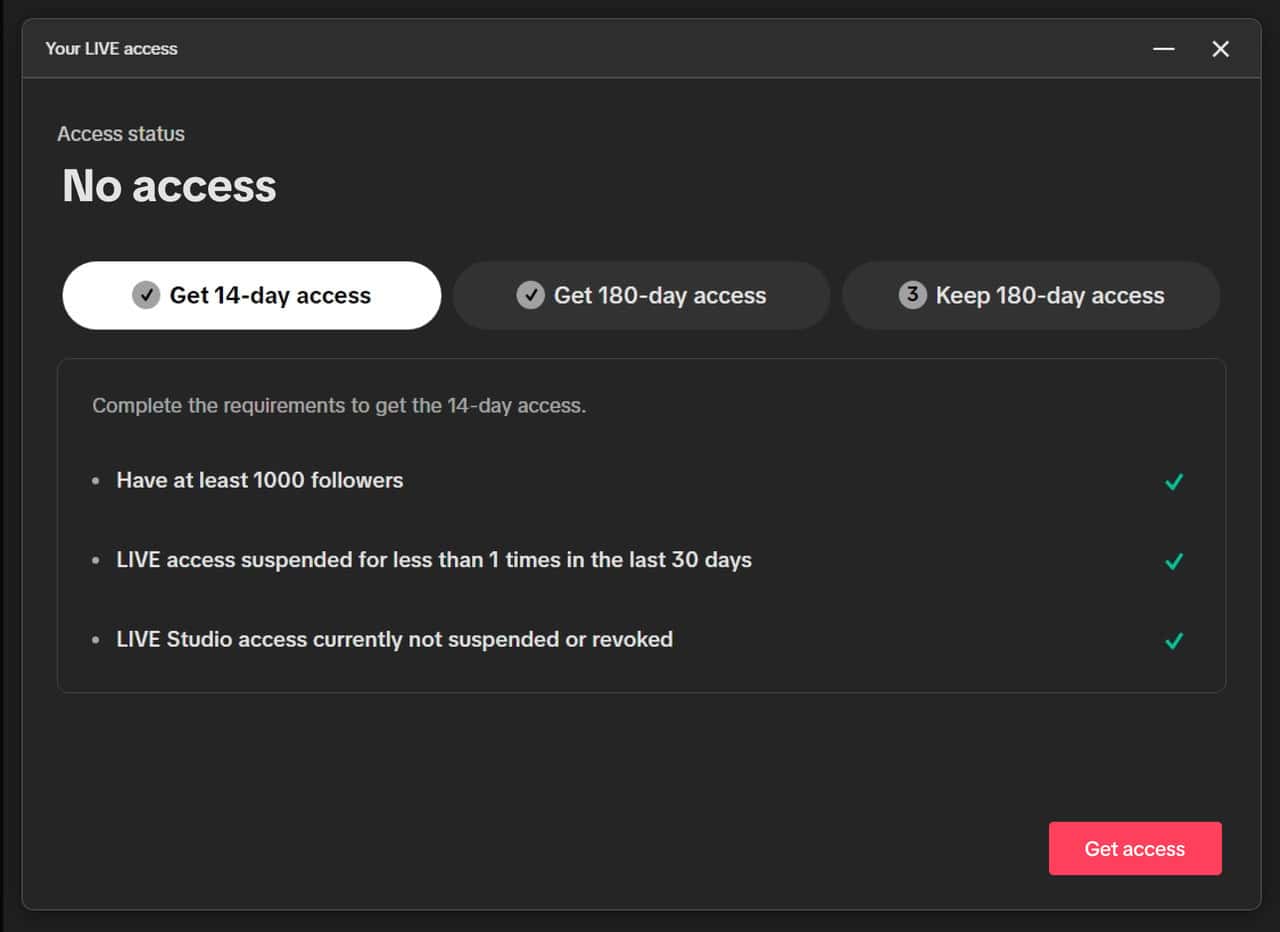
To use TikTok Live, you must meet the minimum eligibility requirements. The requirements are:
- You must be at least 18 years old
- You must have 1,000 followers
- Your account must not have been suspended within the last 30 days
- You must not have suspended or revoked access to LIVE
- To receive gifts, you must be at least 18 years old (19 in South Korea)
Meeting these eligibility requirements will grant creators access to features such as multi-guest hosting, moderation, gifts, and more.
Choose Your Preferred Method For PC Streaming
Streaming on PC has some benefits, including the ability to use the same streaming software you use for long-form content. TikTok also lets you stream directly from your web browser, where you’ll see its Live Center and a producer dashboard (Similar to the interface you’ll find in OBS or Streamlabs).
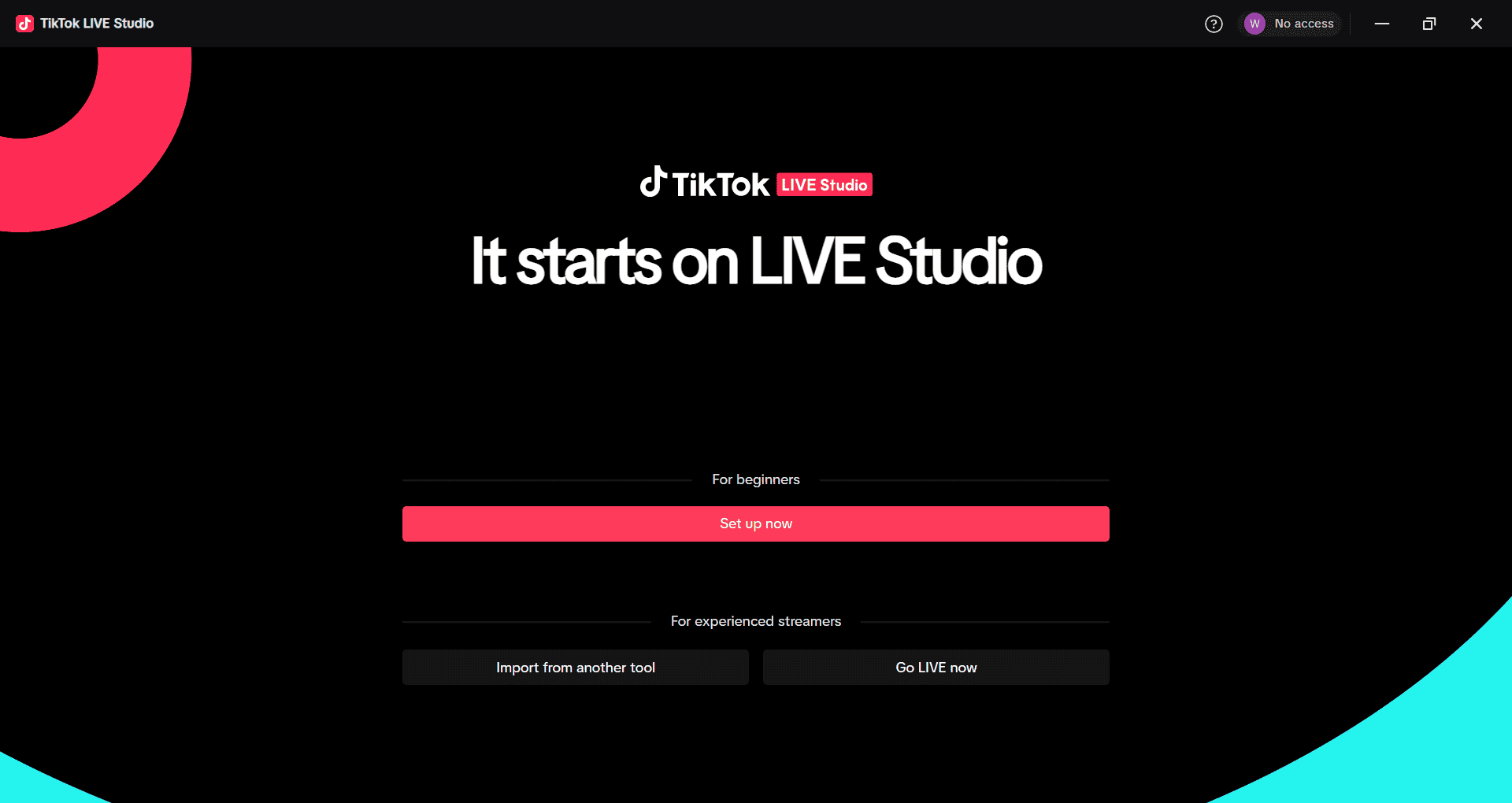
If you’d like to use an external application, TikTok also offers LIVE Studio that you can use to fully customize your stream experience.
How to Configure Your TikTok Stream
Depending on your creator status and hardware, you will likely use one of two paths: TikTok Live Studio or OBS Studio.
Here’s how to use TikTok Live Studio, which is best for beginners:
- Download: Go to tiktok.com/studio to download and install the software.
- Log in: Sign in with your TikTok account.
- Set up scenes: Choose between “Landscape” (traditional PC) or “Portrait” (mobile-style).
- Add sources: Click “Add Source” to select your Game Capture or Camera/Window Capture.
- Go Live: Set your title and cover image, then click the “Go LIVE” button.
Here’s how to use OBS Studio with Stream Key, the best option for professional users or extensive layouts.
- Retrieve credentials: Open TikTok on your browser, click “Go Live” in the sidebar, and locate your Server URL and Stream Key.
- Configure OBS: Open OBS Studio > Settings > Stream.
- Input data: Set Service to “Custom,” paste the Server URL into the “Server” field, and your Stream Key into the “Stream Key” field.
- Match settings: Ensure your Canvas Resolution is set to 1080×1920 (vertical) or 1920×1080 (landscape).
- Start stream: Click “Start Streaming” in OBS, then “Go Live” on the TikTok web dashboard.
Best Practices Before Going Live on TikTok
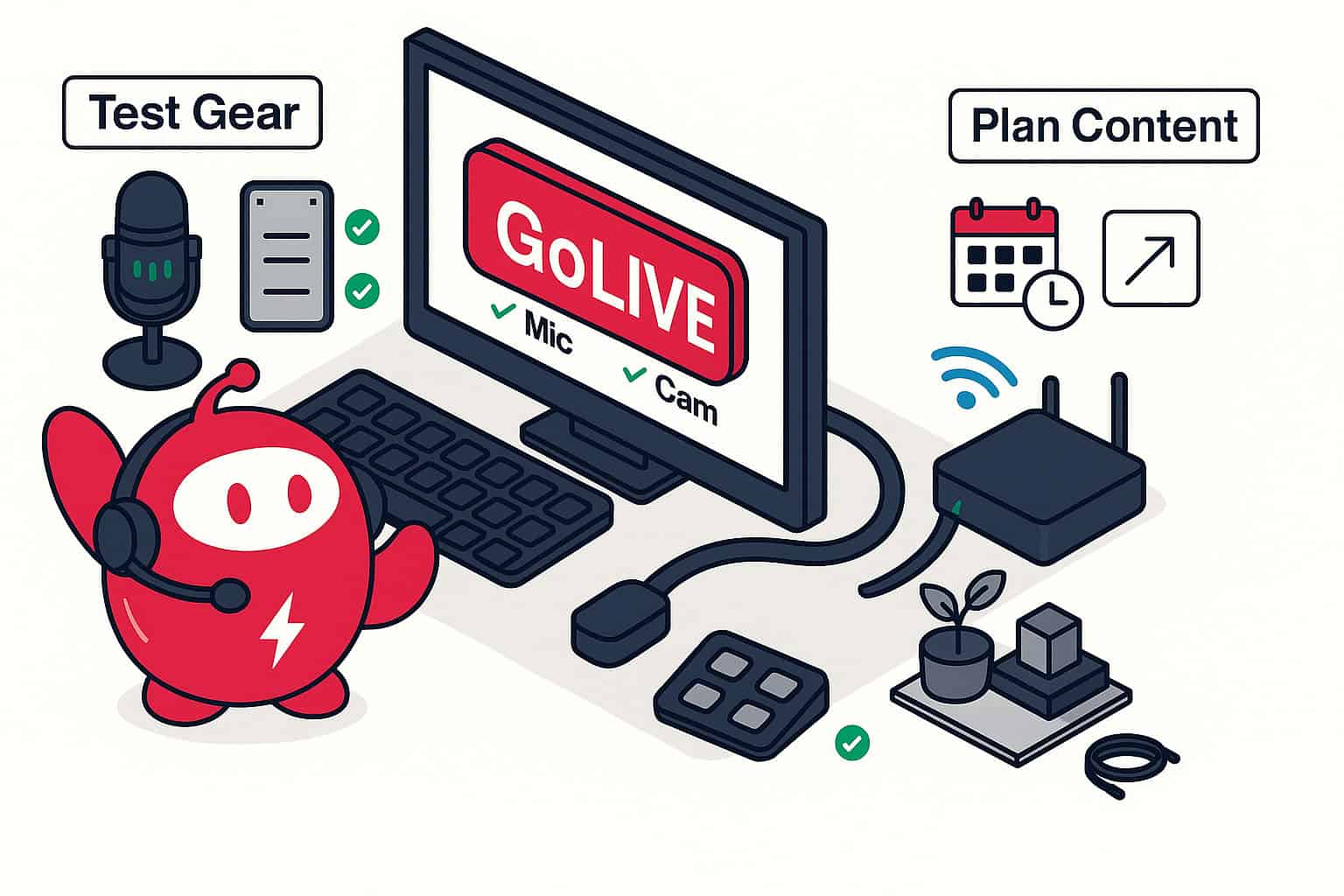
Test Your Equipment
As with PC streaming, test your equipment before going live on TikTok. In addition to your streaming software of choice and your PC, you’ll want to check your phone and any other devices you plan to use. Some streamers use additional phones or tablets in case they’d like to see the stream from a user perspective, so make sure those are updated and ready to go. You’ll also want to check your microphone and sound output.
In addition to equipment, test your internet connection. If you’re using multiple devices along with your PC, consider using an Ethernet connection to stay online.
Plan Your Content
Creating a content plan before you start streaming can help you decide how to set up your stream and let your future audience know what to expect when they visit your page. It’ll also help you build out a consistent stream schedule so people will know when to tune in. While you write your content plan, it’s also good practice to plan social media posts so you can share them with your followers when you’re live on other social media pages.
Set Up Your Background
Since you’ll likely be using your own webcam or an external camera, set up your stream location with whatever you need to make your stream unique to you. Do you plan on decorating it with lights and trinkets? Do you need chairs and tables to display or present items to your audience? This is also the opportunity to set up your equipment, which may include your home Wi-Fi network, Stream Deck, and more. Have everything that you need all set up and ready to go before you hit that “Go LIVE” button.
Bandwidth Requirements and Network Optimization
Streaming video requires a stable upstream connection, which is your internet upload speed. Because TikTok is a high-traffic platform, we recommend the following:
- Minimum Upload Speed: 3–5 Mbps for 720p or 10+ Mbps for 1080p.
- Recommended Upload Speed: 20+ Mbps (to account for background network activity).
- Bandwidth Usage: Expect to use roughly 2GB to 3GB of data per hour of HD streaming.
Aside from your upload speed, here are a few tips to optimize your live stream for the best experience:
- Use Ethernet: Avoid Wi-Fi drops by connecting directly to your router with a Cat6 Ethernet cable.
- Close Background Apps: Exit out of unnecessary programs that consume upload bandwidth, so you don’t have to worry about sharing.
- Check DNS: If you experience connection lag, try switching to a public DNS like Google (8.8.8.8) or Cloudflare (1.1.1.1) to improve routing.
Best Practices During Your TikTok Live Stream
Read The Comments
The most direct way to interact with your audience on TikTok LIVE is to read the comments, especially if you are the focal point of your stream. They may ask you questions, request that you do something, or even comment on your stream. Additionally, they could let you know if there were any technical flaws on their end, such as a period of lag during a gaming session or a frozen webcam. Whichever way they choose to communicate, respond as quickly as you can and keep engaging so they’re more likely to stay (and follow your account afterward!).
Keep Track Of Your Alerts
TikTok Live lets viewers send gifts to the creator and displays alerts for new followers, subscriptions, and even custom actions (similar to Twitch alerts). As you continue interacting with your audience and streaming your content, you’ll want to keep up with the alerts that display on your stream. Chat messages can go by really fast, and alerts don’t stay on for long, so you’ll need to stay on top of it if you want to retain your audience!
Focus on Your Content, Not The Numbers
Your content is what will ultimately attract new and returning users to your stream. As they do so, the viewer count will go up and down depending on who’s currently viewing your broadcast. Remember that the view count can change for a number of reasons. Some people are busy during your stream time, or maybe other people may be leaving briefly and will come back. Whatever the case, it’s important to focus on the content you’re streaming rather than just looking at the numbers. As you figure out what you enjoy streaming, you’ll be more consistent, and your numbers may reflect that.
Best Practices After Streaming on TikTok Live
Check Your Stream Stats
After your stream, you can access your stream stats via the LIVE Center. These stats include, but are not limited to, total views, number of gifts, and new followers. You’ll want to track these numbers over time as you continue to stream. This can provide invaluable information you can use to improve your streaming experience.
Ask For Feedback
Surveys, stories, and even newsletters are just a few ways that you can ask your audience about how to improve your live streams. Stream stats can help you by giving you the numbers, but the best type of feedback is from the people who view your streams in the first place. For more consistent feedback, it might be good to ask your viewers before, throughout, and after your stream so that you can get their input immediately.
Plan Your Future Content
Based on the input you’ve received from your stream stats and your audience feedback, you’ll want to implement that into your content plan well before your next streams. Adjusting your stream schedule, assigning different content to different days, and even planning little events are things that you can do to keep your streams fun and fresh.
Troubleshooting Common TikTok Live Technical Issues
It’s not uncommon to come across a few technical issues with TikTok Live. Here are some troubleshooting tips to keep handy if you run into any problems during your stream.
- Stream not connecting: Verify your Stream Key hasn’t expired. TikTok keys often reset after each session. Double-check that your firewall isn’t blocking OBS or TikTok Live Studio.
- Poor video quality or blurriness: This is usually a bitrate issue. If your upload speed is inconsistent, lower your bitrate to 2,500 Kbps and drop your resolution to 720p.
- Audio sync issues: In OBS, go to Advanced Audio Properties and add a “Sync Offset” (usually in milliseconds) if your voice is lagging behind the video.
- Live access denied error message: Ensure you still meet the 1,000-follower threshold and haven’t received any recent community guideline strikes.
Confidently Live Stream on TikTok on PC
Stepping up to a PC-based TikTok stream is the most effective way to transform your content from a casual hobby into a professional broadcast. By offloading the processing power to your computer and securing your connection with a dedicated Ethernet line, you eliminate the hardware limitations of a smartphone and open the door to high-fidelity gaming and complex multi-cam productions.
Your next move is to verify that your hardware can handle the heat by running a pre-stream diagnostic. Head over to our BroadbandNow speed test tool to ensure your upload capacity exceeds the 10 Mbps threshold for stable HD streaming. If your current connection is struggling to keep up with the demands of live video, explore our guide on optimizing a home network for gaming to fine-tune your router settings and reclaim your bandwidth before you hit the “Go Live” button.
Frequently Asked Questions About Going Live On TikTok On PC
What can I stream on TikTok Live?
The possibilities for what you want to stream on TikTok are endless. Most creators use it for livestreaming themselves on their phones to talk to their audience, but you could also stream content alongside yourself. From video games to art to even your small business storefront, you’re able to stream whatever you can capture on your camera. Just be sure it aligns with TikTok’s community guidelines.
Can I make money on TikTok Live?
Yes, you can receive gifts (donations) from your audience and make money from them directly. You can also participate in the Creator Rewards Program and get paid through your short-form content. Keep in mind that monetized videos must be high-quality original content and must be at least one minute long.
What happens if I break TikTok’s community guidelines?
TikTok’s Trust and Safety team will review content that violates its community guidelines to determine the best course of action. Consequences include, but are not limited to, demonetizing the video, taking it down, or suspending/banning accounts. Creators can submit an appeal if they believe their content was wrongfully demonetized or taken down.