How to Share a Large Video File: A Complete Guide
Learn the fastest and safest ways to share large video files without compression, quality loss, or upload headaches.

- Choose the right sharing method based on file size and speed needs: Use “no-account” transfer services for quick sends under 2 GB, cloud sharing for larger cloud-based sharing, and local or physical file sharing for the fastest local transfers.
- Avoid compression to preserve HD and 4K quality: Messaging apps often automatically reduce video quality, so use cloud links, document attachments, AirDrop, or ZIP folders to keep videos sharp and full resolution.
- Security and reliability matter when sharing large files: Services with encrypted transfers, password protection, and link expiration help protect private videos while making large file sharing easier and more secure.
Sharing a large video file sounds simple until you hit a “File too large” error. High-resolution videos, especially HD and 4K footage, can quickly exceed the limits of email attachments, messaging apps, and some cloud platforms. The best sharing method depends on your file size, internet speed, and whether you need to preserve video quality. This guide covers the fastest and most reliable ways to share large video files on desktop and mobile while keeping your videos secure and maintaining full quality.
- Under 2 GB: Use WeTransfer or Wormhole for fast, no-account sharing.
- Over 10 GB: Use Google Drive or Dropbox for reliable cloud uploads and long-term access.
- Nearby devices: Use AirDrop, Quick Share, or an external USB/SSD drive for the fastest transfers without internet delays.
- From your phone: Avoid texting apps that compress video; use cloud links or direct device transfers instead.
Learn How to Send a Large Video File in Under One Minute
Need an answer in less than a minute? Watch our short video for a quick rundown on how to share large video files.
Why Sending Large Video Files Is Difficult

Sharing large video files is challenging because most platforms place strict limits on file sizes to maintain speed and performance. For instance, many email services cap attachments at around 25 MB: enough for documents and photos, but far too small for high-resolution video files that can easily reach several gigabytes.
Even when a platform supports larger uploads, the transfer process can still be frustrating. Slow internet speeds often lead to long upload and download times, particularly for users with weaker connections. On top of that, excessive file compression may reduce video quality, resulting in blurry visuals and loss of detail that can undermine the original footage.
Fortunately, several simple ways can help you work around these limitations and share large video files quickly without sacrificing quality.
The Best Ways to Share Large Video Files

When it comes to sharing larger video files, there’s no one-size-fits-all solution. The best method depends on factors like file size, upload speed, storage needs, and how you want recipients to access the video. Fortunately, several reliable options make the process much easier.
Cloud storage services are ideal for ongoing collaboration and long-term access, allowing you to upload videos and share them through private links. File transfer tools are better suited for fast, one-time sends, especially when you don’t want to create an account or manage storage space. Meanwhile, video hosting platforms offer a convenient way to share and stream large videos online without requiring recipients to download massive files.
Below, we’ll break down the most effective ways to share large video files, including the pros, limitations and best use cases for each option.
‘No-Account’ Transfer Services (Best for Quick Sends)
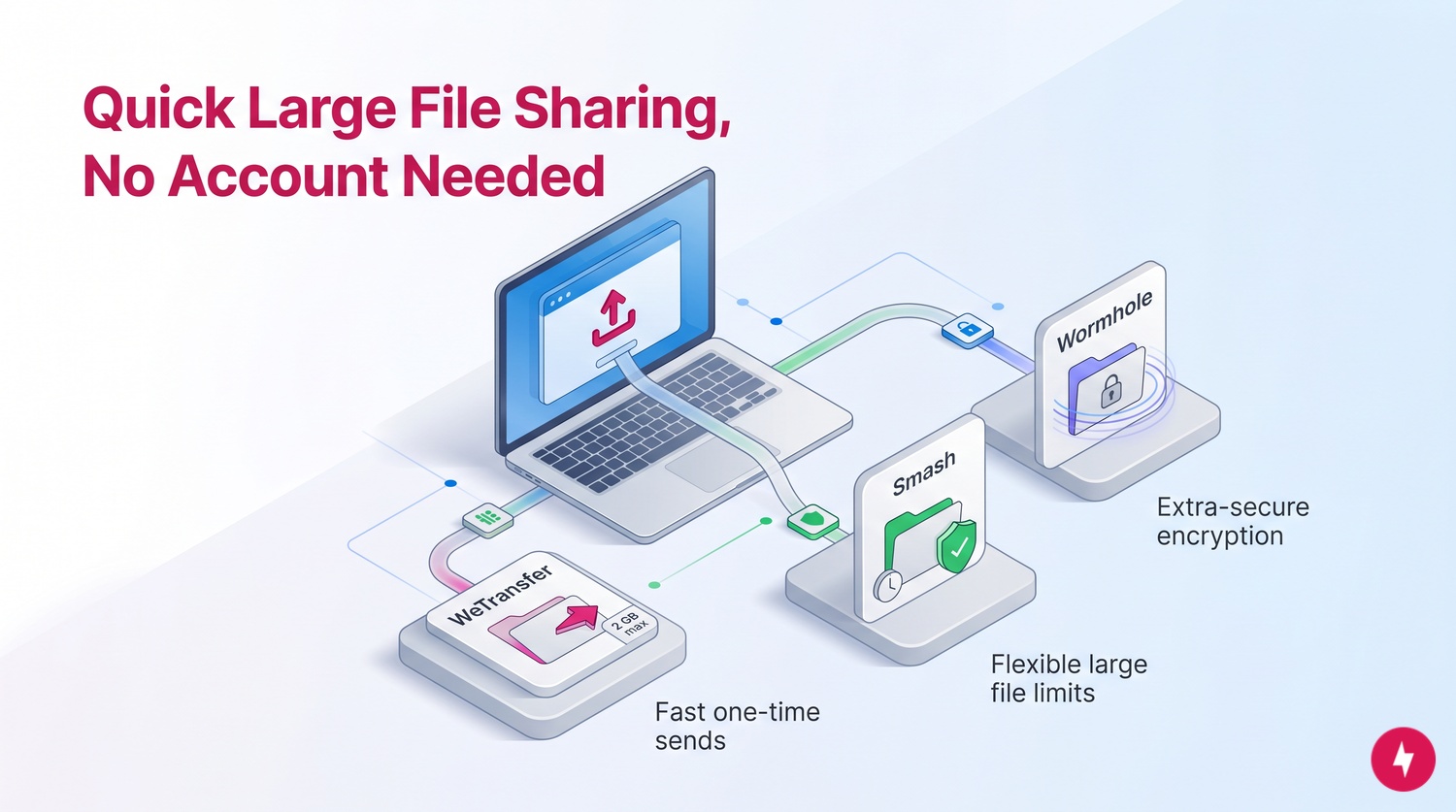
If you need to send a large video file quickly, no-account transfer services are often the easiest solution. These platforms let you upload a file and generate a shareable link without requiring sign-ups, software installs, or complicated setup.
The right option depends on a few factors, including your file size, delivery speed, quality requirements and how comfortable your recipient is with technology. Below, we’ll explore some of the most effective file-sharing methods, along with their key advantages.
WeTransfer
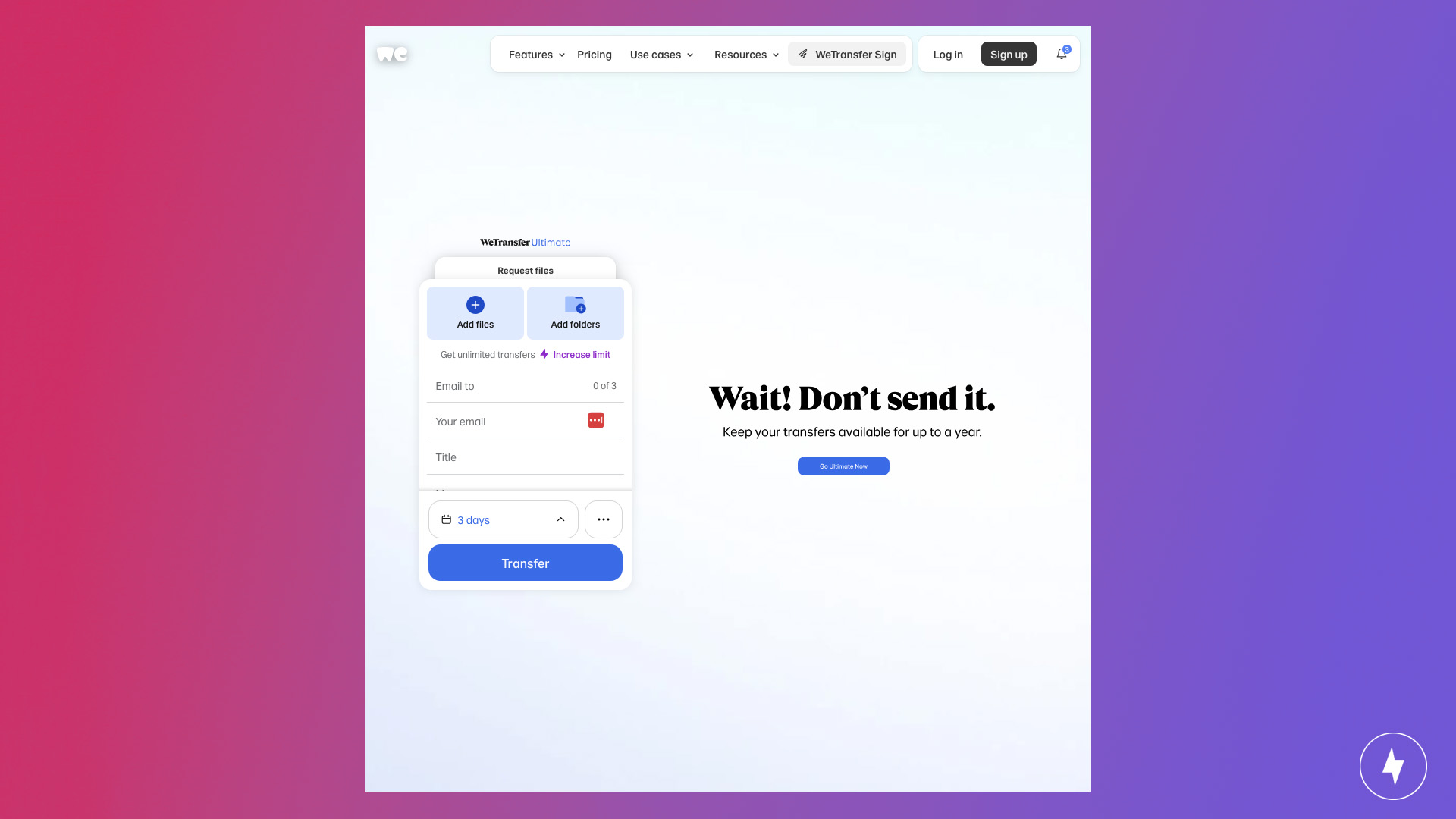
WeTransfer is one of the easiest ways to send large video files quickly. You upload the file, generate a download link, and send it to the recipient.
Who it’s best for: Freelancers, clients, and casual one-off file sharing.
Key Benefits:
- No registration required
- Simple drag-and-drop uploads
- Ideal for one-time transfers
- Free tier supports files up to 2 GB
Pros/Cons: Extremely simple and fast / 2 GB limit and limited security controls on free plan.
Smash
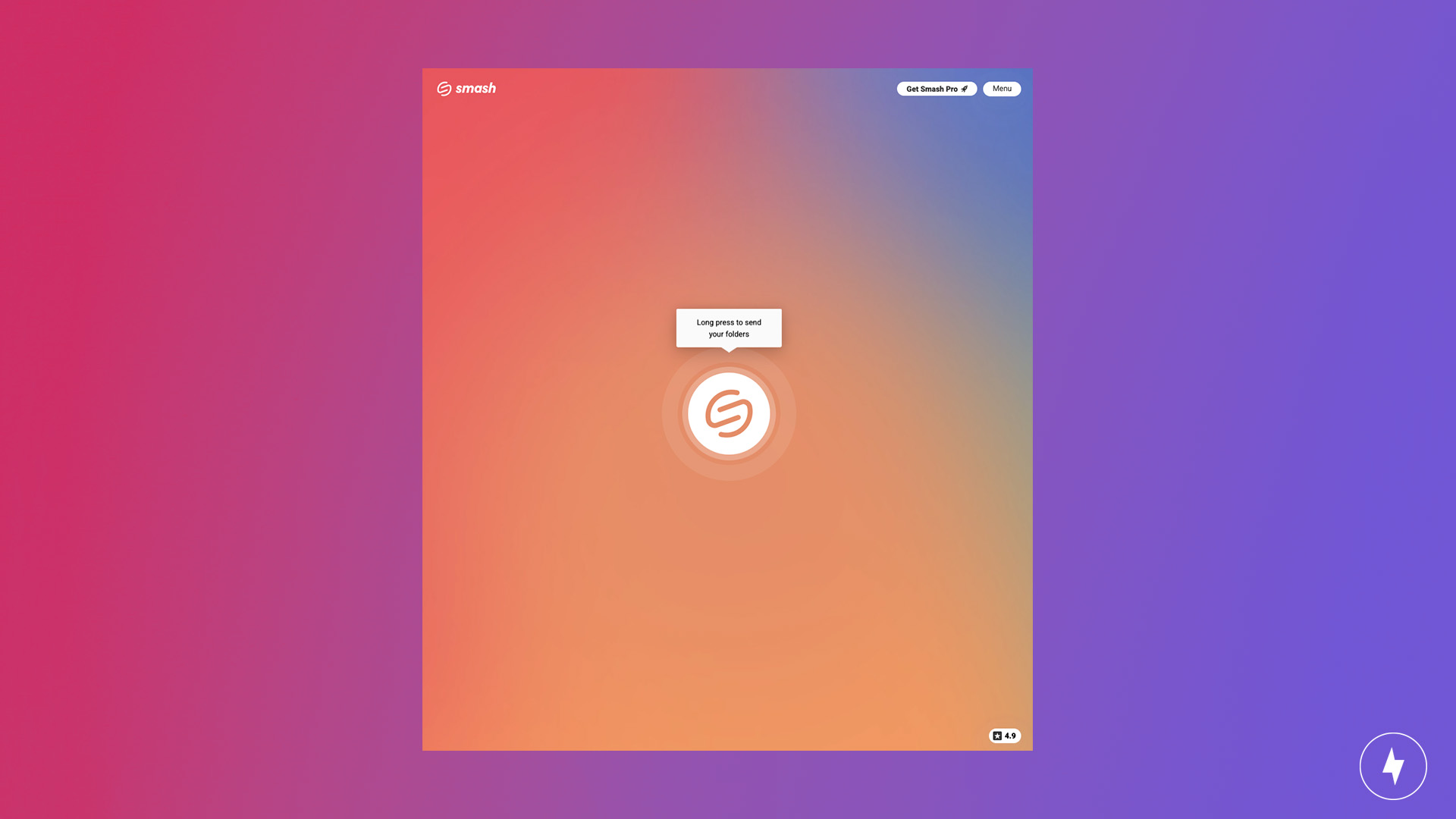
Smash offers browser-based transfers with fewer restrictions than traditional email attachments. It also supports password protection and temporary link expiration for better security.
Who it’s best for: Users who need flexible, large-file sharing with more control over access.
Key Benefits:
- No mandatory account creation
- Custom expiration dates
- Large file support
- Optional password protection
Pros/Cons: More generous file limits and security options / Slower upload speeds at times and premium features behind a paywall.
Wormhole

Wormhole focuses on secure, encrypted file sharing. Its standout feature is end-to-end encryption, which helps protect sensitive files during transfer.
Who it’s best for: Security-conscious users sharing sensitive or confidential video files.
Key Benefits:
- End-to-end encryption for secure transfers
- No account required for quick sharing
- Temporary file links that expire automatically
- Simple browser-based upload and download
Pros/Cons: Strong end-to-end encryption and privacy focus / Fewer advanced collaboration features and less mainstream recognition.
Cloud Storage Solutions (Best for Long-Term Sharing)
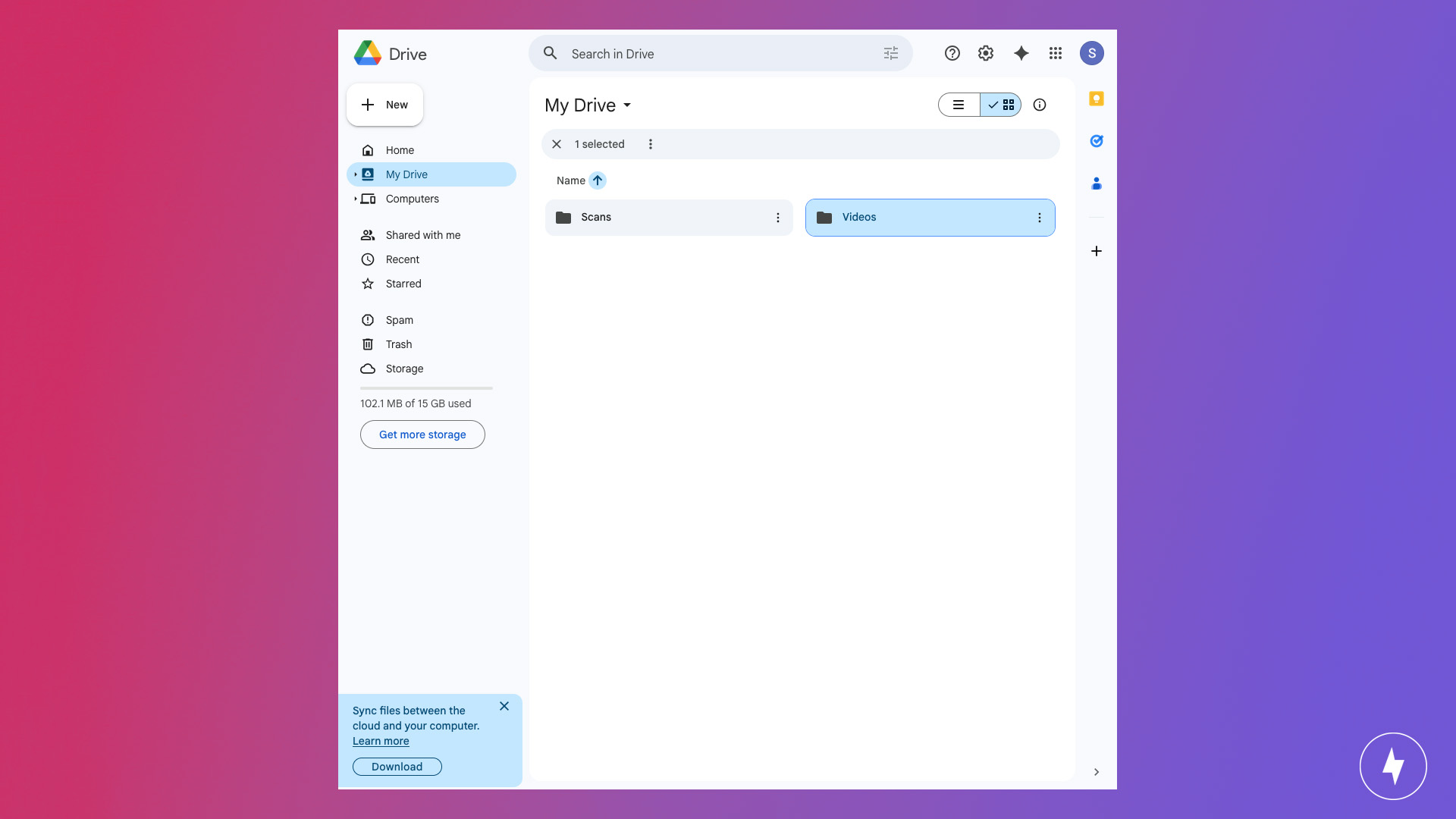
Cloud storage services like Google Drive, Dropbox, or OneDrive let you upload your video to a secure online location and share a link with anyone who needs access. This is one of the most versatile and reliable methods for large files. Cloud storage is ideal for team projects, client deliverables, or content creators. For smooth transfers, organize files into clearly labeled folders, set the correct permissions (view-only or editable), and double-check link expiration settings.
Google Drive
Google Drive is ideal for Gmail users and collaborative sharing across devices and teams.
Who it’s best for: Users who need reliable cloud storage for collaboration, file sharing, and cross-device access.
Key Benefits:
- 15 GB free storage
- Link sharing with granular permission controls
- Strong integration with Android and Google Workspace
- Accessible on desktop and mobile devices
Pros/Cons: Excellent free storage and collaboration tools / Storage can fill quickly if used across Gmail, Photos, and Drive.
Dropbox
Dropbox remains one of the best options for syncing files across multiple devices with strong reliability and performance.
Who it’s best for: Professionals and teams who need dependable file syncing and shared folder collaboration.
Key Benefits:
- Reliable cross-device syncing
- Shared folders for team collaboration
- Strong desktop integration
- Smart version history and file recovery tools
Pros/Cons: Highly reliable syncing and teamwork features / Limited free storage and fewer free-tier features compared to competitors.
OneDrive
OneDrive works especially well for Windows users and Microsoft 365 subscribers, offering seamless integration with Microsoft tools.
Who it’s best for: Windows users and Office 365 subscribers who want built-in cloud storage and backup.
Key Benefits:
- Tight Windows integration
- Automatic desktop and file backups
- Built-in Microsoft Office support
- 5 GB free storage
Pros/Cons: Excellent integration with Windows and Office apps / Smaller free storage and best experience tied to the Microsoft ecosystem.
iCloud
iCloud is best for Apple users sharing files between iPhone, iPad, and Mac devices.
Who it’s best for: Apple users who want seamless file syncing across all Apple devices.
Key Benefits:
- 5 GB free storage
- Automatic Apple device syncing
- Seamless Files app integration across iOS and macOS
Pros/Cons: Smooth, native Apple ecosystem integration / Limited free storage and less flexible outside Apple devices.
Updated free storage limits (2026)
| Service | Data Allotment |
|---|---|
| Google Drive | 15 GB |
| OneDrive | 5 GB |
| Dropbox | 2 GB |
| iCloud | 5 GB |
File Transfer Tools
File transfer tools like WeTransfer and SendAnywhere are built specifically to move large files quickly and without fuss. You upload your video to the service and generate a download link. This is a good solution for one-off transfers when you don’t need to store the file. It’s best for time-sensitive deliveries or when you don’t want to clutter your cloud folders.
Services:
- WeTransfer
- SendAnywhere
- Smash
- Wormhole
Video Hosting Platforms
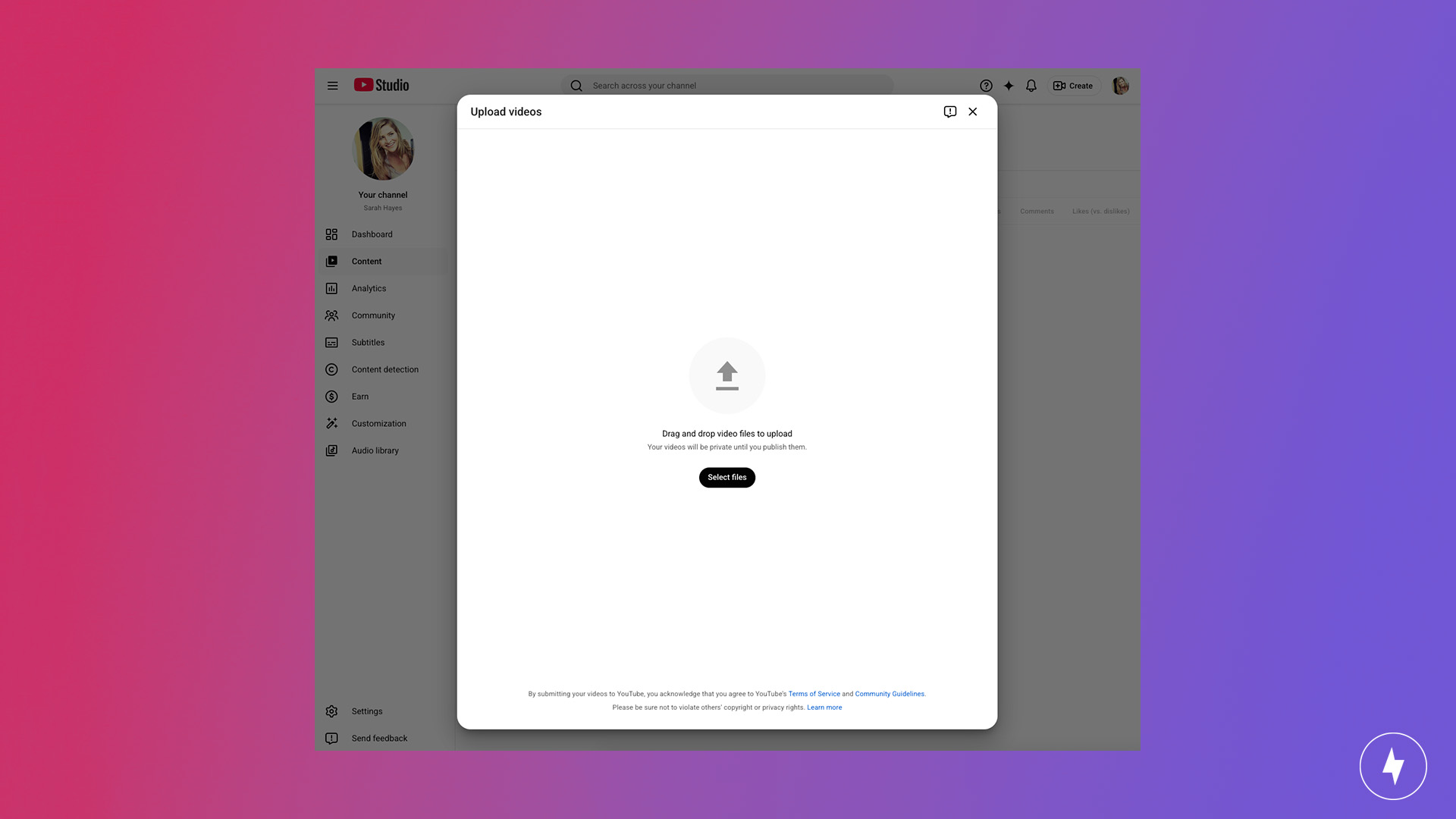
If your goal is to share a video for viewing rather than downloading, a hosting platform is your best bet. You upload your file to the site (like Vimeo or YouTube), which processes it for smooth streaming on any device. This method is perfect for public sharing, marketing content, or private viewings with select audiences. Look for platforms that allow privacy controls, unlisted links or password protection.
Services:
- YouTube
- Vimeo
- Wistia
- Dailymotion
Messaging Apps
Some messaging apps support surprisingly large file transfers. Apps like Telegram or Signal are quick, convenient options for informal sharing. Attach the file in a chat, and the recipient can download it instantly. However, many apps still compress files, which can hurt video quality, so this is best for casual use where resolution isn’t critical.
Services:
- Telegram
- Signal
- Facebook Messenger
Physical Storage
When you’re dealing with massive files or limited internet bandwidth, sometimes the old-school method wins: physical storage. Copy your video onto a USB flash drive, external hard drive, or SD card, then hand-deliver or ship it. This approach ensures zero compression and lightning-fast transfer speeds once the device is in hand. It’s especially useful for media professionals or content creators exchanging raw footage or backup files.
Best Sharing Method Based on File Size
| File size | Best method | Why it works |
|---|---|---|
| Under 25 MB | Email attachment | Fastest for small clips |
| 25 MB – 2 GB | WeTransfer or Wormhole | No account required |
| 2 GB – 10 GB | Google Drive or Dropbox | Reliable cloud access |
| 10 GB+ | External SSD or cloud storage | Better for huge uploads |
| Nearby devices | AirDrop or Quick Share | Instant local transfer |
How to Share Large Video Files from Your Phone
Sharing large video files from a phone can be more challenging than from a computer, mainly because mobile devices often have less storage, and mobile service providers often offer slower upload speeds. Mobile operating systems also impose their own restrictions on file size and sharing options. Many of the same tools you use on a desktop also have mobile apps, making the process more manageable.
How to Send Large Video Files on iPhone

iPhones have several built-in and third-party options for sharing large videos. The easiest option is iCloud Drive, which lets you upload videos to your cloud storage and share links with others. The Files app makes it straightforward to manage and share these files. You can use AirDrop to send videos directly to nearby Apple devices without file size limits or compression. To share outside the Apple ecosystem, apps like WeTransfer, Google Drive, and Dropbox have iOS versions that simplify uploading and sending large files.
AirDrop (Best for Nearby Apple devices)
AirDrop lets you send full-quality videos instantly between nearby Apple devices without compression.
Advantages include:
- No internet required
- No file size restrictions
- Preserves original 4K and HD quality
- Faster than cloud uploads for nearby users
Mail Drop (Best for Large Email Attachments)
Most email providers have a standard attachment limit of 25 MB. Apple’s Mail Drop bypasses that limit by uploading the file to iCloud automatically and sending a download link instead of the actual attachment.
Mail Drop is useful when:
- Sending large videos through email
- Sharing with non-Apple users
- Avoiding failed attachments
How to Send Large Video Files on Android
Android phones offer several ways to share large videos. Google’s Files by Google app includes a Share feature that works offline via Bluetooth or Wi-Fi Direct, ideal for quick, nearby transfers. Google Drive integrates tightly with most Android devices for cloud-based sharing, making uploads and link sharing easy. Third-party apps like Send Anywhere and WeTransfer offer reliable options for sending large files quickly.
Quick Share / Nearby Share
Android devices support Quick Share (formerly Nearby Share) for fast local transfers.
It works similarly to AirDrop and supports:
- Wi-Fi Direct transfers
- Bluetooth discovery
- Full-quality video sharing
- Offline transfers
Samsung Link Sharing
Samsung phones include Link Sharing, which uploads large files temporarily and creates a downloadable link.
Benefits include:
- No USB cable required
- Easier sharing across platforms
- Supports larger videos than standard texting apps
Sending Video from a Phone Without Quality Loss (Compression & Zipping)
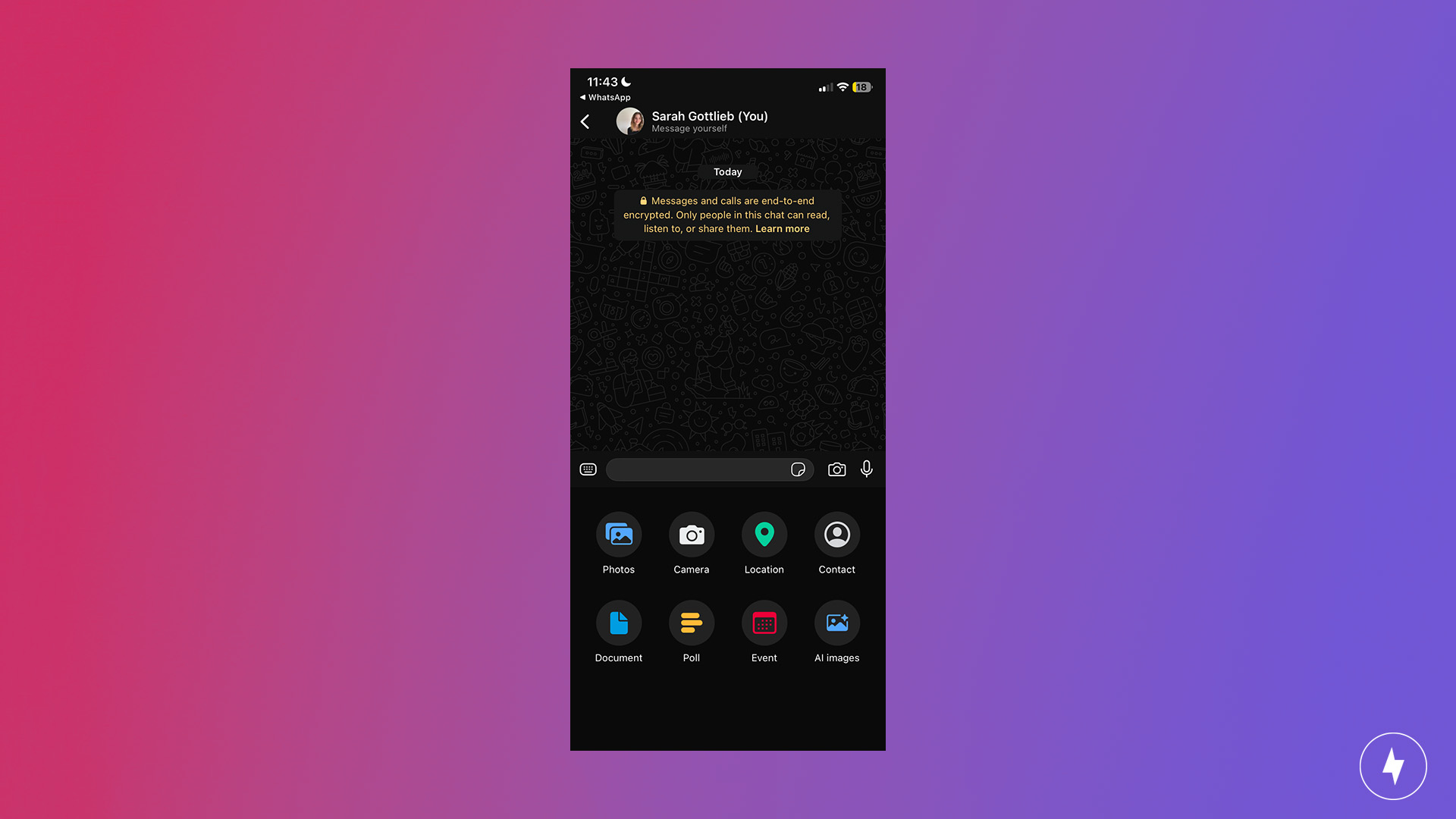
Apps like WhatsApp, Messenger, and MMS texting automatically compress videos to reduce bandwidth usage. This compression lowers resolution, bitrate, sharpness, and color detail. That’s why 4K footage often looks blurry after you send it through text or chat apps.
To avoid quality loss:
- Send videos as “Documents” instead of media files when possible
- Use cloud storage links instead of direct messaging uploads
- Transfer through AirDrop or Quick Share
- Use ZIP folders for organization and minor compression
Compression can be useful when upload speeds are slow. For best results, export videos as MP4 (H.264 or H.265), gradually lower the bitrate, and keep the original resolution if possible.
Physical Transfer (USB & SSD)
For extremely large projects, physical storage can be faster than uploading over the internet. This is especially true for RAW camera footage, 8K video projects, backup archives, and files larger than 100 GB. In these cases, external SSDs offer:
- Faster transfer speeds
- Zero upload waiting time
- No compression
- Reliable offline backups
In many homes, upload speeds are far slower than download speeds. Uploading 100 GB of footage could take hours or even days on slower broadband connections. For professional workflows, mailing or hand-delivering an external SSD is often the most efficient option.
Tips to Make Large Video File Sharing Easier

Before you even hit upload, a few small steps can make the entire sharing process faster, smoother, and less stressful.
- Trim unnecessary footage. There’s no need to send 10 minutes of blank screen or unused takes.
- Change video format. If possible, export the video in a modern, efficient format like MP4, which maintains high quality while reducing file size.
- Split up files. For extremely large files, split them into smaller segments to make them easier to manage and send.
- Use clear names. Always give your file a clear, descriptive name so the recipient knows exactly what they’re opening.
- Test the link or file. Whether it’s a cloud share, transfer link, or hosted video, make sure permissions are correct and the video plays or downloads as intended.
- Symmetrical internet plans. Switching to fiber internet gives you access to symmetrical internet speeds, making downloading and uploading video files seamless.
Frequently Asked Questions About Sharing Large Video Files
What is the fastest way to send a 10 GB video?
The fastest method depends on whether the recipient is nearby or remote. If they’re physically close, using AirDrop, Quick Share, or an external SSD is usually much faster than uploading a massive file to the cloud. External SSDs can transfer large videos in minutes without depending on internet Upload Speed.
For long-distance sharing, cloud storage platforms like Google Drive or Dropbox are more reliable than standard email or messaging apps. Browser-based transfer tools can work for one-time sends, but very large uploads may take longer on slower residential internet connections.
How do you compress video files in a zip folder?
Locate the file on your computer, right-click it, and select Send to, then Compressed (zipped) folder on Windows or Compress on Mac. This process wraps the file in a smaller package that’s easier to upload or send. While ZIP compression won’t reduce a video’s size as much as dedicated video compression software, it can still shave off enough megabytes to meet certain upload limits or make transfers quicker.
What happens if I compress a video into a zip file?
When you compress a video into a ZIP file, the content itself isn’t re-encoded or degraded — it’s packaged more efficiently for storage and transfer. This means the video quality remains identical to the original. However, the size reduction is usually modest because video formats like MP4 are already compressed. The main benefit is convenience: you can bundle multiple files into a single package, protect them with a password, and send them in a single upload rather than several.
Why is my video blurry after sending it via text?
Most texting and messaging apps automatically compress videos to reduce bandwidth and speed up delivery. This compression reduces resolution, bitrate, and overall image quality, which is why HD or 4K videos often appear blurry after being sent.
To preserve quality, avoid sending videos through standard MMS text messages or heavily compressed apps. Instead, share the file via cloud storage links, AirDrop, Quick Share, or send the video as a “Document” attachment when the app supports it.
Is it safe to upload private videos to Google Drive and free file transfer websites?
Yes, Google Drive is safe for storing private videos, as long as you use its security settings. By default, files are private to you until you share them, and you can restrict access to specific people, set links to view-only, or revoke access at any time. For sensitive content, consider adding password protection to the file, verifying recipient permissions, and avoiding public sharing URLs.
Reputable services like WeTransfer, Smash, and Wormhole use secure Encryption and temporary download links, with built-in security features designed for large file sharing. Before uploading sensitive files, check whether the service supports password protection, link expiration, and encrypted transfers.