What Upload Speeds Do I Need to Stream?
Lower FPS means lower upload speeds required, but if you run 60 FPS, you’ll want higher speeds.
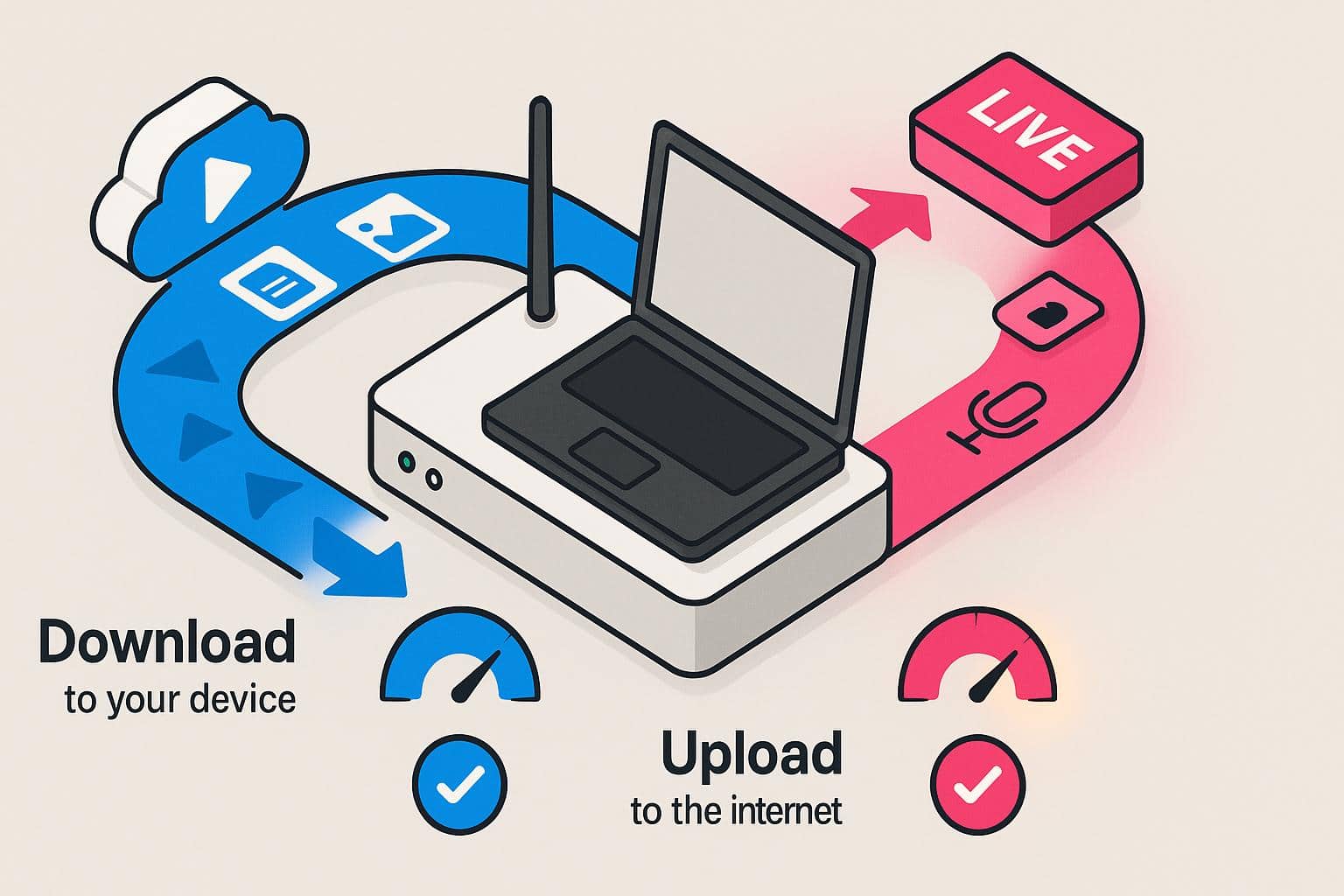
- Most livestreaming platforms require a minimum of 3 Mbps upload speed.
- Video resolution, frame rate, and your preferred platform determine the upload speed you need for your livestream.
- Using an Ethernet cable instead of Wi-Fi helps stabilize your upload speeds.
Livestreaming has become one of the most popular ways to connect with audiences, whether you’re a content creator, gamer, or webinar host. Unlike watching videos online, livestreaming requires sending high-quality video and audio from your device to the internet in real time. That’s where upload speeds come in. If your upload speed is too slow or inconsistent, your stream can lag, pixelate, or drop entirely, disrupting the viewer experience. We’ll break down exactly how much upload speed you need for different types of livestreaming, explain why it matters, and share tips to ensure your streams stay smooth and professional.
Our Video on Upload Speeds for Streaming
Tired of experiencing lag when streaming during a live session? In this video, we break down the best upload speeds for streaming.
Download Speed vs. Upload Speed: What’s the Difference?
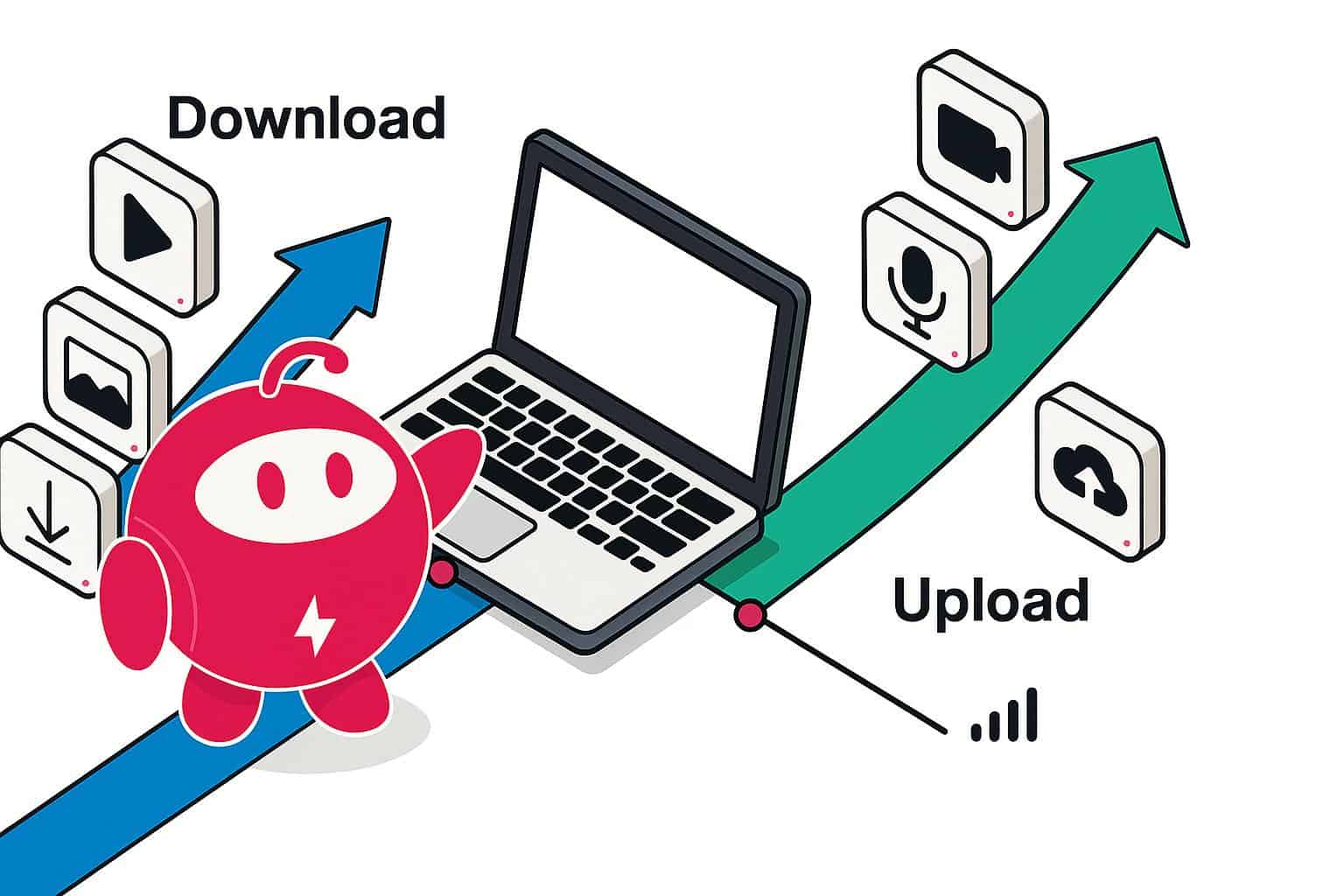
When you think about internet speeds, most people think of download speeds (and they’re the speeds ISPs advertise). Download speeds measure the rate at which data comes to your device and are crucial for activities like streaming movies, browsing social media, or downloading files.
So, how do upload speeds fit in? They measure how fast data travels from your device to the internet. For livestreaming, upload speed is the main character. Every video frame and every second of audio is sent in real time from your device to your streaming platform. If your upload speed is too low, your stream can buffer, stutter, or drop in quality, no matter how fast your download speed is. In other words, a lightning-fast download won’t help your viewers see a smooth, high-quality livestream if your upload can’t keep up.
What’s a Good Upload Speed for Streaming?
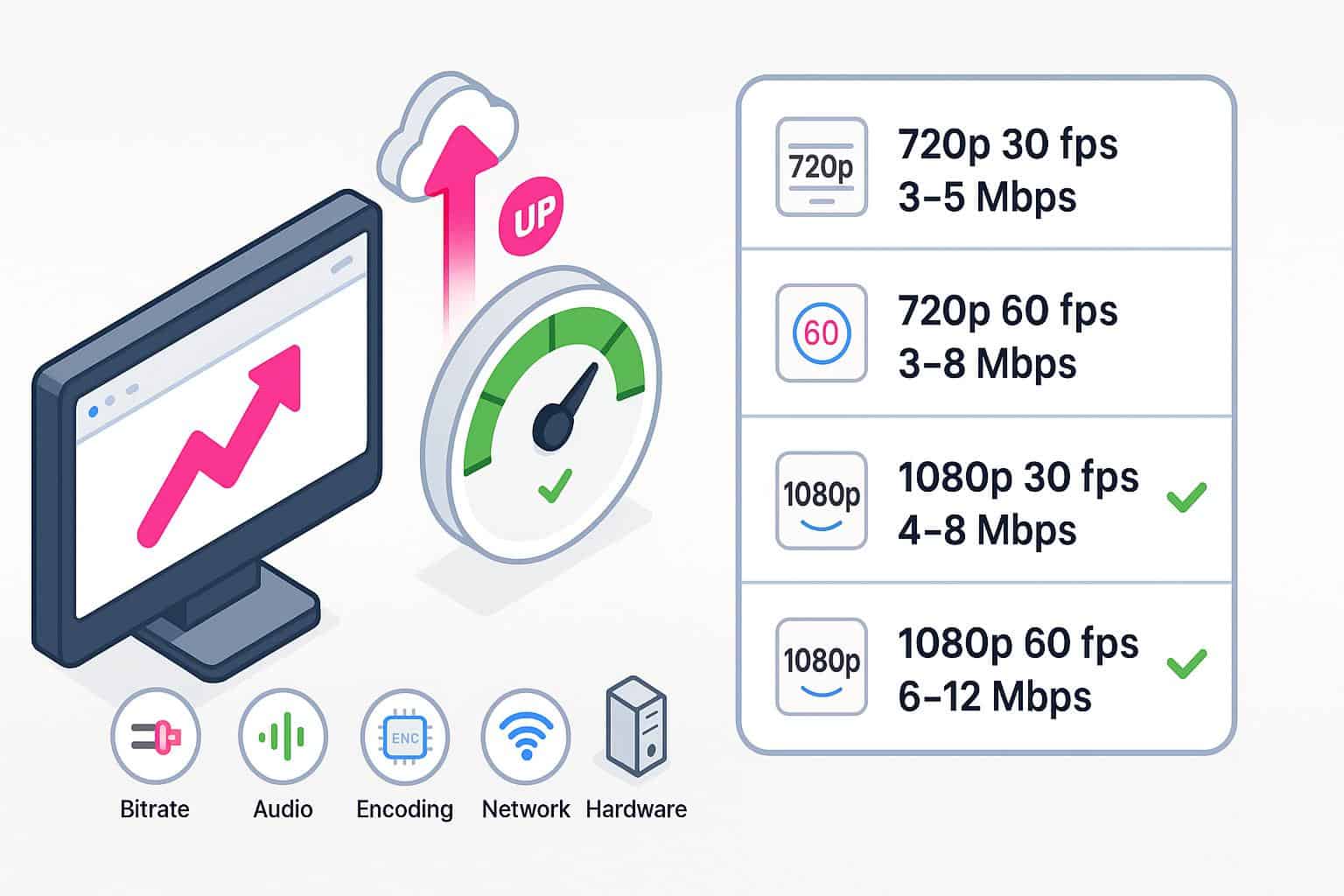
A good upload speed for your livestream depends on the resolution, frame rate, and platform. Some general guidelines can help you plan your stream. Most streaming platforms recommend a minimum upload speed to ensure your video and audio transmit without interruptions. Below is a solid starting point to use for streaming based on resolution and frame rate:
- 3–5 Mbps for 720p at 30 fps
- 3–8 Mbps for 720p at 60 fps
- 4–8 Mbps for 1080p at 30 fps
- 6–12 Mbps for 1080p at 60 fps
Here’s a quick reference for popular livestreaming platforms and the upload speeds they require:
| Platform | Recommended upload speed (Mbps) | Resolution | Frame rate (fps) |
|---|---|---|---|
| Twitch | 6 Mbps | 1080p | 60fps |
| YouTube Live | 3–8 Mbps | 1080p | 30fps |
| YouTube Live | 35 Mbps | 4K | 60fps |
| Instagram Live | 3 Mbps | 720p | 30fps |
| TikTok Live | 2–2.5 Mbps | 1080p | 60fps |
| Facebook Live | 4–9 Mbps | 1080p | 60fps |
| LinkedIn Live | 10 Mbps | 1080p | 30fps |
What Affects Upload Speeds During a Livestream?
Even if your internet plan promises fast upload speeds, several factors can influence how much of that bandwidth is actually available during a livestream. Understanding these variables can help you optimize your setup and prevent dropped frames or poor-quality streams.
- Video resolution and frame rate: Higher resolutions (1080p, 4K) and faster frame rates (60fps vs. 30fps) require more data to be sent in real time. Streaming in 4K at 60fps demands significantly more upload bandwidth than 720p at 30fps.
- Bitrate: Bitrate determines how much data is sent per second during your stream. Higher bitrates improve image quality but require more upload speed. Platforms often recommend specific bitrate ranges, and going above your connection’s capability can cause buffering or lag.
- Audio quality: While audio uses less bandwidth than video, high-quality audio or multiple audio channels (such as commentary plus background music) will slightly increase upload demands.
- Encoding settings: The software you use to encode your stream (like OBS or Streamlabs) impacts how efficiently video data is compressed and sent. Poorly optimized encoding can use more bandwidth than necessary, affecting stream stability.
- Network stability and congestion: Even with a high upload speed, network fluctuations or multiple devices sharing the same connection can reduce available bandwidth. Wi-Fi interference, router limitations, or ISP throttling during peak hours can all degrade your livestream.
- Hardware limitations: Older computers or streaming setups may struggle to encode high-resolution video efficiently, which can bottleneck the stream even if your internet speed is sufficient.
What Types of Internet Have the Best Upload Speeds?
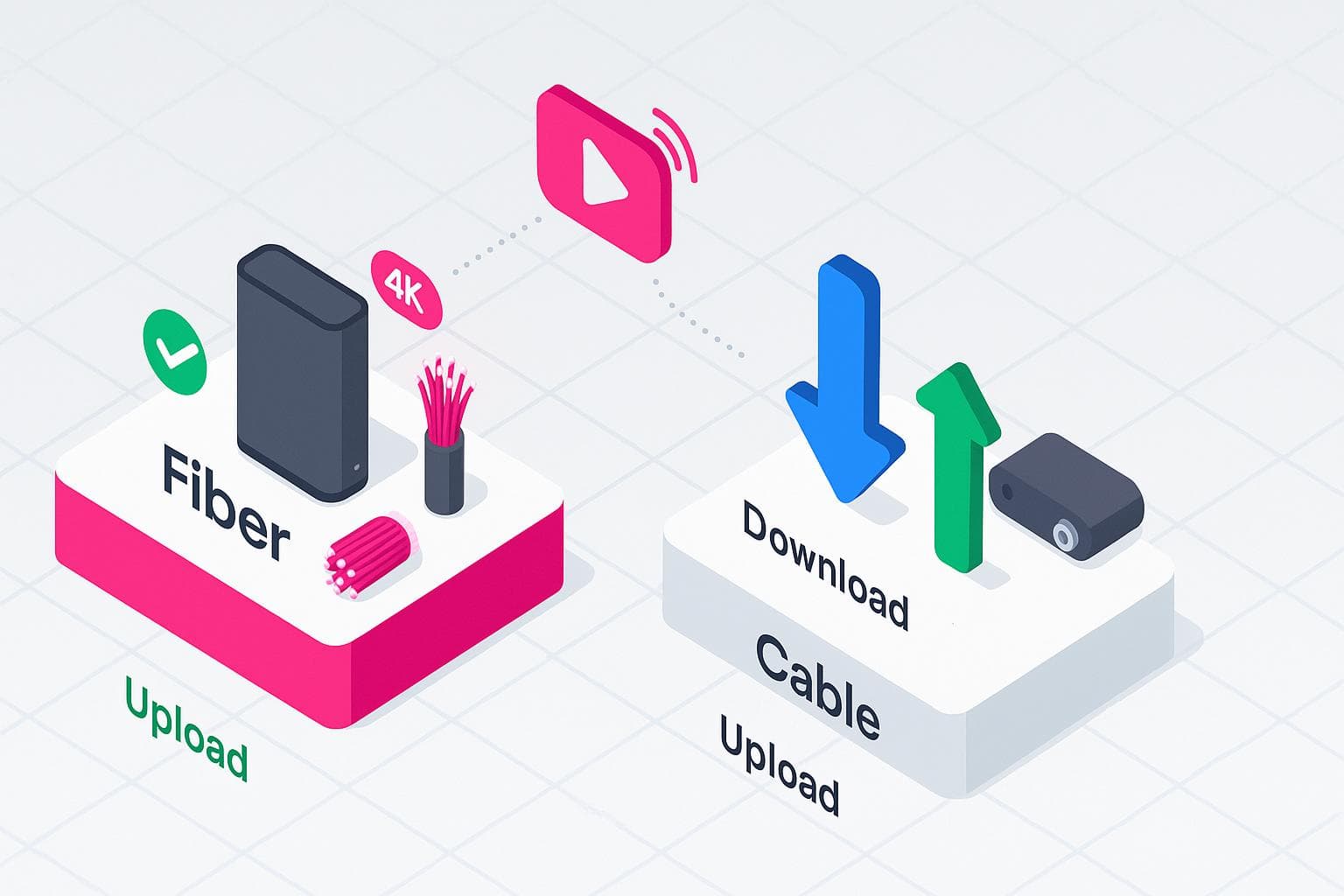
Not all internet connections are created equal. Choosing the right type of internet can make a significant difference in the quality and stability of your livestreams.
Wired internet connections like fiber and cable are leading the charge with speeds that can keep up with livestreams. Fiber connections are widely considered the gold standard for livestreaming. Unlike cable, fiber provides symmetrical speeds, meaning your upload speed is just as fast as your download speed. This allows you to stream high-quality video at 1080p or 4K with minimal risk of lag or dropped frames. Fiber is also less prone to congestion during peak usage hours, offering a more consistent experience.
If fiber isn’t available in your area, cable internet is your next best option. This type of internet offers faster download speeds than upload speeds. While it can handle casual livestreaming, high-resolution, high-frame-rate streams may be limited by the lower upload capacity. Upload speeds can also fluctuate during peak hours when many users in your area are online.
So, which connection should you choose? If you’re livestreaming consistently, going with fiber is the way to go. While fiber isn’t as widely available in some areas as cable, it’s becoming increasingly popular, so if you don’t have it yet, it may not be long before it’s available. In the meantime, a cable connection will provide you with the most stable speeds over DSL or wireless ISPs.
Tips for Improving Upload Speed
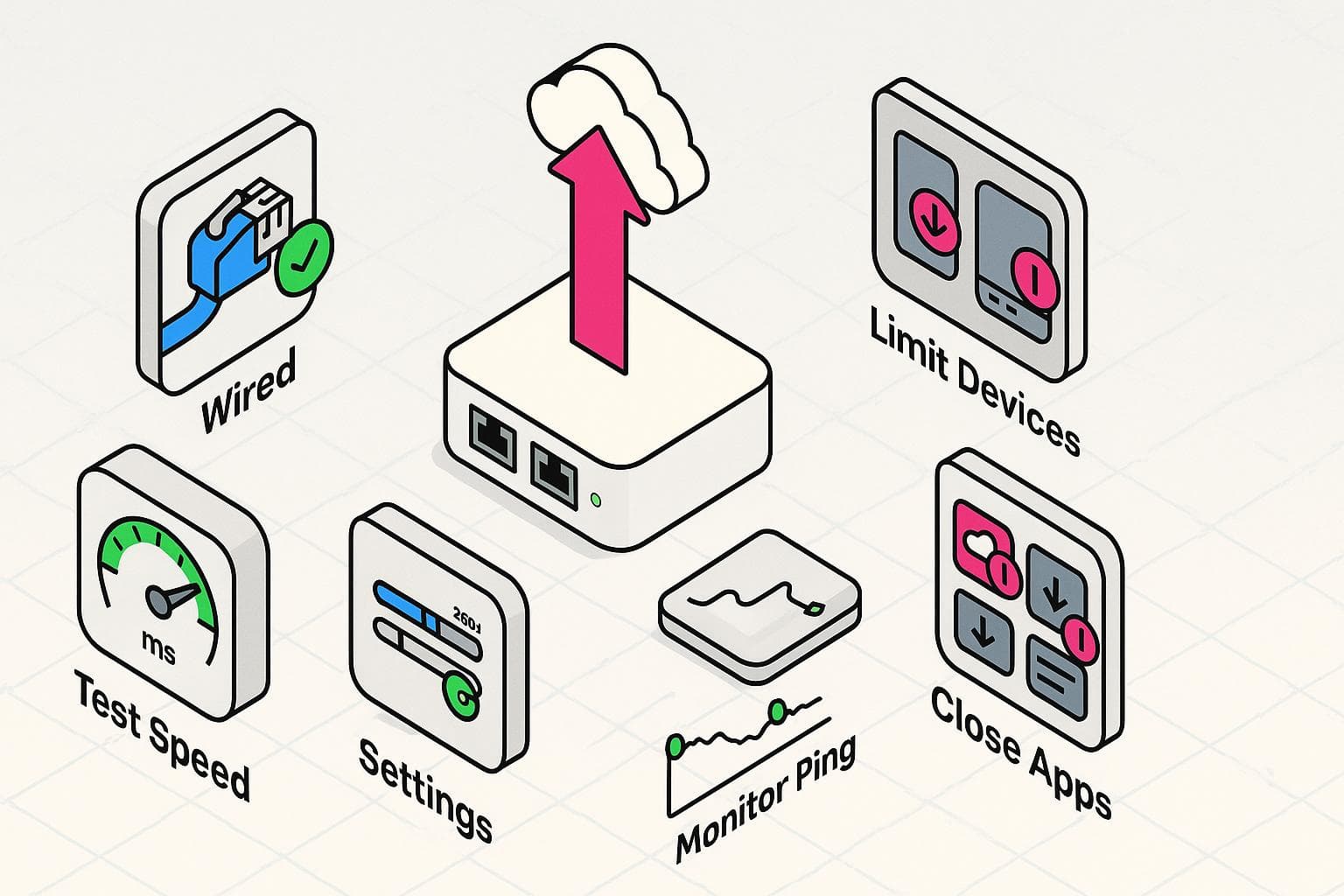
Your livestream can still suffer from lag or poor quality if your upload speed isn’t fully optimized. The good news is that you can take several practical steps to get the most out of your connection.
- Use a wired connection when possible. Wi-Fi is convenient, but it’s more susceptible to interference, signal drops, and distance-related slowdowns. Connecting your computer or streaming device directly to your router via an Ethernet cable provides a more stable, consistent upload speed.
- Optimize your streaming settings. Adjusting resolution, frame rate, and bitrate can make a big difference. If your upload speed is limited, consider streaming at 720p or lowering your bitrate slightly to prevent lag or buffering.
- Limit other devices on your network. Multiple devices using the same network (smart TVs, smartphones, tablets) can eat into your available upload bandwidth. Before going live, try limiting heavy network activity or using Quality of Service (QoS) settings on your router to prioritize your stream.
- Upgrade your internet plan or hardware. If your current upload speeds consistently fall short, consider upgrading your plan or switching to a provider that offers higher or symmetrical upload speeds, like fiber. Upgrading your modem or router can also improve performance, especially for high-bandwidth streaming.
- Test your connection before going live. Run a speed test to verify your actual upload speed and ensure it meets your streaming needs. Doing a trial stream can also help you identify potential issues before broadcasting to a broader audience.
- Close unnecessary applications. Background apps that use internet bandwidth (cloud backups or software updates) can reduce your available upload speed. Close or pause these apps before you go live.
- Monitor network stability. If your connection fluctuates, tools like ping tests or network monitors can help you identify weak spots. Sometimes moving closer to your router or reducing Wi-Fi interference can improve consistency.
Frequently Asked Questions About Streaming Upload Speeds
What is considered a slow upload speed?
Any upload speed that falls below the FCC’s minimum requirement of 20 Mbps would be considered slow. ISPs are required to meet this minimum upload speed in their internet plans.
Can a router increase upload speed?
A router cannot boost your internet plan’s maximum upload speed (your ISP determines that). However, a modern, high-quality router can help you reach the speeds you’re already paying for by providing a more stable, efficient connection.
Does resetting the router help upload speed?
Resetting your router can temporarily improve upload speed, especially if the device has been running for a long time or is experiencing glitches. A reboot clears memory, closes background processes, and can resolve minor connectivity issues that may be throttling your performance. However, a reset won’t increase your ISP’s maximum upload speed.
Will Ethernet improve my upload speed?
Using an Ethernet cable to connect your streaming device directly to the router provides a faster and more stable connection than Wi-Fi. While it won’t increase the maximum upload speed set by your ISP, it reduces interference, signal drops and fluctuations that are common with wireless networks.
How do I test my upload speed?
Use third-party tools online, like BroadbandNow’s free speed test or Ookla’s Speedtest, to get the most accurate results. Connect your device via Ethernet if possible, close background apps, and run multiple tests at different times of day to account for network fluctuations.