This Is the Internet Speed You Need for Zoom
If you experience buffering or dropped Zoom calls, your internet speed might be the culprit.

- The minimum download speed requirement for basic Zoom functions is 0.6 Mbps.
- Frequently update both your computer system and the Zoom application if you run into issues beyond your internet speed.
- Other apps like Skype and Discord also have similar minimum download speed requirements.
Zoom is essential for online work, enabling businesses to hold meetings, connect with clients, and share screens for demonstrations. It’s also useful for staying in touch with distant family and friends. But poor Zoom performance, such as choppy or dropped calls, is frustrating, especially during important discussions. One common cause? Slow internet. While you don’t need blazing-fast speeds for basic Zoom functions, a slow connection can cause issues. In our guide, we cover Zoom’s internet requirements, how to test and improve your speed, and give you troubleshooting tips for smoother calls.
Your Ideal Internet Speed for Zoom
The FCC’s internet speed benchmark of 100 Mbps download and 20 Mbps upload is more than enough for Zoom calls for the average user. While fiber and cable are the most reliable internet options, a fail-safe is essential in case service goes down. (You don’t want your career to suffer from dropping too many calls.) T-Mobile 5G Business Internet offers a SuperBroadband plan that pairs enterprise 5G fixed wireless with Starlink satellite backup on a single bill to deliver automatic failover, traffic load-balancing, and a 99.99% uptime guarantee.
Watch: Why Your Zoom Calls Keep Freezing
Tired of your Zoom calls freezing mid-sentence and looking for a reason why? Check out our video where we explain what’s actually going on and how you can fix it.
What Speed Do I Need for Zoom?

The minimum download speed required for Zoom is around 0.6 Mbps. If you want better resolution and a more stable connection, though, you’ll need more speed. The chart below provides an overview of the minimum download and upload speed requirements for Zoom activities:
| Activity | Speed (download/upload) |
|---|---|
| 1:1 video call in HQ | 0.6 Mbps/0.6 Mbps |
| 1:1 video call in 720p HD | 1.2 Mbps/1.2 Mbps |
| 1:1 video call in 1080p HD | 3.0 Mbps/3.8 Mbps |
| Group video call in HQ | 0.6 Mbps/1 Mbps |
| Group video call 720p HD | 1.8 Mbps/2.6 Mbps |
| Group video call 1080p HD | 3.0 Mbps/3.8 Mbps |
| Webinar call in HD | 0.6 Mbps/0.6 Mbps |
| Webinar call in 720p HD | 1.2 Mbps/1.2 Mbps |
| Webinar call in 1080p HD | 2 Mbps/2 Mbps |
| Audio call | 0.1 Mbps |
| Screen sharing | 0.2 Mbps |
Every additional device and application running can use more of your internet speed. If you have a household with multiple internet users or have other applications open on your computer while using Zoom, you need a plan that provides at least 100 Mbps download and 20 Mbps upload speeds, a benchmark defined by the Federal Communications Commission (FCC).
If you’re sharing a connection, think about everyone’s Zoom use at the same time. A family with two kids in online classes and parents in meetings may need at least 25–50 Mbps to keep things running smoothly. Small businesses hosting frequent group calls should aim for speeds of around 100 Mbps or higher. Students working solo can usually manage with 10–20 Mbps, as long as no one else is streaming or gaming simultaneously.
Use a simple formula to estimate your total bandwidth needs: Zoom bandwidth per user × number of simultaneous users = required bandwidth. So, if each Zoom call needs about 3 Mbps and four people are meeting at once, you’ll want at least 12 Mbps of available upload and download speed to avoid lag or dropped connections.
Upload speed is also critical for Zoom functioning because you’re uploading data when you share your voice, video, or screen. A fiber internet plan will give you symmetrical download and upload speeds. The next best alternative is a wired cable internet connection. Major cable internet providers offer upload speeds of around 35 Mbps, which is much higher than what you need for Zoom.
The good news is that unless you live in the middle of nowhere, finding a provider that offers these speeds is easy. Most major internet providers offer plans with download speeds between 100 Mbps and 5 Gbps. Wired connections offer the fastest and most stable connection for Zoom. If fiber or high-speed cable internet isn’t available in your area, you can still get the speed you need for Zoom from DSL, fixed wireless, and satellite internet providers. Just be aware of unstable connections and data caps. Zoom video calls can use between 0.5 and 2.5 GB of data per hour. For this reason, we don’t recommend satellite internet for Zoom.
Is 5G Good Enough for Zoom?
5G fixed wireless is plenty fast for Zoom, even for small offices without access to fiber or high-speed cable. Basic 720p HD group calls require 1.8 Mbps download and 2.6 Mbps upload per user, while full 1080p HD demands 3 Mbps down and 3.8 Mbps up. Modern 5G business connections easily handle these baselines, though real-world performance depends heavily on upload capacity. Unlike download rates, upload speeds fluctuate based on tower distance, building materials, and peak-hour network congestion.
To see how 5G holds up for your team, use the standard formula: Zoom bandwidth per user × simultaneous users = required bandwidth. For a 5-person office holding concurrent 1080p HD Zoom calls, your core requirements are:
- Download: 3 Mbps x 5 users = 15 Mbps
- Upload: 3.8 Mbps x 5 users = 19 Mbps
Adding a 50% buffer to account for background app traffic brings your target upload speed to roughly 28.5 Mbps.
For small teams in areas without wired infrastructure, T-Mobile 5G Business Internet is a solid option. T-Mobile delivers typical business download speeds of 91–361 Mbps and upload speeds of 21–38 Mbps. With upper upload speeds nearing 40 Mbps, a single gateway can comfortably support 3 to 5 simultaneous HD video streams alongside routine web tasks, making it a fast, flexible alternative when fiber isn’t on the table.
Is My Internet Fast Enough for Zoom?
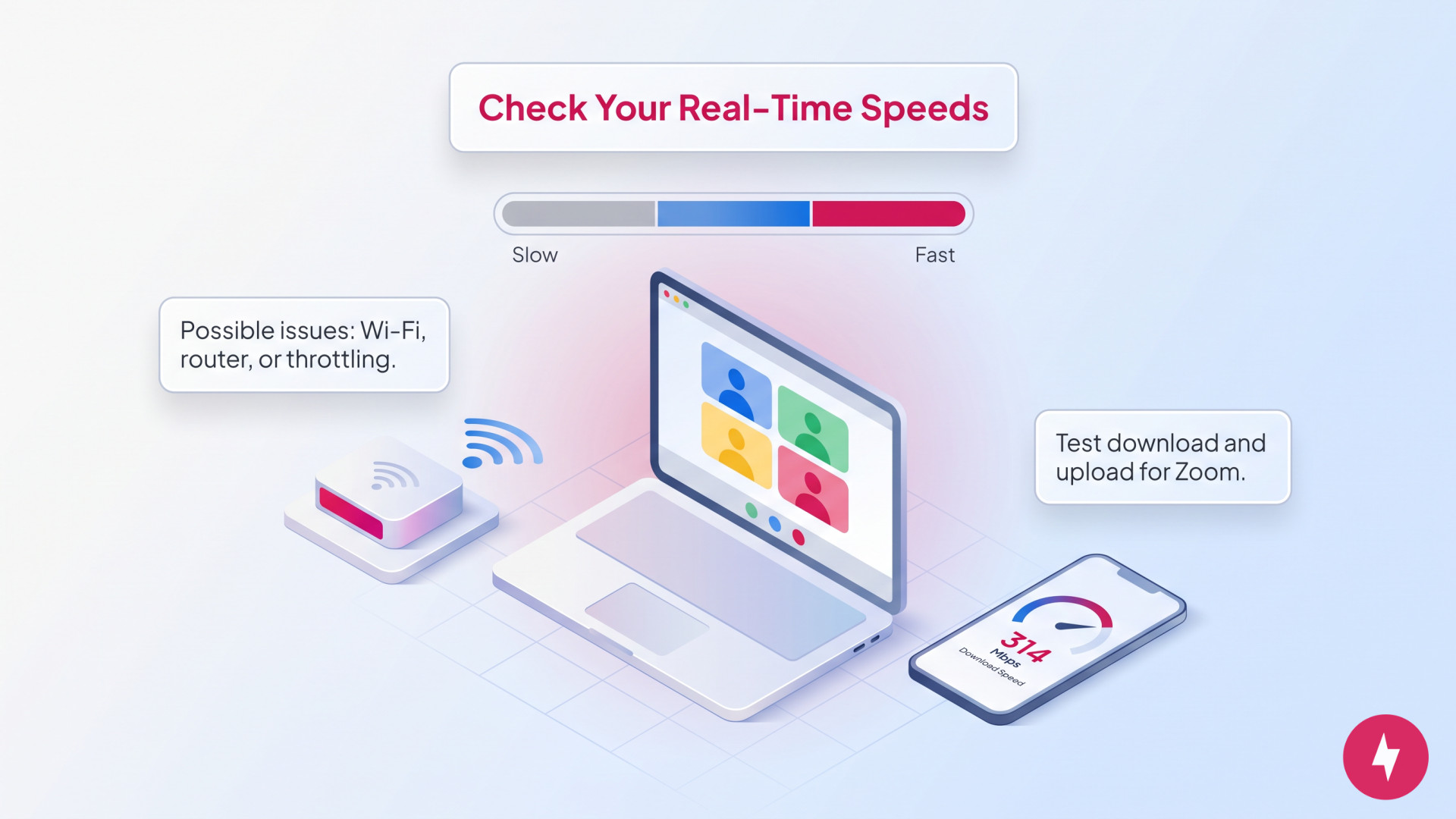
In 2026, the average download speed in the U.S. is 314 Mbps, which is more than enough to use Zoom. If you live in a rural or isolated area, however, you might not have access to major ISPs. Rural internet often relies on fixed wireless or satellite, which can offer speeds slower than what Zoom needs. But T-Mobile 5G Business Internet can be the exception, because the provider can offer enough speed for Zoom calls and the option for a fail-safe plan.
If you don’t live in a rural area, other factors might be limiting the speed your internet service provides. The first step is to find out what download and upload speeds you’re getting in real time.
Test Your Internet Speed: The best way to find out whether your speed is good enough for Zoom is to run a speed test.
If you’re not getting the maximum speed your plan is supposed to provide, the issue may be your router settings, your computer’s Wi-Fi capacity, obstructions to the Wi-Fi signal, data throttling, or a virus.
What If Your Connection Drops Mid-Call?
Dropping an important client call or freezing mid-presentation is a nightmare, but it usually stems from temporary ISP outages, hardware failure, or localized network congestion. If staying connected during business hours is mission-critical, relying on a single wired internet line can leave you vulnerable.
Setting up a redundant backup connection (also known as secondary failover) ensures your traffic automatically reroutes the moment your primary line stutters:
- Mobile hotspots and cellular data: For individual remote workers, switching a laptop to a smartphone’s 5G mobile hotspot is the fastest quick fix during an emergency outage.
- Secondary fixed wireless: Small businesses can plug a secondary wireless gateway into their router, which takes over instantly if a wired connection goes down.
- Managed dual-connection solutions: For small offices that can’t afford even a second of downtime, T-Mobile 5G Business Internet offers SuperBroadband: a managed service that pairs enterprise-grade 5G fixed wireless with Starlink satellite backup.
T-Mobile 5 G Business Internet is the most reliable option, combining two distinct network pathways on a single bill. The provider’s SuperBroadband delivers a financially backed 99.99% uptime guarantee. If your local 5G cell tower or primary line suffers an interruption, traffic seamlessly shifts to satellite coverage so your Zoom meetings stay live without missing a beat.
Why Am I Having Problems With Zoom?
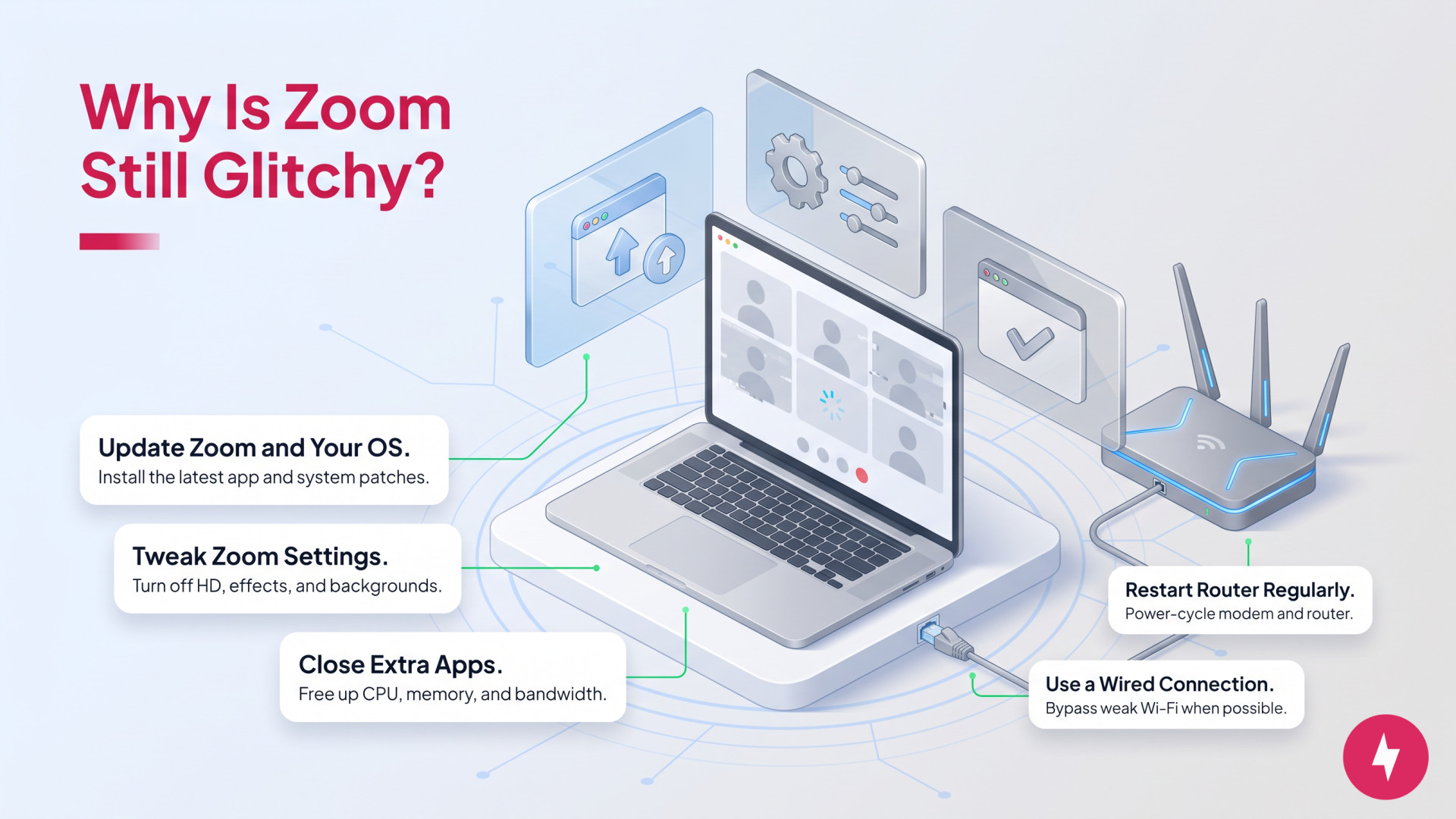
If you’re still having Zoom issues, your internet speed might not be the problem. The following are common troubleshooting tips to ensure Zoom functions properly.
Update the Zoom App
Over time, companies stop supporting older versions of their applications. If you haven’t updated your Zoom app in a while, you may be missing essential patches and bug fixes that prevent problems during calls. Go to Zoom’s Download Center to install the latest version.
Check for System-Wide Maintenance
If you notice that your Zoom performance has suddenly changed, system-wide maintenance may be taking place. You can check for maintenance updates on the Zoom Service Status page.
Change Your Zoom Settings

Try turning off HD video by going to your Zoom video settings and unchecking “Enable HD.” While you’re there, you can also disable “Hardware Acceleration,” “Touch Up My Appearance” and virtual backgrounds. Disabling these will help reduce Zoom’s pull on your computer’s resources. If you still have problems, try disabling video entirely and only using Zoom’s voice-calling option (if your company doesn’t mind you being off-camera).
Update Your Operating System
Operating system updates often fix bugs, enhance security, improve memory and power management, and optimize your network. Update your OS to improve not just Zoom performance, but your computer too. In Windows, you can find system updates in “Windows Update” in Settings. On a Mac, you can find them in the “General” section of your system settings.
Close Other Applications
Closing other applications will free up critical system resources such as CPU, RAM, and network bandwidth. Video conferencing is resource-intensive and can eat up your computing power and memory. If you have an older or cheaper computer, it may not be able to handle multiple applications at once. Try closing other applications during your call to see if performance improves.
Restart Your Internet
The old wisdom is true: When in doubt, turn off your internet, then turn it back on. Restarting your router and modem is the fastest way to fix slow internet, so if you experience it often and a quick restart solves the issue, make it a monthly habit.
Use an Ethernet Cable
If you’ve restarted your router and everything is working correctly, your computer’s Wi-Fi might be the bottleneck. Connecting with an Ethernet cable ensures you’re getting the full speeds your router offers, since it’s a direct wired connection.
Upgrade Your Router Equipment
If Zoom keeps freezing or dropping calls even with a strong internet plan, your router might be the weak link. Older models can struggle to handle multiple video streams or maintain consistent signal strength across devices. Upgrading to a new tri-band router with updated Wi-Fi technology can dramatically improve performance.
What Are the Top Zoom Alternatives?
If you’re curious about the speed requirements for similar apps, check out the chart below for a comparison.
| Application | Minimum download speed | Minimum upload speed | Maximum resolution |
|---|---|---|---|
| Discord | 0.5 Mbps | 0.5 Mbps | Basic Account: 720p
Nitro: 1080p |
| Google Meet | 1 Mbps | 1 Mbps | 1080p |
| Microsoft Teams | 1.5 Mbps | 2 Mbps | 1080p |
| Slack | 1.2 Mbps | 1.2 Mbps | 1080p |
Several of Zoom’s top competitors, like Discord, Skype, and Slack, also require a low minimum speed starting at around 0.5 Mbps. Google Meet and Microsoft Teams require higher download speeds to function. All major video calling apps benefit from a faster connection, and several require more HD video and group calling. For example, although Zoom only requires 0.6 Mbps for basic functions, you need at least 3 Mbps download speed and 3.8 Mbps upload speed to enable 1080p HD.
Not all video calling apps are created equal. Zoom, Google Meet, and Microsoft Teams offer full 1080p HD capabilities on a basic account. Discord and Skype offer 1080p HD, but only with a premium subscription, and Slack doesn’t support HD video calling.
Frequently Asked Questions About Zoom Speeds
Can I use Zoom without Wi-Fi?
You can use Zoom without Wi-Fi on a computer by connecting it to your router via an Ethernet cable or using your phone’s mobile hotspot to connect to the internet. On a phone, you can use mobile data to make Zoom calls.
How much data does Zoom use per hour on mobile data?
Zoom uses between 0.5 GB and 2.5 GB per hour for video calling. Although unlimited phone plans are common, many carriers cap data at as little as 1 GB per month. To avoid unwanted charges, make sure to check your data cap (usually available in your phone’s network settings) before using Zoom on mobile data.
Will Zoom work well on 3G, 4G or 5G networks?
You can use 3G, 4G/LTE, or 5G for video calling. If your bandwidth is low, Zoom will automatically scale to a smaller screen. For the best experience, we recommend going with a 5G connection, such as T-Mobile 5G Home Internet or T-Mobile Business internet.
How many Mbps for Zoom meetings with 100 participants?
If you’re attending, 3–4 Mbps should be plenty since you’re mostly receiving video and audio. If you’re hosting and sharing your screen or streaming HD video, aim for at least 10–20 Mbps upload and download speed to maintain stable quality and avoid lag for all participants.
Why does Zoom lag with fast internet?
Even with fast internet, Zoom can lag due to other factors like network congestion, outdated router equipment, or Wi-Fi interference. Background apps that use bandwidth (like cloud backups or streaming) can also hinder performance.