Steam Deck Internet Not Working? Try These Troubleshooting Tips
Unpause your game and learn how to reconnect your Steam Deck to the internet and boost your download speeds with a few simple hacks.
- Users have experienced difficulties connecting their Steam Deck to the internet due to default system settings or server-related issues.
- Resetting the Steam Deck or adjusting its settings resolves most internet connection issues.
- Some games are playable offline on the Steam Deck if internet issues persist.
Playing your favorite video games on the Steam Deck is convenient, but experiencing lag right before a final boss or during an online competitive match can be frustrating for many gamers. When you want to play your handheld games in peace, the last thing you want to deal with is an unstable internet connection. If you’re experiencing issues with getting your Steam Deck online (and keeping it connected), this guide provides troubleshooting tips to help you get back into your favorite game on the go.
TL;DR: Steam Deck Troubleshooting
Most troubleshooting issues can be solved by resetting your Steam Deck and/or your internet router. In some cases, you’ll need to adjust your Steam settings to fix any other internet-related issues. Consider reconfiguring your router to improve the connection speed on your Steam Deck.
Watch Our Video on Steam Deck Troubleshooting Tips
Short on time? Watch our video to access our best tips for troubleshooting Steam Deck issues.
Common Reasons Why Your Steam Deck Internet Isn’t Connecting
Connecting your Steam Deck to the internet requires some setup, especially if you’re using it for the first time. Whether you plan to use a wired Ethernet connection or want to take advantage of the Steam Deck’s mobility through a wireless connection, it may be challenging to get online on the first try. Below are common causes we’ve experienced of an unstable or disconnected internet connection.
- Steam servers are down. Before checking to see if it’s your internet that’s the issue, check Steam’s server status to see if their servers are down. If servers are offline, your Steam Deck will also be offline until they come back online.
- There are issues with your router. Bad weather? Loose cables? Outdated hardware? All of these can mean your router is preventing your Steam Deck from connecting to the internet.
- Your internet signal is weak. Factors like ISP throttling and your router’s location can create weak internet signals. The farther you are from your router, the weaker the connection will be between your Steam Deck and your internet.
- Network traffic is heavy. While you’re busy queueing up for another online match on your Steam Deck, someone else in your household might decide to stream a movie at the same time. One other person using the internet should be fine, but too many devices at once might overwhelm your network and cause network congestion.
- Steam Deck software is out of date. Without realizing it, your Steam Deck software could be outdated. Software updates include bug fixes that resolve connectivity issues, so it’s recommended to check for them before booting up your games.
Restart Your Steam Deck and Router

Whether it’s my phone or my computer, the first thing I do if my device isn’t working is to restart it. While turning your Steam Deck off and back on may seem like a simple solution, we find that it resolves most troubleshooting issues, including a weak internet connection.
To restart your Steam Deck:
- Press the Steam button on your Steam Deck.
- From the Steam menu, select Power.
- Select Restart.
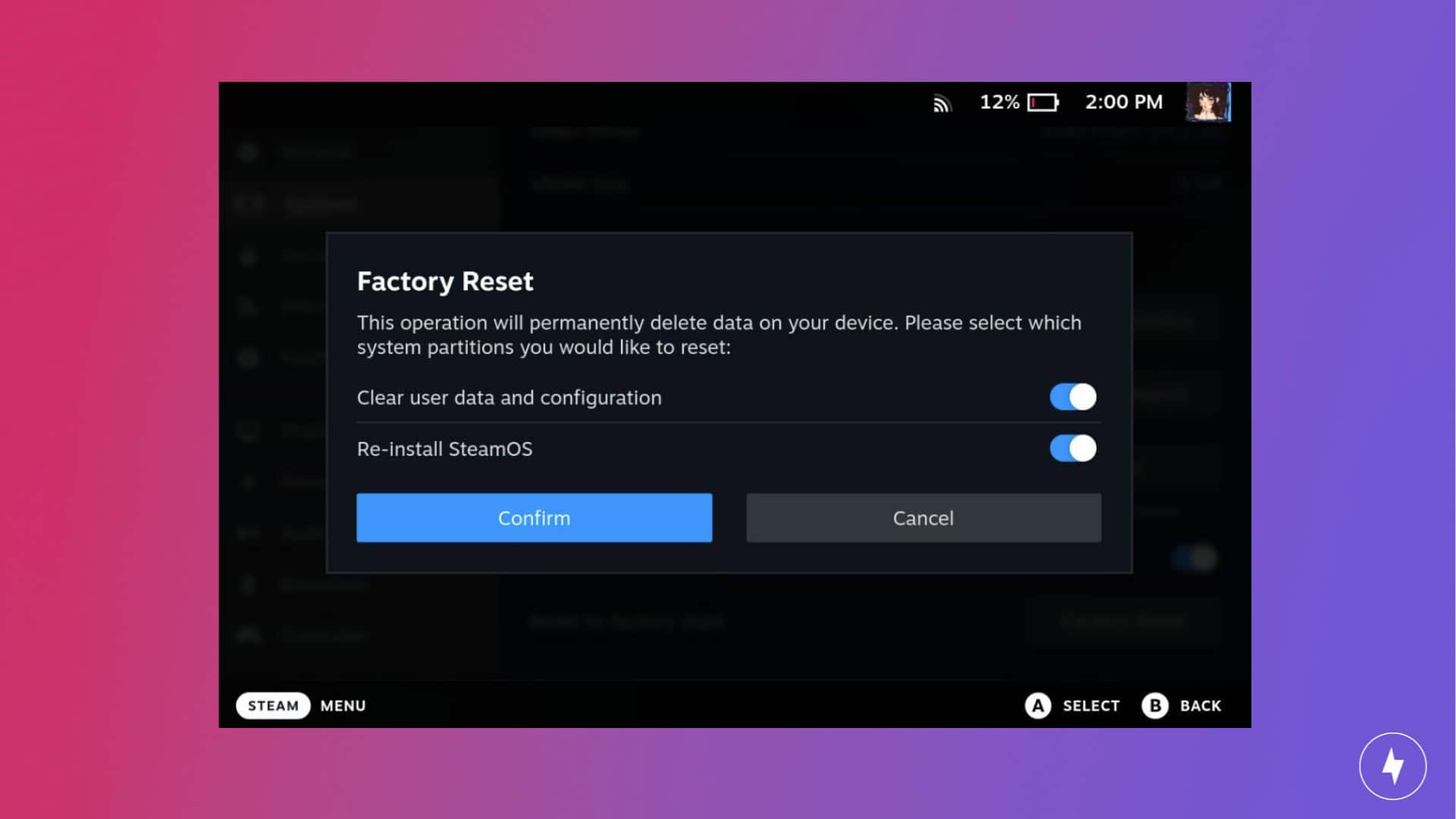
You can also force restart your Steam Deck by holding down the power button for a few seconds. Keep in mind that restarting your Steam Deck is different from performing a factory reset, which will clear all local data and reinstall Steam and SteamOS. We only recommend using this as a last resort, especially if you want to keep all your save files (you wouldn’t want all those hours farming in Stardew Valley to go to waste!).
To perform a factory reset on your Steam Deck:
- Press the Steam button on your Steam Deck.
- From the Steam menu, select Settings and then System.
- Scroll down until you see Reset to factory state and select the Factory Reset button.
- Select whether you want to clear your local data, reinstall SteamOS, or both. Then select Confirm.
It may also be worth restarting your router if restarting your Steam Deck doesn’t resolve the issue. When that happens, unplug your router and wait for a few minutes before plugging it back in. Allow your router to establish a connection before attempting to reconnect on the Steam Deck.
Update Your Steam Deck’s Firmware
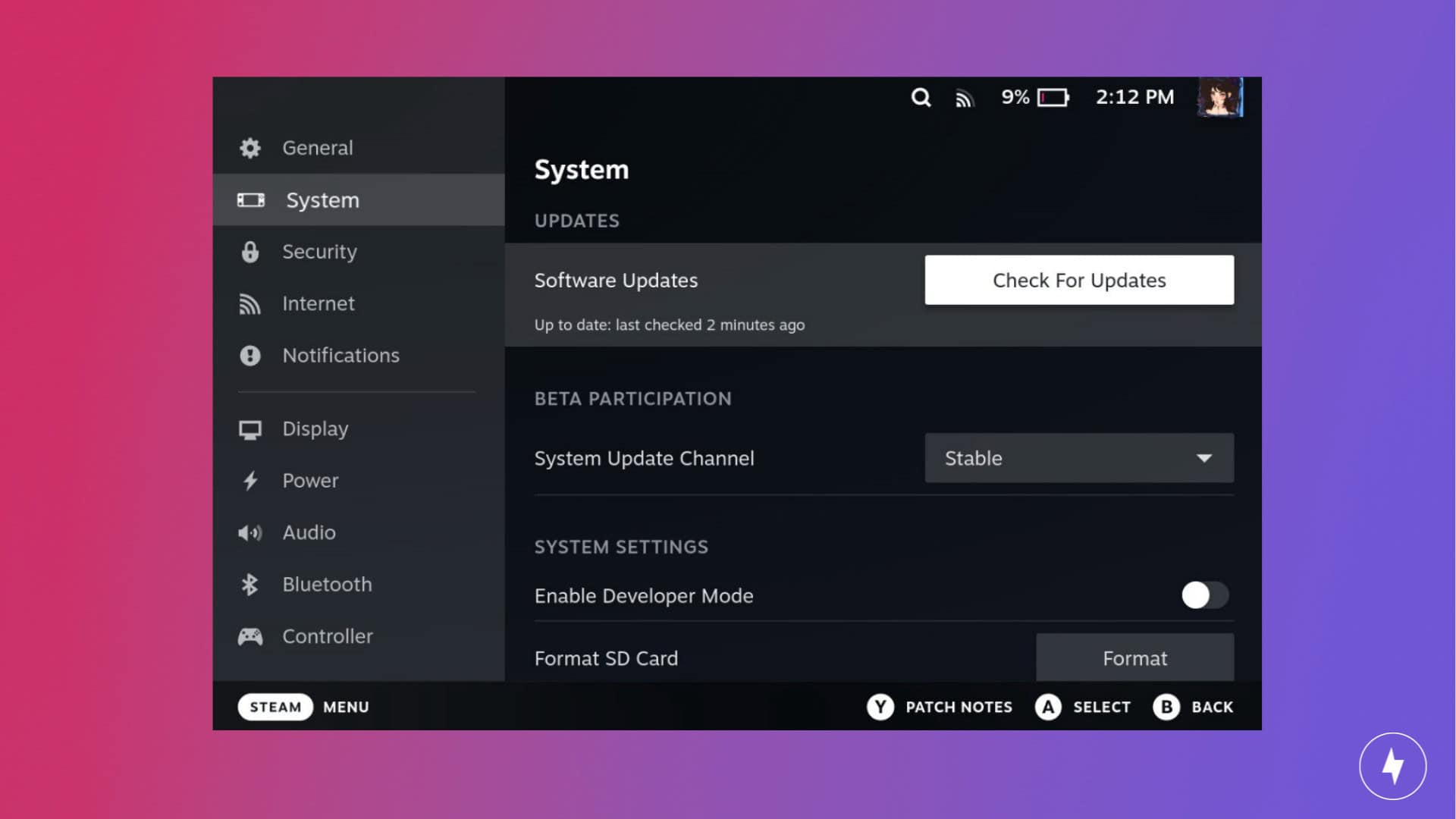
Software updates for the Steam Deck operating system (SteamOS) are crucial, especially when addressing internet connection issues. If you’re already used to updating your Steam games, whether manually or automatically, you can also update your Steam Deck in the same way. In some cases, you may need to install a firmware update before installing the latest version of SteamOS.
To check for Steam Deck updates:
- Press the Steam button on your Steam Deck.
- Select Settings and scroll down to System. If a yellow exclamation point appears next to Software Updates, it indicates that a SteamOS update is available.
- You can also check the Settings icon in the status bar on the home page when you power on Steam.
- If an update is available, select Apply and let your Steam Deck install the update. Once the update is fully installed, select Restart.
- If there’s no update, select Check For Updates. Your Steam Deck will check for updates and let you know if your SteamOS is up to date.
Disable Wi-Fi Power Saving on Your Steam Deck
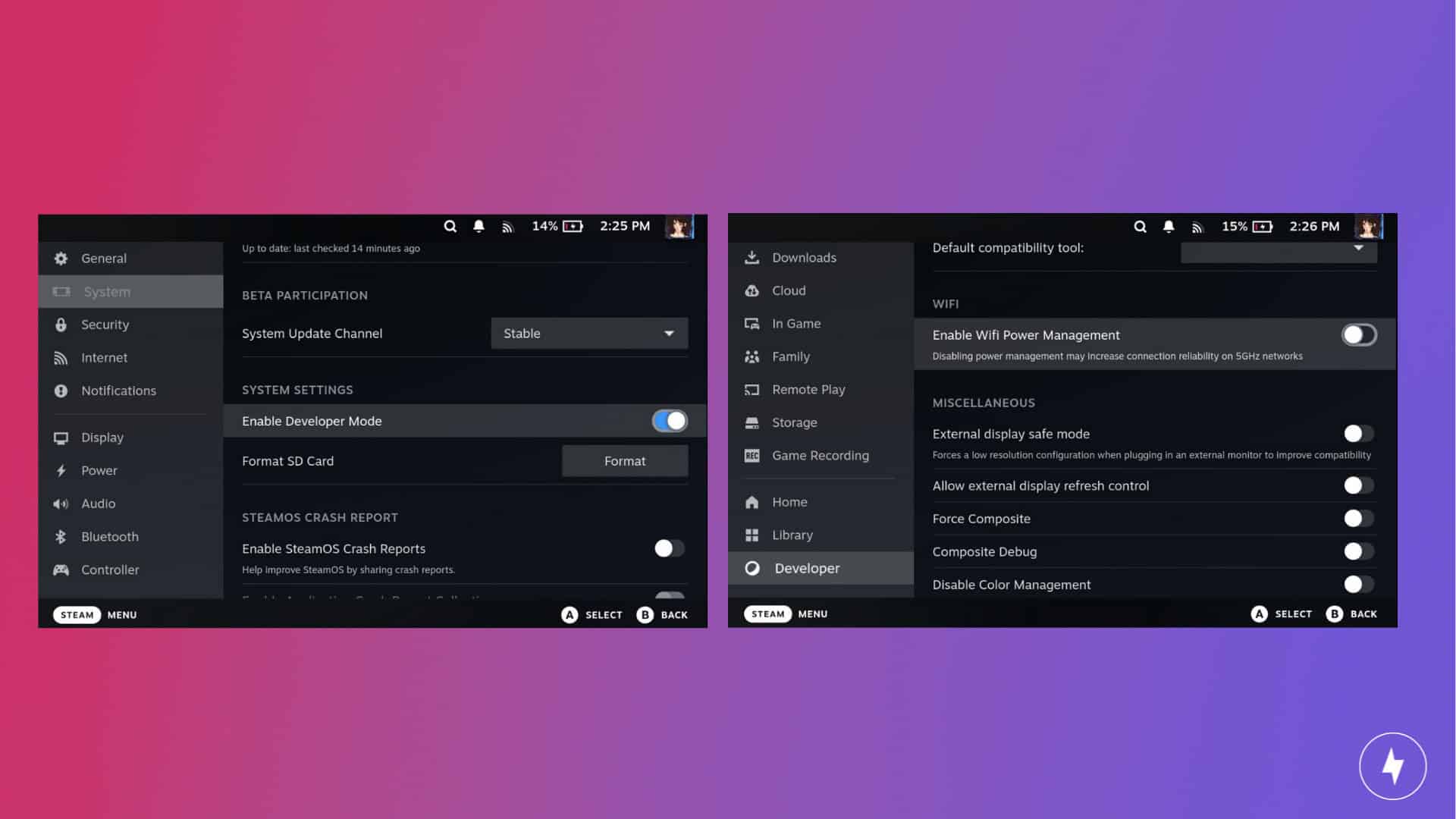
Nothing is worse than randomly disconnecting during an intense game of Marvel Rivals. One reason this could happen is that your Steam Deck is currently in “Wifi Power Management” mode, which is on by default to help extend its battery life. However, this can negatively affect your Wi-Fi connection since it puts your Steam Deck’s Wi-Fi transceiver in a low-power state. If this happens often, you need to disable the “Wi-Fi Power Saving” option to fully restore your Steam Deck’s Wi-Fi performance and reduce your chances of random internet disconnects.
Here’s how to disable Wi-Fi Power Saving on your Steam Deck:
- On your Steam Deck, press the Steam button and select Settings.
- Scroll down the sidebar until you reach System, then scroll down to System Settings.
- Toggle on Enable Developer Mode.
- Go back to the sidebar and scroll all the way down until you reach Developer.
- Scroll down to the Miscellaneous section and toggle off Enable Wifi Power Management. You will need to restart your Steam Deck afterward.
Optimize Your Steam Deck Wi-Fi Connectivity: 2.4 GHz vs. 5 GHz
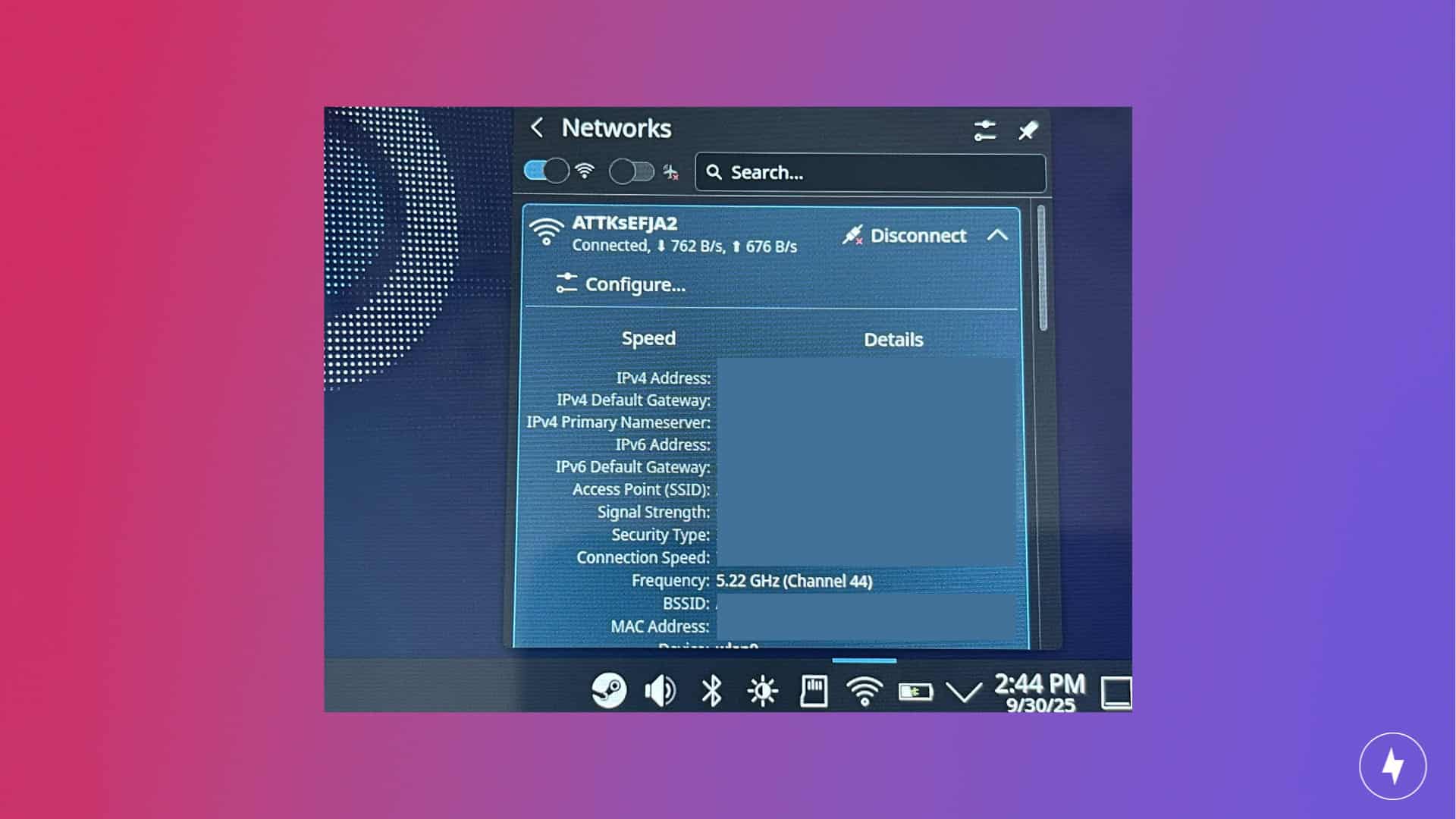
Whether or not your Steam Deck is up to date, you’ll want to be mindful of how different versions of the Steam Deck handle internet connections. The Steam Deck LCD features Wi-Fi 5 support and is compatible with dual-band routers that offer both 2.4 GHz and 5 GHz frequency bands. The Steam Deck OLED is a more powerful console that comes with Wi-Fi 6E support, which is only available with routers that support the 6 GHz frequency band. It’s more expensive, but in return, the Steam Deck OLED offers faster download speeds and a more reliable online gameplay experience.
Most routers feature both 2.4 GHz and 5 GHz frequency bands, each with its own trade-offs. The 2.4 GHz band is slower than the 5 GHz band, but has a larger range. This means that you can take advantage of the Steam Deck’s portability feature without worrying about slow or disconnected internet. The 5 GHz band, on the other hand, is faster, but lacks the extended range of the 2.4 GHz band.
The 5 GHz band also offers more non-overlapping wireless LAN (WLAN) channels compared to the 2.4 GHz band. When channels overlap, it can cause interference and slow down your internet speeds. Keep this in mind when trying to get the best internet speeds for your Steam Deck.
To check the Wi-Fi frequency band:
- Switch to Desktop Mode by pressing the Steam button, then go to Power and select Switch to Desktop.
- In the bottom-right corner of the taskbar, click the network icon (it looks like a Wi-Fi symbol).
- In the pop-up panel, select the name of your connected Wi-Fi network to see more information.
- Select Details and find the frequency. This will tell you whether you’re connected to a 2.4 GHz or 5 GHz network.
Fix ‘Steam Deck Can’t Reach Steam Servers’ Message and Slow Browsing Issue

If you’re constantly seeing the “Steam Deck can’t reach Steam servers” message, you should first check the Steam servers to see if they’re down. Sometimes, Steam performs routine server maintenance that can cause downtime due to unexpected issues, such as network or hardware failures. If you’re having trouble browsing the Steam interface during the downtime, you’ll have to wait until maintenance is complete before resuming. Maintenance usually lasts no more than an hour and won’t occur during peak hours.
Still having a slow Steam browsing experience? You might have one too many downloads happening in the background. Some Steam files are small and quick to download, so they shouldn’t significantly impact your Steam Deck’s performance. However, some games are larger and take longer to install. If this happens, pause a few downloads and let the files finish installing before resuming the rest. If that doesn’t work, try capping your download speeds and limiting bandwidth to improve your connection.
To set a limit on your download speeds on your Steam Deck:
- Press the Steam button and select Settings.
- On the sidebar, select Downloads.
- To limit download speeds, turn on the toggle next to Limit download speed.
- You can also enter your preferred download speed limit in the text field underneath this option.
Advanced Network Fixes For Your Steam Deck
If you’re willing to delve into the technical aspects of your router’s firmware, you can adjust specific settings to enhance your Steam Deck’s internet performance. We recommend starting with a static IP and DHCP (Dynamic Host Configuration Protocol), but managing your QoS (Quality of Service) and DNS settings can also help by reallocating network bandwidth to prioritize your Steam Deck.
You can find these settings in your router’s web interface. To access these settings, follow these steps:
- Open your web browser.
- Type in your router’s IP address.
- You can find the IP address in your network settings.
- Enter your router’s username and password. By default, the username is “admin,” and the password is “password.”
- We strongly recommend changing your password after logging in.
- You should then have access to your router settings, including information about its hardware, DHCP settings, dynamic and static routing, QoS and more.
When Your Steam Deck Can’t Connect Because of Your ISP

Different internet plans and types can impact how your internet connection works with your Steam Deck. Are you experiencing lag or high latency while playing games like Dota 2 or Apex Legends? Does the queue time or loading time take longer than usual? If that’s the case, check to see if your internet’s download speeds match the advertised speeds according to your internet plan by running an internet speed test. A lag spike every once in a while is typical, but a consistently unreliable internet connection is a sign to either reconfigure your internet settings or consider changing your internet plan. We recommend upgrading to a faster internet plan for a smoother online experience.
Which internet type is the best for your Steam Deck? It depends on how often you use your Steam Deck and the types of games you plan to play. An exception is when you’re playing games in Offline Mode, where the type of internet connection (or even the presence of an internet connection) won’t matter. Otherwise, we recommend using a fiber or cable internet connection for a smooth gaming experience. Internet service providers like AT&T, Xfinity and Spectrum offer a range of internet plans for both fiber and cable services.
Play Steam Deck Games Without Internet Using Offline Mode

Offline Mode is a Steam Deck feature that lets you play games without an internet connection. You can still boot up and use your Steam Deck even if you can’t connect online. You can’t use any application that requires an internet connection in Offline Mode.
The initial setup requires an internet connection, but once it’s all done, you’re ready for Offline Mode. Make sure that all the games you want to play offline are installed and fully updated.
- Press the Steam button and select Settings.
- On the sidebar, scroll down to Internet.
- Select Offline Mode.
Successfully Troubleshooting Steam Deck
By following these troubleshooting steps, you should now be reconnected and ready to jump back into your favorite games. If your connection is restored, you can optimize your setup by downloading games in desktop mode during off-peak hours or switching to Offline Mode when gaming away from Wi-Fi. However, if your Steam Deck is still struggling to get online, the issue likely stems from hardware or provider-side bottlenecks: run an internet speed test to determine if your ISP is throttling your speeds, check if an internet plan upgrade or fiber connection is necessary for your gaming needs, or submit a help ticket directly through Steam Support for assistance.
Frequently Asked Questions About Steam Deck Internet Troubleshooting
Can I perform a soft reset for the Steam Deck to fix my internet connection issues?
You can’t perform a soft reset on the Steam Deck, but Steam has a “rollback” option that lets you revert your SteamOS to the last known stable version. This method is less risky than a full factory reset because it allows you to troubleshoot Wi-Fi connectivity issues without erasing your data.
What are the minimum download and upload speeds for using the Steam Deck?
Although the Steam Deck doesn’t have strict internet requirements, we recommend a download speed of at least 100 Mbps if you plan to use it online.
Will docking my Steam Deck improve my internet speed?
While not required for online play, docking your Steam Deck using the Steam Deck Docking Station and connecting it to your router via the built-in Ethernet port can provide a faster and more stable internet connection.
Do I need to disassemble my Steam Deck to troubleshoot it?
Valve (the company behind the Steam Deck) released an official teardown video showing users how to disassemble the Steam Deck in case they want to replace or repair certain parts, especially if it’s for troubleshooting issues. However, it’s best to try the troubleshooting tips above before opening the Steam Deck, as Valve mentions in the video that they strongly discourage users from disassembling it.
Who can I contact if I’m still having trouble connecting my Steam Deck to the internet?
If you’re still unable to connect to the internet on your Steam Deck, you can contact Steam Support through the Steam Support page. From there, you can send a help request to the Steam Support team and connect with one of their team members.